

Excel VBA FreeFile
FreeFile is a function in VBA that is available only as a VBA function, not as a worksheet function. VBA FreeFile function returns the unique integer number to the file, which is opened and preserves the next available file number.
Download FREE VBA FreeFile in Excel Template and Follow Along!
Download Excel TemplateWe usually open files from our computer to either write something or read-only. While referring to those files, we must refer with a unique integer number. The VBA FreeFile function allows us to determine that unique integer number to assign to opening the file to read, write, and open files using VBA.

Now, take a look at the syntax of the OPEN statement.
OPEN [File Path Address] For [Mode to Open] As [File Number]
File Path Address: We need to mention the file address we are trying to open on our computer.
Mode to Open: While opening the file, we need to know what model we will apply. We can use three ways here, “Input Mode,” “Output Mode,” and “Append Mode.”
Input mode to read only the file.
Output mode to wipe out the existing data and insert new data.
Append mode to add new data while retaining the existing data.
File Number: With this argument, we can refer to the file we are opening—this is where the “FreeFile” function plays a vital role and returns the unique integer number.
How to Use the FreeFile Function in Excel VBA?
Now, look at the code below.
Code:
Sub FreeFile_Example1()

 Dim Path As String
 Dim FileNumber As Integer

 Path = "D:Articles2019File 1.txt"
 FileNumber = FreeFile

 Open Path For Output As FileNumber

 Path = "D:Articles2019File 2.txt"
 FileNumber = FreeFile

 Open Path For Output As FileNumber

End Sub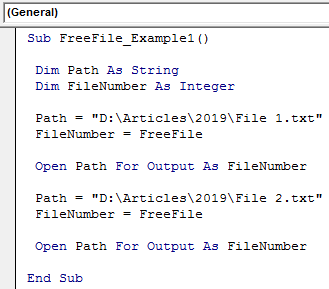
Now, let me decode the above code for you to understand.
First, we have declared two variables.
Dim Path As String, Dim FileNumber As IntegerThen, we assigned the file path with its name.
Path = "D:Articles2019File 1.txt"Then for the one more variable, I have assigned the FREEFILE function.
FileNumber = FreeFileThen, we used the Open statement to open the text file in the file mentioned above.
Open Path For Output As FileNumberNow, we will run line-by-line code by pressing the F8 key and see the value of the variable “FileNumber.”
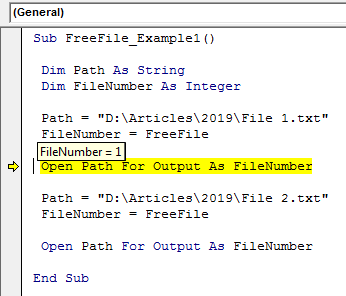
It shows the file number as 1. So, the free file function automatically reserves this number for the opening file. So, while running this, we must open no other files.
We will keep executing the next line of VBA code and see the file number if we jump to the next line.
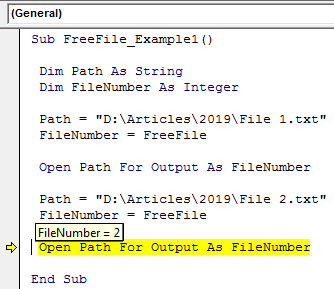
Now it says 2. So the FreeFile function reserves the unique integer number 2 to the second opening file.
FreeFile Function Always Returns 1 if we Close the Excel File.
We need to look at how the VBA FreeFile function always returns one if we close the opened file before opening the second Excel file.
For example, look at the below code.
Code:
Sub FreeFile_Example2()

  Dim Path As String
  Dim FileNumber As Integer

  Path = "D:Articles2019File 1.txt"
  FileNumber = FreeFile

  Open Path For Output As FileNumber
  Close FileNumber

  Path = "D:Articles2019File 2.txt"
  FileNumber = FreeFile

  Open Path For Output As FileNumber
  Close FileNumber

End Sub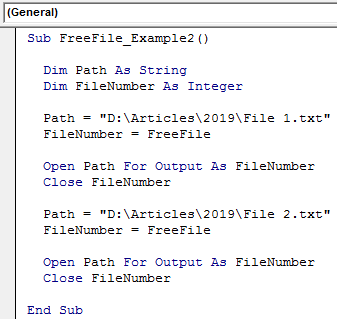
We will again execute the code line by line by pressing the F8 key.

It says 1 as usual.
Now, we will progress to the next level.
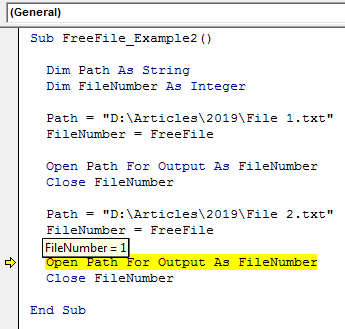
Even in the second attempt, it says 1.
It happens because we have used the Close file statement. As a result, FreeFile recognizes the newly opened file as fresh and returns the integer number as 1.
Recommended Articles
This article has been a guide to VBA FreeFile. Here, we discuss using the FreeFile function in Excel VBA to return the unique integer number to the file opened, with practical examples and a downloadable Excel template. Below you can find some useful Excel VBA articles: –