

Excel VBA MsgBox (Yes/No)
In VBA, using the message box, we can create a yes no msgbox, used to record user input based on clicking yes or no. The syntax to make a yes-no message box is as follows variable = MsgBox(“Text”, vbQuestion + vbYesNo + vbDefaultButton2, “Message Box Title”) where one must declare variable as an integer.
Download FREE VBA MsgBox (Yes/No) Excel Template and Follow Along!
Download Excel TemplateIn VBA coding, we often need to collect the input values from the users to perform some tasks. One of such tasks is collecting the users’ yes or no responses. By using VBA MsgBox Yes No method, we can write the code to proceed further in the code.
In certain situations, we may need to present a “Yes” or “No” option in front of the user to give their response based on them. Then, we can run the VBA code.
For example, look at the below image of the MsgBox in VBA.
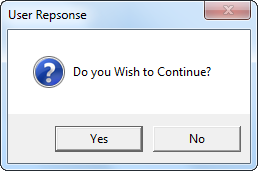
If the user says Yes, “we can write code to perform a specific task,” and if the user says “No,” we can write code to perform another set of tasks.
How to Work with MsgBox Yes/No Response?
Example #1 – Copy and Paste based on Response
Look at the below code.
Code:
Sub MessageBox_Yes_NO_Example1() Dim AnswerYes As String Dim AnswerNo As String AnswerYes = MsgBox(“Do you Wish to Copy?”, vbQuestion + vbYesNo, “User Repsonse”) If AnswerYes = vbYes Then Range(“A1:A2”).Copy Range(“C1”) Else Range(“A1:A2”).Copy Range(“E1”) End If End Sub
Explanation:
The above has declared the variable as String i.e.
Dim AnswerYes As String
In the next line, we have assigned the value through a message box asking, “Do you wish to copy?”.
AnswerYes = MsgBox(“Do You Wish to Copy?”, vbQuestion + vbYesNo, “User Repsonse”)
Now, the IF statement evaluates the response given through the message box. For example, if the message box result is vbYes, it will copy the range A1 to A2 and paste it into cell C1.
If AnswerYes = vbYes Then Range(“A1:A2”).Copy Range(“C1”)
If the response given by the message box is No, then it will copy the range A1 to A2 and paste it into cell E1.
Else Range(“A1:A2”).Copy Range(“E1”) End If
We have entered a few values in cells A1 and A2 now.

Now, we will run the code using the F5 key, or through the run option, a message box will appear in front of us and ask for our response.
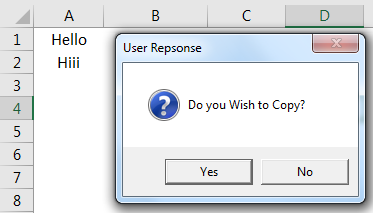
If we click “Yes,” it will copy the range A1 to A2 and paste it into the C1 cell. Now, we will click on “Yes” and see the result.
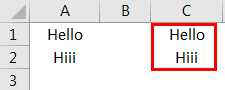
So, it has performed the task assigned if the response is YES.
Now again, we will run the code.

This time we will select No and see what happens.

Yes, it performed the task assigned in the code i.e.
Else Range(“A1:A2”).Copy Range(“E1”)
Example #2 – Hide & Unhide Sheets Based on the Response
The below code will hide all the sheets except the active sheet if the response is yes.
Code:
Sub HideAll() Dim Answer As String Dim Ws As Worksheet Answer = MsgBox(“Do you Wish to Hide All?”, vbQuestion + vbYesNo, “Hide”) If Answer = vbYes Then For Each Ws In ActiveWorkbook.Worksheets If Ws.Name <> ActiveSheet.Name Then Ws.Visible = xlSheetVeryHidden Next Ws ElseIf Answer = vbNo Then MsgBox “You have selected not to hide the sheets”, vbInformation, “No Hide” End If End Sub
The above code will hide all the worksheets except the sheet we are in right now if the response from the message box is YES.
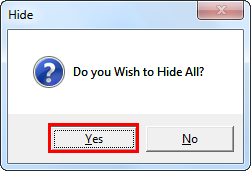
If the response from the message box is NO, it will display the message box saying, “You have selected not to hide the sheets.”

Similarly, the below code will unhide the sheet if the response is Yes.
Code:
Sub UnHideAll() Dim Answer As String Dim Ws As Worksheet Answer = MsgBox(“Do you Wish to Unhide All?”, vbQuestion + vbYesNo, “Hide”) If Answer = vbYes Then For Each Ws In ActiveWorkbook.Worksheets Ws.Visible = xlSheetVeryHidden Next Ws ElseIf Answer = vbNo Then MsgBox “You have selected not to Unhide the sheets”, vbInformation, “No Hide” End If End Sub
It works the same as the hide sheet code. If yes, it will unhide. If not, it will not unhide.
Recommended Articles
This article has been a guide to VBA Message Box. Here, we discuss creating a Yes or No response in the Excel VBA using MsgBox, practical examples, and a downloadable Excel template. Below you can find some useful Excel VBA articles: –