

Excel VBA Text Function
The TEXT is the function available with the worksheet, but unfortunately, it is not a built-in function in Excel VBA. Instead, we need to use the worksheet function class object in VBA to access this function. The TEXT function in Excel converts a value to a specified number format.
Download FREE VBA Text In Excel Template and Follow Along!
Download Excel TemplateOne of the problems with this function is arguments. Whenever we use the VBA worksheet function class, we do not get to see the clear-cut syntax much like in our worksheet. Instead, it just says “Arg1” and “Arg2.”
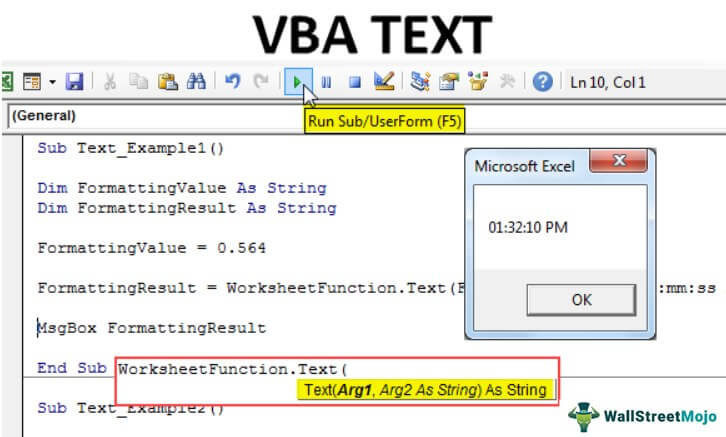

- Arg1 is the value we need to apply the formatting to.
- Arg2 is the formatting we need to apply, and we need to specify the formatting code.
Examples of VBA Text Function in Excel
Below are examples of Excel VBA TEXT functions.
Example #1
Let me show you a simple example of TEXT in VBA Excel. But, first, look at the below code in Visual Basic.
Code:
Sub Text_Example1() Dim FormattingValue As String Dim FormattingResult As String FormattingValue = 0.564 FormattingResult = WorksheetFunction.Text(FormattingValue, “hh:mm:ss AM/PM”) MsgBox FormattingResult End Sub
Firstly, we have declared two variables as a string in VBA.
Dim FormattingValue As String Dim FormattingResult As String
For the first variable, we have assigned the formatting number we need to format.
FormattingValue = 0.564
Now, for another variable, we have assigned the TEXT function.
FormattingResult = WorksheetFunction.Text(FormattingValue, “hh:mm:ss AM/PM”)
If you observe, we have applied the formatting of time, i.e., “hh:mm:ss AM/PM.”
Then, finally, we applied a VBA message box to show the result.
MsgBox FormattingResult
When we run the code TEXT function, we will apply the time format to the number 0.564 and display the result below.
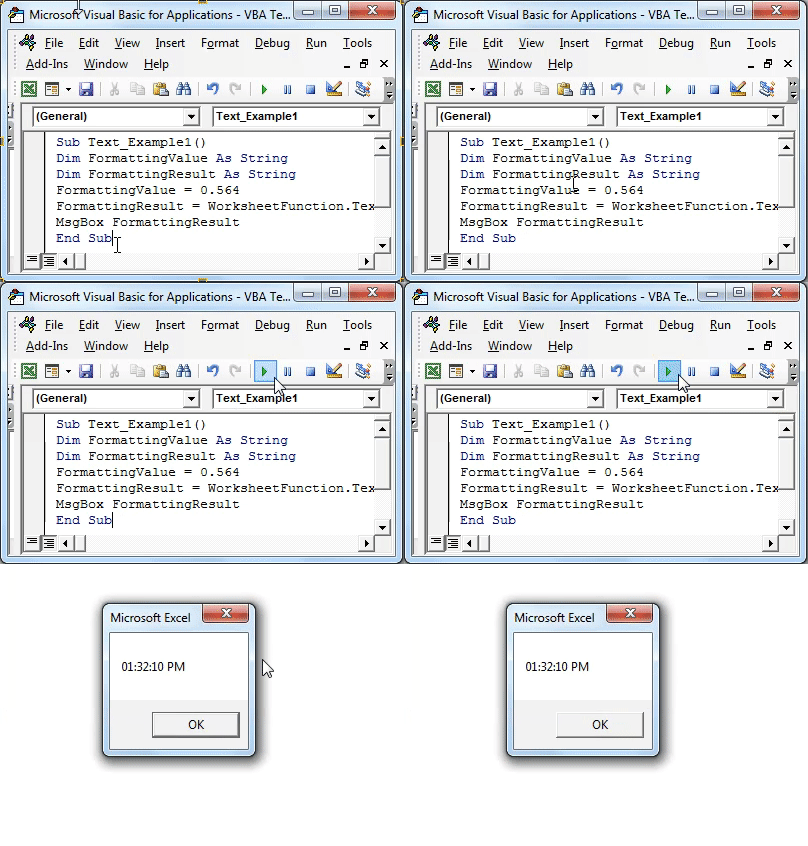
So, we got the time as “01:32:10 PM”.
Example #2
Similar to the date format example, we have made some minor changes in this example. Below is the code.
Code:
Sub Text_Example2() Dim FormattingValue As String Dim FormattingResult As String FormattingValue = 43585 FormattingResult = WorksheetFunction.Text(FormattingValue, “DD-MMM-YYYY”) MsgBox FormattingResult End Sub
From the previous code, we have changed the formatting value from 0.565 to 43585 and changed the formatting style to “DD-MMM-YYYY.”
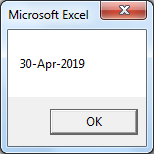
It will apply the formatting to the number 43585 as the date, and the result is as follows.
Apply Formatting to Cells
We have seen simple examples. Now, look at how to work with cells in a worksheet. For this example, look at the below data.
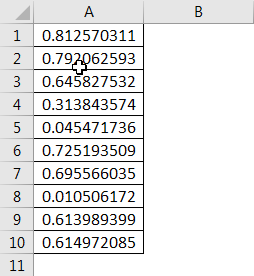
For all these numbers, we need to apply the time format. This code will apply the formatting.
Code:
Sub Text_Example3()
Dim k As Integer
For k = 1 To 10
Cells(k, 2).Value = WorksheetFunction.Text(Cells(k, 1).Value, “hh:mm:ss AM/PM”)
Next k
End Sub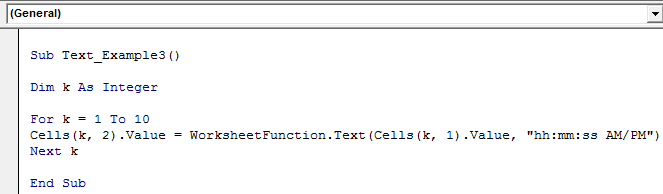
This code will loop through 10 cells and apply the formatting below.
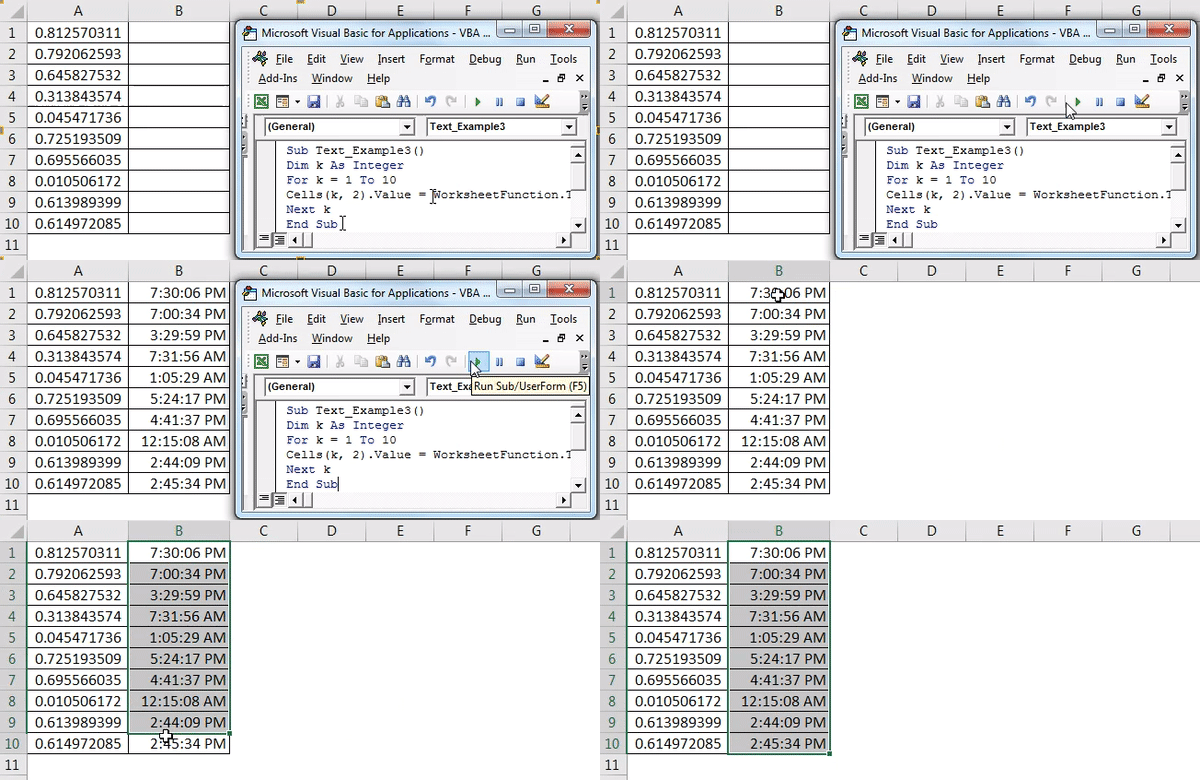
Using the VBA TEXT function, we can apply number formatting to the cells.
Recommended Articles
This article has been a guide to VBA Text Function. We discussed using the Text function in Excel VBA and some practical examples. Also, you can learn more about VBA from the following articles: –