

What Is #VALUE! Error In Excel?
Error is a common and integral part of Excel formulas and functions, but fixing those errors is what makes you a pro in Excel. As a beginner, finding those errors and restoring them to work correctly is not easy. Every error mostly occurs only because of a user’s mistakes. So, it is essential to understand these mistakes and why those errors are happening. In this article, we will show you why we get #VALUE! Errors in Excel and how to fix them.
Download FREE #VALUE! Error in Excel Template and Follow Along!
Download Excel TemplateFor example, the simple formula may return as the #VALUE! Error if a space character in any cell is created to clear a cell. To fix the error, the cell which contains a space character needs to be selected and then pressed the Delete key.
Key Takeaways
- The #VALUE! error occurs when Excel expects one data type but encounters another incompatible data type in a formula.
- This is more common when performing mathematical operations where the referenced cells contain text, spaces, or non-numeric values
- To solve this issue, one can use the Evaluate Formula tool or test each formula part to isolate the problem.
How To Fix #Value! Error In Excel?
Case #1
#VALUE!: This Excel error occurs for multiple reasons depending upon the formula we use. The most common reason for this error is the incorrect data type used in the cell references.
Example
Look at the below formula for adding different cell values.
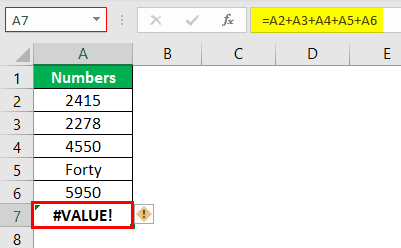
In the above basic Excel formula, we are trying to add numbers from A2 to A6 in cell A7, and we have got the result of #VALUE! Error. In cell A5, we have a value as “Forty,” which is the wrong data type, so it returns #VALUE!
To get the correct sum of these numbers, we can use the SUM function in Excel.
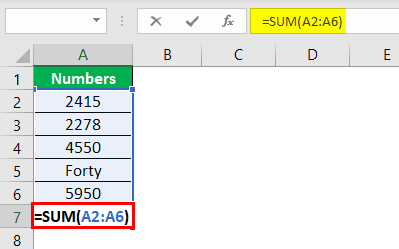
We get the following result.
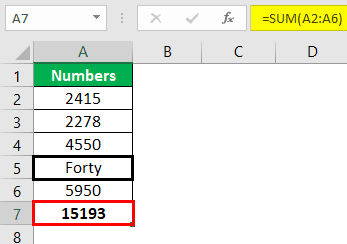
The SUM function has ignored the wrong data type in cell A5, adding the remaining cell values and giving the total.
Otherwise, we can change the text value in cell A5 to get the correct result.

For the earlier formula, we have only changed the A5 cell value to 4,000. So now, our previous function is working properly.
Case #2
Now, we will see the second case of #VALUE! Error in Excel formulas.
Example
- Look at the below formula
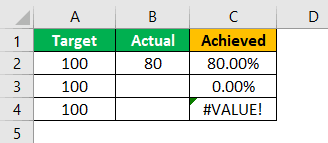
We have divided column B with column A. And we have got three different results.
- Result 1 says B2/A2. In both cells, we have numerical values, and the result is 80%.

- Result 2 says B3/A3. Since there is no value in cell B3, we have got the result of 0%.
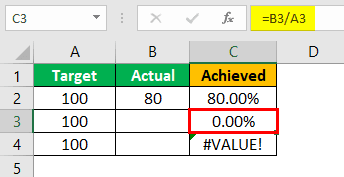
- Result 3 says B4/A4. It is also the same case as Result 2.
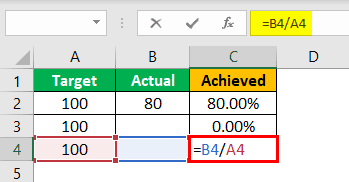
- We have got an #VALUE! Error, and must see why!

- The main reason for this error is that the empty cell is not truly blank because there could be an errant space character.
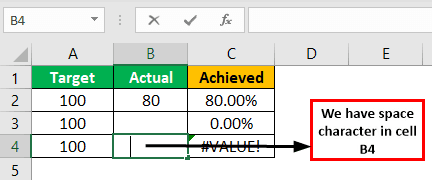
In cell B4, we have a space character that is not visible to naked eyes. However, it is the reason why we have got #VALUE! Error.
We can use the LEN Excel Function or ISBLANK Excel function to deal with these unnoticeable space characters.
- LEN function will give the number of characters in the selected cell. LEN considers a space character as a single character.
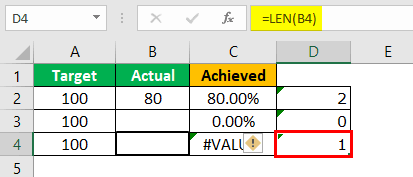
Look at the above function. We have got one character resulting in cell B4, which confirms B4 cell is not an empty cell.
- Similarly, the ISBLANK function shows TRUE if the cell is empty. Otherwise, it shows FALSE.
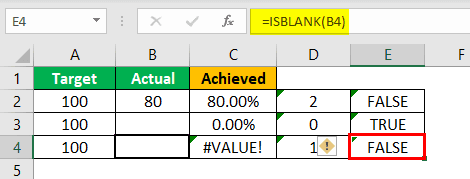
- Look at the above result. We have got FALSE as a result for the B4 cell. So, we can conclude that cell B4 is not an empty cell.
Case #3
Another case of resulting #VALUE! Excel error is because the function argument data type is wrongly stored.
Example
Look at the below image.
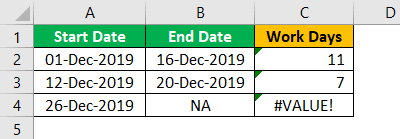
- In the above formula example, we have used the NETWORKDAYS Excel function to find the actual working days between two dates.
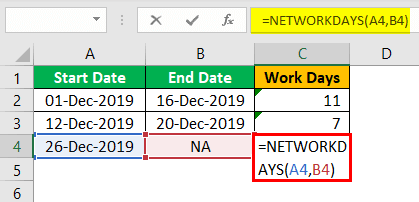
- The first two cells got the result, but we have an error result of #VALUE!

The end date in the B4 cell has the value of NA, the non-date value, resulting in #VALUE!
- We need to enter the proper date value in cell B3 to correct this error.
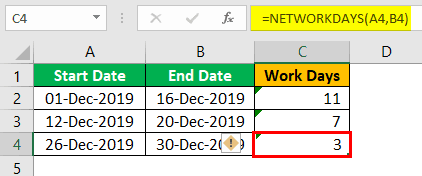
There is also another chance of getting the same error even though we have the date value.
- For example, look at the below cell.
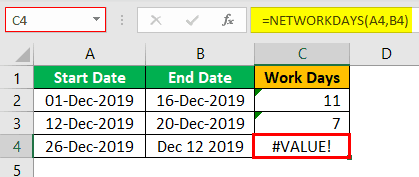
Even though we have a date in cell B4, we still have the #VALUE! Error. In cell C4, a date is not a date stored as a text value, so we need to convert this to a proper date format to get the correct result.
Things To Remember Here
- Other error values are explained in separate articles. This article is dedicated to #VALUE! Error.
- The #VALUE! Error occurs for multiple reasons. We have listed above all the possible scenarios of this error.
Frequently Asked Questions (FAQs)
What are the common causes of #VALUE! error in Excel?
Some of the common causes of the #VALUE error include:
- Supplying the wrong data type, like trying to add text.
- Presence of extra spaces. Thus, values may not be recognized properly.
- Passing incorrect arguments to functions can cause this error.
- Having blank cells in calculations can cause this error, as some functions return this error if they encounter empty cells
How to fix the #VALUE! Error in Excel?
Use the following functions to fix the #VALUE error.
- We use the ISTEXT() or ISNUMBER() to check for the required input types
You can clean the data using the following function.
- The function =VALUE(A1) converts text to a number.
- The function =TRIM(A1) to remove extra spaces.
- The function =CLEAN(A1) to remove non-printable characters.
How to evaluate formulas line by line for the #VALUE error?
To evaluate formulas step-by-step, follow the below steps.
Go to the Formulas tab on the Excel Ribbon. You have to click Evaluate Formula in the Formula Auditing group. Here, we get a dialog box. Press Evaluate repeatedly to go through each step of the formula.
Recommended Articles
This article has been a guide to Excel #VALUE! Error. Here, we discuss fixing a value error in Excel with examples and a downloadable Excel template. You may learn more about excel from the following articles: –