

What Is VBA Macro In Excel?
A VBA Macro is nothing but a line of code to instruct Excel to do a specific task. Once we write the code in VBA, we can execute the same task at any time in the workbook. The macro code can eliminate repetitive, boring tasks and automate the process.
Download FREE VBA Macros Excel Template and Follow Along!
Download Excel TemplateIf you are new to VBA, this is the article to start your journey in Macros. So, let us start learning how to write some basic VBA codes with this article. .
VBA Visual Basic for Applications is the programming language for Microsoft products like Excel, Word, and PowerPoint. All the programming can be done in the VBE (Visual Basic Editor). It is a platform to write our code of tasks to execute in Excel. To start with VBA coding in Excel, we must first learn to record a Macro.
Enable Developer Tab In Excel
VBA coding is available under the Developer tab in Excel.
If you cannot view the Developer Tab in Excel, follow the below steps to enable it.
Note: Here, we are using Excel 2016 version.
Step 1: Go to the File tab.

Step 2: Under File, go to Options.

Step 3: Select Customize Ribbon.
You will see the Excel “Options” window. From that, select the Customize Ribbon option.

Step 4: Check the box Developer Tab to enable it, as shown below.

Step 5: Click on OK to enable it.
Now, you should see the Developer tab.

How To Record Macros In Excel VBA?
Here, we will look at how to record a macro in Excel.
Example #1
We will start straight away by recording the Macro. Now, under the “Developer” tab, click on Record Macro.

As soon as you click on it, Excel asks you to give a name to your Macro.

Give it a proper name such that it should not contain any space or special characters. For example, you can give underscore (_) as the word separator and then click on “OK” to start the recording.

From now, the macro recorder keeps recording all your activities in the Excel sheet.
Firstly, we select cell A1.

Now, we type “Welcome to VBA” in the A1 cell.

Next, we will click on ”Stop Recording” under the “Developer” tab.

So, Excel stops recording our actions in Excel. Now, let us see how Excel recorded them. Under the “Developer” tab, click on “Visual Basic.”

As soon as you click on “Visual Basic,” we will see the below window.

Double click on “Modules.”

Now, we will see the code on the right-hand side.

The Macro code always starts with the word Sub.
All the macros have two parts: the “Head” and the “Tail.” Also, every macro has a name.

Between the head and tail of the macro, Excel records all the activities.
The first thing we did after we started to record the macro was that we selected cell A1, and Excel recorded it as Range (“A1”). Select.
The second actionwas when we entered the value “Welcome to VBA.” When we selected it, it became an active cell, so Excel recorded the activity as ActiveCell.FormulaR1C1 = “Welcome to VBA.”
Note: R1C1 is row 1, column 1.
A third activity is after typing the word “Welcome to VBA,” we press the “Enter” key, and Excel selects the A2 cell.
Likewise, the Macro recorder recorded all our actionsin the Excel sheet. Now, delete the word in cell A1.

After deleting the word, go to VBE, where our code is present again. Click on the “Run” button to enter the same text value to cell A1.
Note: The shortcut key to run the code is F5.

So the macro we have created by recording is executed, and we get the same value again. Similarly, we can automate our daily tasks to save time and eliminate repetitive manual work.
Example #2
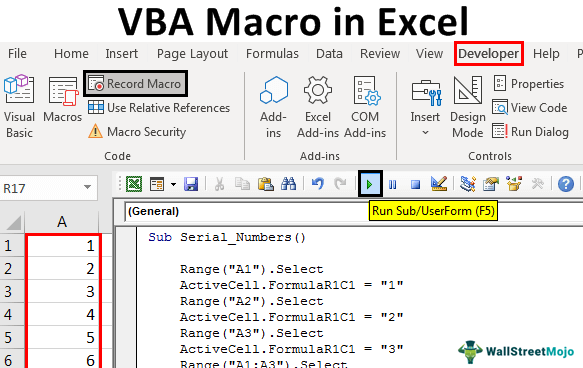
Now, let us record one more macro to understand the topic better. In this recording, we will insert serial numbers from A1 to A10.
Go to the “Developer” tab and click on the “Record Macro” option, as shown in the above example.

Click on “OK” to start the recording. First, we will enter 1, 2, 3, and then drag the fill handle to insert serial numbers.
Using “Fill Handle,” we will insert serial numbers.

Now, click on “Stop Recording.”

Go to “Visual Basic Editor” and see what the code is.

Let us look at the code now. Firstly, we have selected cell A1.
Code:
Range (“A1”).Select
Secondly, we have inserted 1 into the active cell.
Code:
ActiveCell.FormulaR1C1 = “1”
The third activity was when we selected cell A2.
Code:
Range (“A2”).Select
The fourth activity was we inserted 2 into the active cell.
Code:
ActiveCell.FormulaR1C1 = “2”
The fifth activity was when we selected cell A3.
Advertisement
Code:
Range (“A3”).Select
In the sixth activity we inserted 3 into the active cell.
Code:
ActiveCell.FormulaR1C1 = “3”
Then, we selected the range of cells from A1 to A3.
Code:
Range (“A1:A3”).Select
After selecting the cells, we filled the serial numbers using the fill handle.
Code:
Selection.AutoFill Destination:=Range(“A1:A10”), Type:=xlFillDefault
So finally, we have selected the range A1 to A10.
Code:
Range (“A1:A10”).Select
So, you can run this code whenever we want to insert serial numbers from 1 to 10 in cells A1 to A10.
How To Save A Macro Workbook?
One must save the Excel workbook containing macro code as “Macro-Enabled Workbook.” Then, click “Save As” and select the file’s extension as “Macro-Enabled Workbook.”

How To Create Excel VBA Macros Manually?
Previously, we saw how to record a macro. In this section, let us learn to name and write a simple macro step by step.
Step 1: First, we enable the ‘Developer’ menu as shown in Example 1. If you remember, we click on File → Options.

Step 2: Click Customize the Ribbon tab and check ‘Developer.’. Click ‘OK’.

Step 3: The ‘Developer’ ribbon appears in the Excel sheet.

Step 4: Now, click on the ‘Visual Basic’ button to open the VBA Editor.

Step 5: We can start writing the code by adding a button. For this, under the Developer tab, click Insert → Select the button.

Step 6: Right-click on the button and choose ‘Properties.’

Step 7: You must edit the name and caption.

Step 8: Double-click on the button. You get an outline of the sub-procedure.

Step 9: We will write a very simple code for your understanding. Add the below code.
Private Sub hello_button_Click()
MsgBox “Hello”
End Sub

Step 10: Click the button to execute the sub-procedure. You get the output as shown below.

Things To Remember
- VBA macros are written to automate all the repetitive tasks in Excel.
- They are written in a programming language called Visual Basic for Applications (VBA).
- One can record actions for a macro or write the code manually in the VBA editor.
- Macros can be run with a button click , making the work faster and easier.
Frequently Asked Questions (FAQs)
What are the different ways of creating VBA macros in Excel?
To create a macro, you can either start recording a macro or write it.
Recording a macro in Excel
- Go to the Developer tab.
- Click the option Record Macro.
- Give it a suitable name and click on OK.
To write a macro manually.
- First open the VBA Editor by pressing Alt + F11,.
- Then, insert a module and type the required code.
How can you test a VBA macro?
To test a macro, just click on the Run button in the VBA editor.
How to make the Developer tab visible?
If your Developer tab is not visible, just go to File → Options → Customize Ribbon, Here, check the box for Developer and click on OK.
It is just the introduction part of the VBA Macro tutorial. Keep following our blog to see more such VBA macro posts in the future. You can also check out our Basic Excel VBA course for a thorough introduction to the topic.
Recommended Articles
This article has been a guide to VBA Macro. Here, we learn how to record a macro in Excel to show automatically generated code in the VBA Editor, along with step-by-step examples. Below are some useful Excel articles related to VBA: –