

Excel VBA Integer
Data types are important in any coding language because all the variable declarations should follow the data type assigned to those variables. We have several data types to work with, and each data type has its advantages and disadvantages associated with it. When declaring variables, it is important to know the particular data type. We dedicate this article to the “Integer” data type in VBA. We will show you the complete picture of the “Integer” data type.

What is the Integer Data Type?
Integers are whole numbers, which could be positive, negative, or zero but not fractional numbers. In the VBA context, “Integer” is a data type we assign to the variables. It is a numerical data type that can hold whole numbers without decimal positions. Integer data type 2 bytes of storage is half the VBA LONG data type, i.e., 4 bytes.
Examples of Excel VBA Integer Data Type
Below are examples of the VBA Integer Data type.
Example #1
When we declare a variable, it is necessary to assign a data type, and an integer is one of them, which all the users commonly use based on the requirements.
As we said, an integer can only hold whole numbers, not any fractional numbers. Follow the below steps to see the example of a VBA Integer data type.
Step 1: Declare the variable as Integer.
Code:
Sub Integer_Example()

  Dim k As Integer

End Sub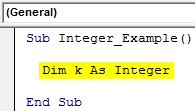
Step 2: Assign the value of 500 to the variable “k.”
Code:
Sub Integer_Example1()

  Dim k As Integer

  k = 500

End Sub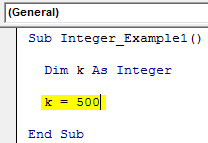
Step 3: Show the value in the VBA message box.
Code:
Sub Integer_Example1()

  Dim k As Integer

  k = 500

  MsgBox k

End Sub
When we run the code using the F5 key or manually, we can see 500 in the message box.

Example #2
Now, we will assign the value -500 to the variable “k.”
Code:
Sub Integer_Example2()

  Dim k As Integer

  k = -500

  MsgBox k

End Sub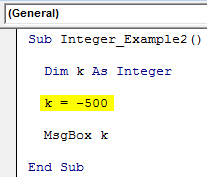
Run this code manually or press F5. Then, it will also show the value of -500 in the message box.

Example #3
As we told VBA, the Integer data type can hold only whole numbers, not fraction numbers like 25.655 or 47.145.
However, we will try to assign the fraction number to a VBA Integer data type. For example, look at the below code.
Code:
Sub Integer_Example3()

    Dim k As Integer

    k = 85.456

    MsgBox k

End Sub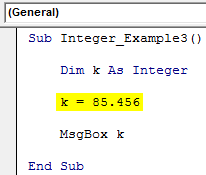
We have assigned 85.456 to the variable “k.” Next, we will run this VBA code to see the result.

- It returned the result as 85, even though we assigned the fraction number value since VBA rounds the fraction numbers to the nearest integer.
- All the fraction numbers less than 0.5 will be rounded down to the nearest integer. For example 2.456 = 2, 45.475 = 45.
- All the fraction numbers, which are greater than 0.5, will be rounded up to the nearest integer. For example 10.56 = 11, 14.789 = 15.
To look at the roundup integer lets, the value of “k” to 85.58.
Code:
Sub Integer_Example3()

    Dim k As Integer

    k = 85.58

    MsgBox k

End Sub
When we run this code using the F5 key or manually, it will return 86 because it will round up anything more than 0.5 to the next integer number.

Limitations of Integer Data Type in Excel VBA
Overflow Error: The Integer data type should work fine if the assigned value is between -32768 and 32767. The moment it crosses the limit on either side, it will cause you an error.
For example, look at the below code.
Code:
Sub Integer_Example4()

    Dim k As Integer

    k = 40000

    MsgBox k

End Sub
We have assigned the value of 40000 to the variable “k.”
Since we have complete knowledge of Integer data types, we know it does not work because integer data types cannot hold the value of anything more than 32767.
Let us run the code manually or through the F5 key and see what happens.

We got the error “Overflow” because the Integer data type cannot hold anything more than 32767 for positive numbers and -32768 for negative numbers.
Type Mismatch Error: Integer data can only hold numerical values between -32768 to 32767. Suppose any number assigned more than these numbers will show an Overflow error.
Now, we will try to assign text or string values to it. In the below example code, we have assigned the value “Hello.”
Code:
Sub Integer_Example4()

    Dim k As Integer

    k = "Hello"

    MsgBox k

End Sub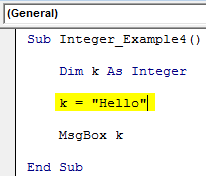
We will run this code through the run option or manually and see what happens.
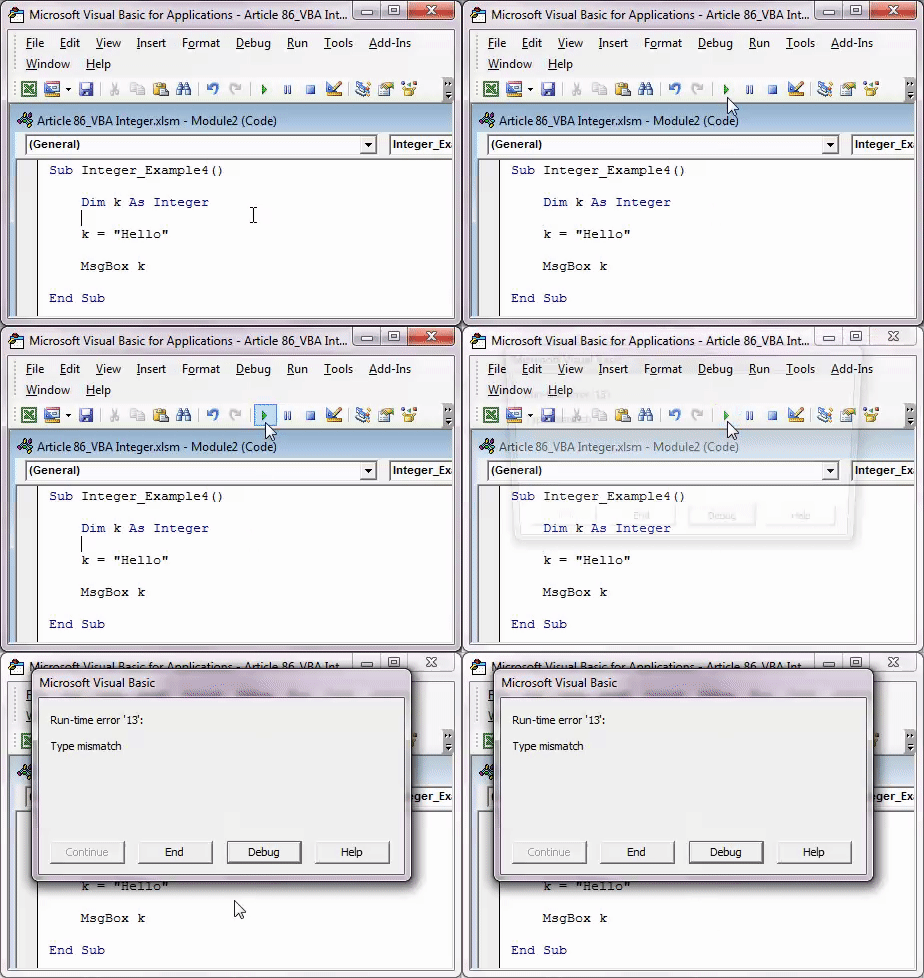
It shows the error as “Type mismatch” because we cannot assign a text value to the variable “integer data type.”
Recommended Articles
This article has been a guide to VBA Integer data type in Excel. Here, we discussed using the VBA Integer data type in Excel, its limitations, and the examples and downloadable Excel template.