

VBA Data Type
The data type is the core character of any variable. It represents the type of value we can store in the variable and the limit or range of values we can store in the variable. Data types are built-in VBA, and the user or developer needs to know which type of value we can store in which data type. In addition, data types assigned to variables tell the variable’s compiler storage size.
In VBA, we have two data types: numeric and non-numeric.
Before assigning any data type, we first need to declare the variable name. A variable is a name that holds the value through the assigned data type. While giving a name to the variable, we need to remember a few things.
We can define the variable in two ways: one is “implicitly,” and another one is “explicitly.”
- The implicit way of defining a variable is without using the word “DIM” and data type. For example, MyValue = 500 is the implicit way of declaring a variable.
- An explicit way of defining a variable is with the word “DIM” and the associated data type. For example, Dim MyValue as Integer.
Top 2 Types of Data Types
To assign the data type to the variable first, we need to understand the data types. Then, to understand better, we can categorize them into two slabs.
#1 – Numeric Data Types
These can hold only numerical values. The most common numerical data types are Byte, Integer, Long, Single, Double, Currency, and Decimal.
Each of the data types can hold its respective values. Below is a detailed explanation.
- A byte can hold values from 0 to 255. However, it cannot hold anything more than 255.
- Integer can hold values from -32768 to 32768. However, it cannot hold any decimal numbers.
- Long can hold values from -2,147,483,648 to 2,147,483,648.
- The single data type can hold values only up to 7 digits, for example, 1234567, 1.245564.
- The double data type can hold values up to 15 digits. It is just the expansion of the data type Single.
- The currency data type can hold 15 digits before the decimal value and 4 digits after the decimal value.
- The decimal data type can hold up to 28 decimal places. You can use this data type if you wish to store anything more than 15 decimal places.
#2 – Non-Numeric Data Types
These data types can hold values of anything other than numerical values. Frequently used non-numeric data types are variant, string, Boolean, date, and object.
- String: There are two types of string data types. One can hold numerical data, and another can hold non-numerical data.
- String fixed-length can hold characters from 1 to 65,400 characters.
- String variable-length can hold characters from 0 to 2 billion characters.
- Boolean can hold logical result values, i.e., TRUE or FALSE.
- A date can hold only date values from January 1, 100, to December 31, 9999.
- Object can hold only objects of Microsoft products. For example, include Worksheet, Workbook, Range, PowerPoint, and Word.
- A variant also has two data types: text and numeric.
- Variant text can hold text values like the variable string variable length.
- Variant numeric can hold numerical values the same as data type double.
Examples to use Various VBA Data Types
For example, to assign a data type, we need to declare a variable using the word “Dim.“
Code:
Sub DT_Example1()

  Dim k

End Sub
Now, using the word “As,” we need to assign the data type. So now, we will assign the data type as “Byte.”
Code:
Sub DT_Example1()

  Dim k As Byte

End Sub
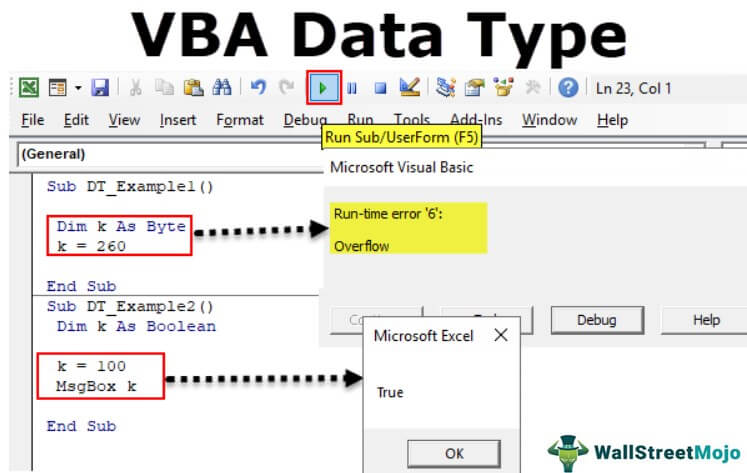
As we know, the Byte data type can hold values from 0 to 255. But to test, we will assign a value of more than 255.
Code:
Sub DT_Example1()

  Dim k As Byte

  k = 260

End Sub
If I run this code, we will get the error “Overflow.”
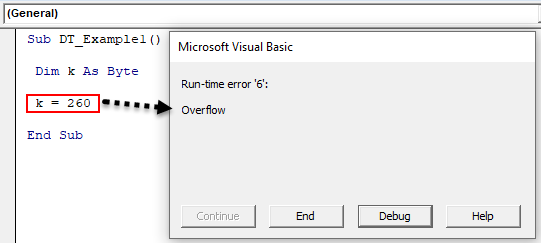
If we run this code, we will get the error “Overflow.”
Similarly, other data types also can hold values according to their limits.
Now, take a look at the below code.
Code:
Sub DT_Example2()

  Dim k As Boolean

  k = 100

  MsgBox k

End Sub
We have assigned the data type as “Boolean,” which holds either TRUE or FALSE. But, we have assigned the value “100” to the variable “k.”
Run this code and see what happens.
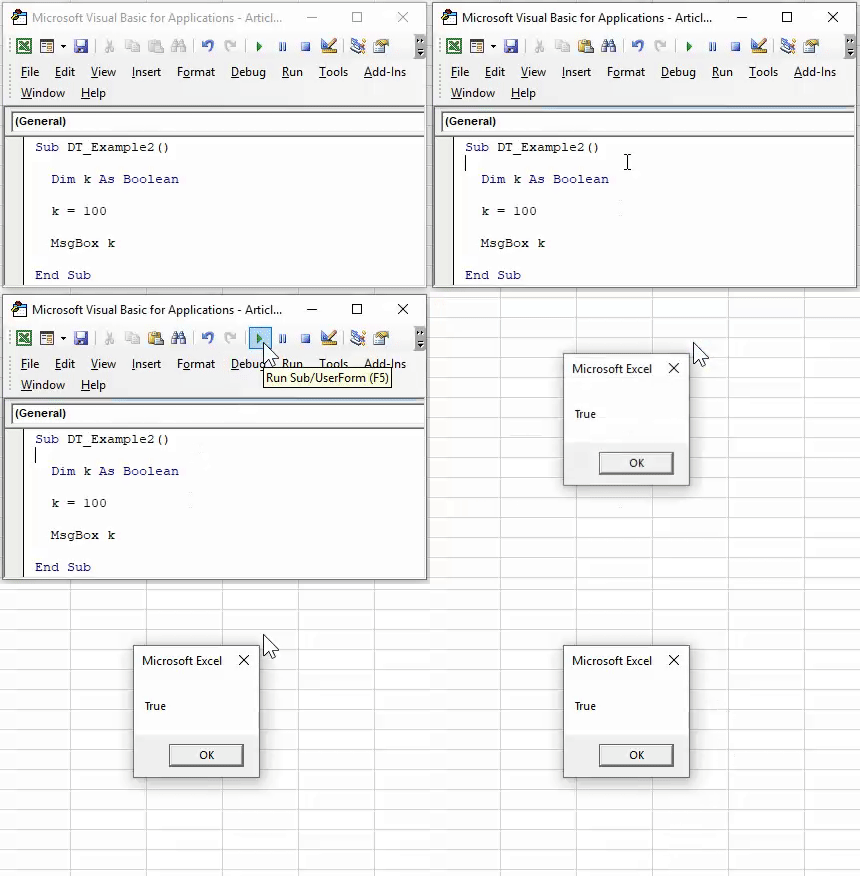
We got the result as “True.”
We got TRUE because Excel treats anything more than 0 as TRUE and 0 as FALSE.
Now, we will assign a non-numerical value and see what happens.
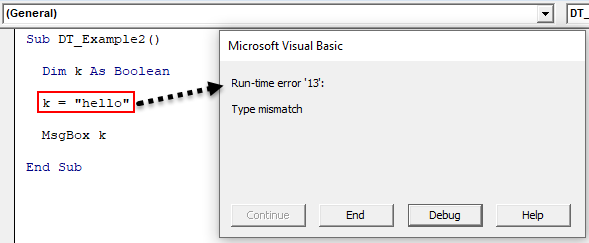
We got the error because “Boolean” cannot accept text values other than TRUE or FALSE.
Recommended Articles
This article has been a guide to VBA Data Type. Here, we learn how to assign and declare data types in VBA Excel (numerical and non-numerical) along with examples and explanations. You may also have a look at other articles related to Excel VBA: –