

Excel VBA Array Function
Array function is a collection of values in a single variable. We can supply an array to a Subroutine in VBA, functions, and properties. VBA Arrays are one of the often used techniques to store more than one value in the variable.
Examples of Excel VBA Array Function
Instead of declaring many variables and storing the values, we can use the Excel VBA array to store the value in a single variable. For example, look at the below example.
Code:
Sub Array_Ex() Dim x As Integer Dim y As Integer x = 1 y = 2 Range(“A1”).Value = x Range(“A2”).Value = y End Sub
We have declared two variables in the above example: x and y. Where x holds 1 as the value, and y holds 2 as the value.
Look at the Excel VBA array function example with a single variable.
Code:
Sub Array_Ex() Dim x(1 To 2) As Integer Range(“A1”).Value = x(1) Range(“A2”).Value = x(2) End Sub
If you run this VBA code, we would have values in cells A1 and A2.
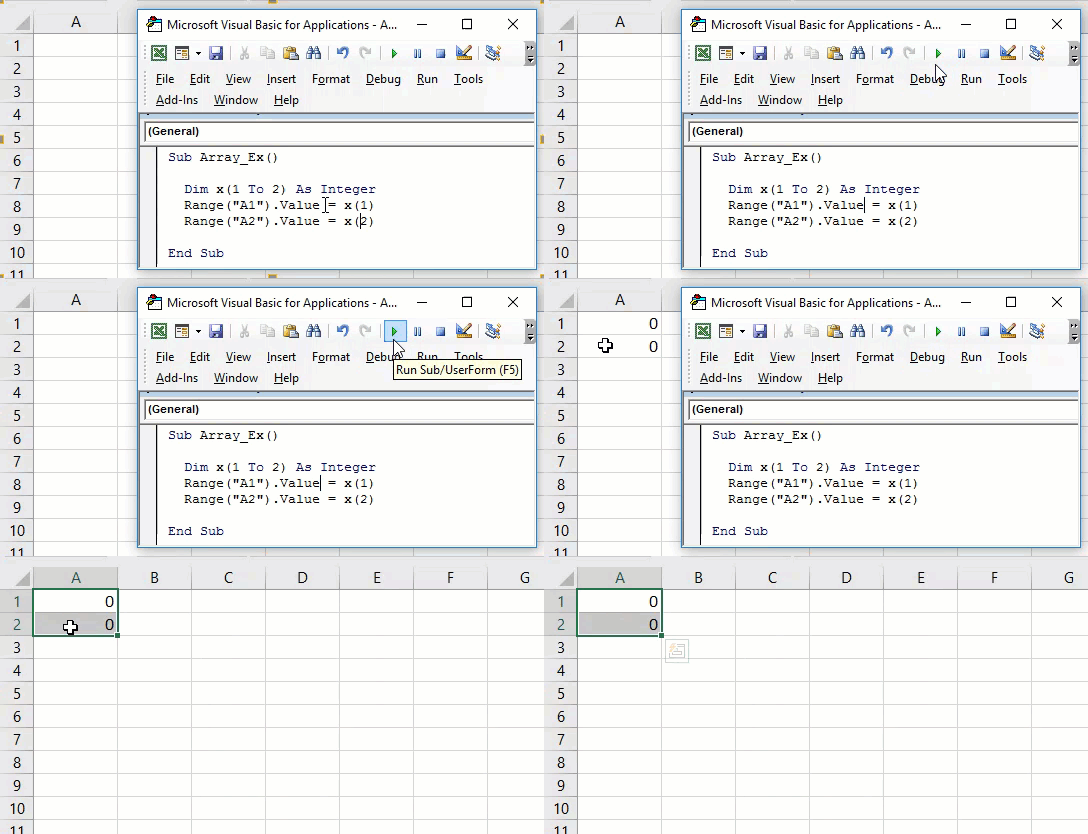
Array variables returned the result as zero because we have just declared variables as two. But, we have not assigned any values to those variables. So, we need to assign values to these variables.
Code:
Sub Array_Ex() Dim x(1 To 2) As Integer x(1) = 10 x(2) = 20 Range(“A1”).Value = x(1) Range(“A2”).Value = x(2) End Sub
Now, run the code to get results.
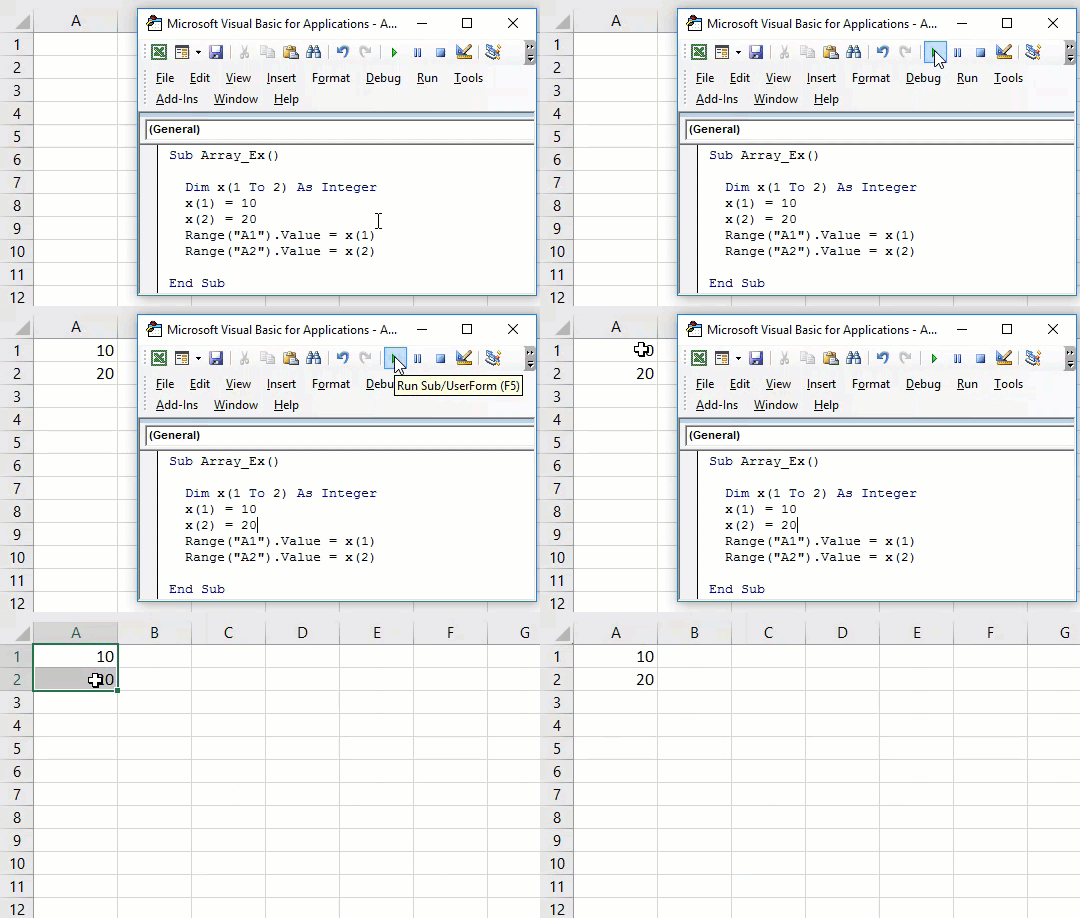
Before we enter the values of array variables to cells, we need to assign the value to those declared array variables like we assigned the variables x(1) = 10 & x(2) = 20.
Example #1 – Insert Serial Numbers Using Static Array
Let us look at the example of using a static array to insert serial numbers. This is much like the previous one.
Code:
Sub StaticArray_Ex() Dim x(1 To 5) As Integer x(1) = 10 x(2) = 20 x(3) = 30 x(4) = 40 x(5) = 50 Range(“A1”).Value = x(1) Range(“A2”).Value = x(2) Range(“A3”).Value = x(3) Range(“A4”).Value = x(4) Range(“A5”).Value = x(5) End Sub
Now, run this code to insert serial numbers.
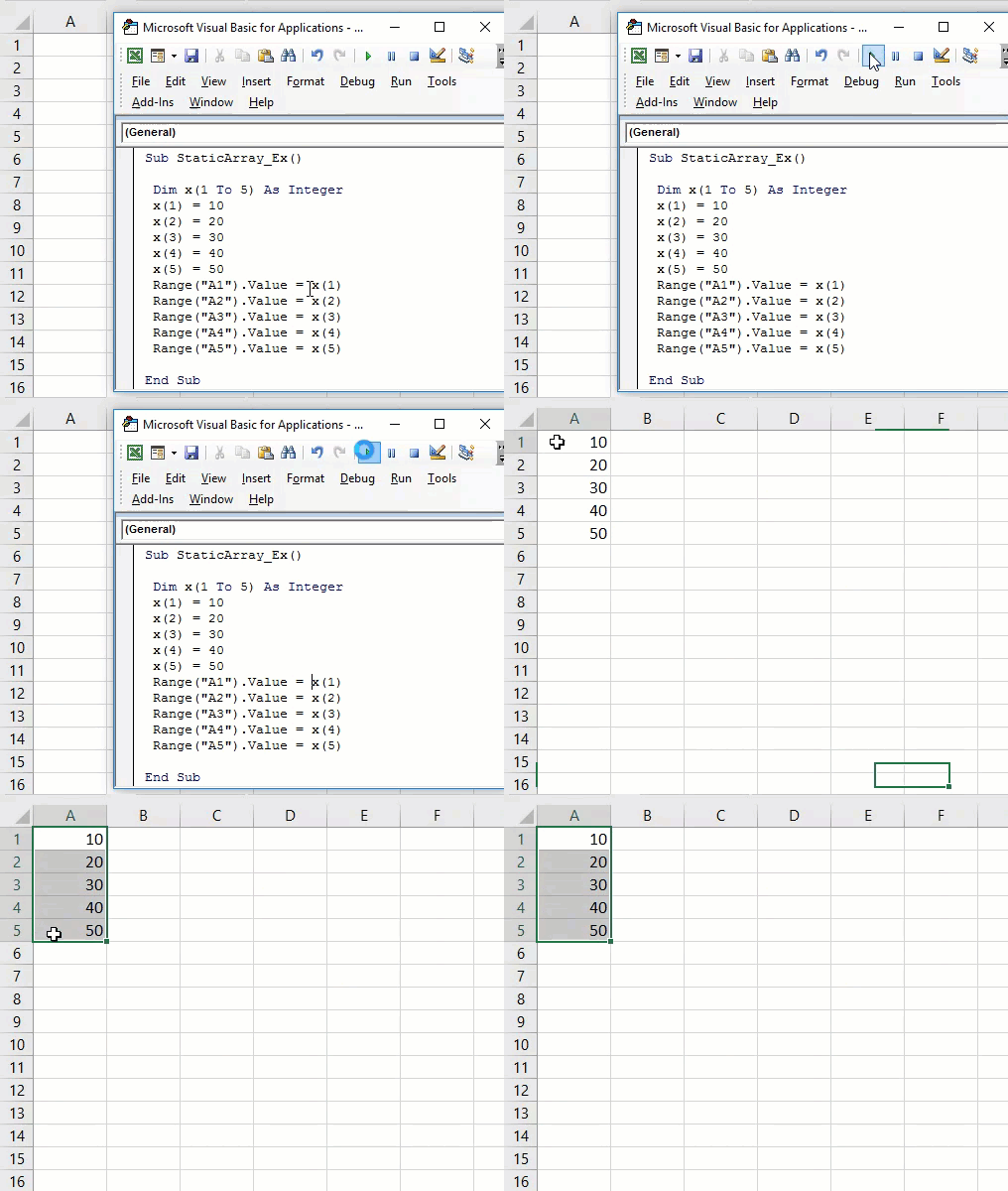
Example #2 – Insert Serial Numbers Using Dynamic Array
Now, we will see the second type of array: dynamic array.
Code:
Sub DynamicArray_Ex() Dim x() As Integer ReDim x(5) x(1) = 10 x(2) = 20 x(3) = 30 x(4) = 40 x(5) = 50 Range(“A1”).Value = x(1) Range(“A2”).Value = x(2) Range(“A3”).Value = x(3) Range(“A4”).Value = x(4) Range(“A5”).Value = x(5) End Sub
Now, run this code to get the result of serial numbers. We get the same result as the previous one.
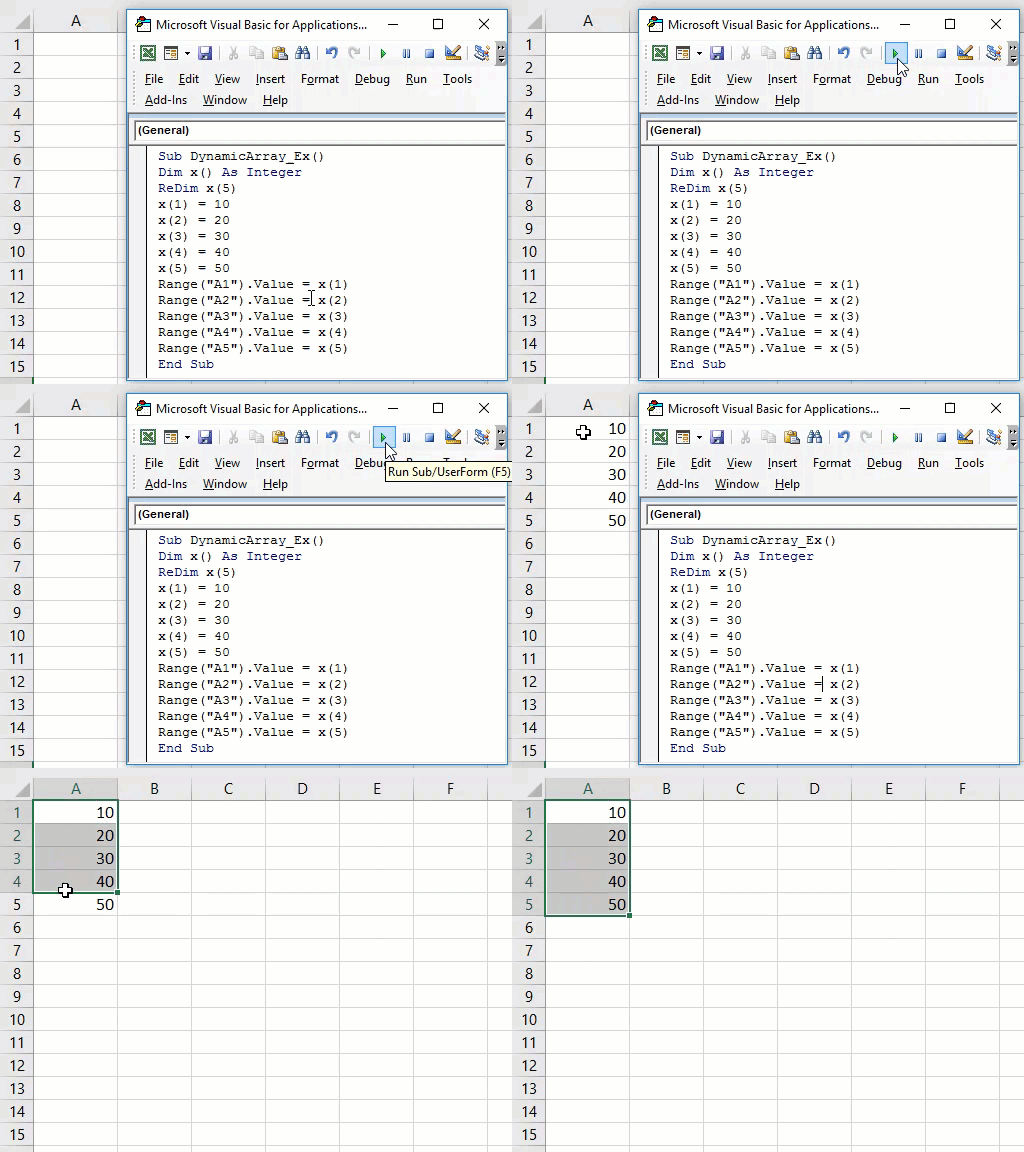
If you notice, we have not supplied the array’s length while declaring the variable. Instead, we assigned the VBA array’s last value using the VBA Redim function. Redim holds the last value of the array to be passed.
Example #3 – Create a Function Insert Month Names Using Array
We have seen how to work with arrays in VBA. Now we will see how to work with an array to create a VBA function in Excel. The function is nothing but a user-defined function in VBA. Apart from using built-in functions, Excel VBA allows us to create our functions.
Code:
Function List_Of_Months() List_Of_Months = Array(“Jan”, “Feb”, “Mar”, “Apr”, “May”, “Jun”, “Jul”, “Aug”, “Sep”, “Oct”, “Nov”, “Dec”) End Function
The below code will create a function that can insert months into our Excel sheet.
Copy and paste the below code to your module.

Now, save this code and close the VBA Editor. After closing the VBA editor, go to the worksheet and type the formula we have just created, and you should see the formula called List_Of_Months in your worksheet.
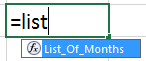
Open the formula and hit enter. We will get the first-month name, Jan.
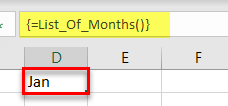
If you insert the formula one more time, still we would get Jan only, not the next month, Feb. So, first select 12 columns in one row.

Now, open the formula in the D1 cell.

Since we have created the formula with the array, we need to close the formulas as an array formula only. So hold Ctrl + Shift + Enter. We would have all 12-month names.

Things to Remember
- There are two more array types available: two-dimensional array and multi-dimensional array.
- Arrays start from 0, not from 1. Zero means the first row and the first column.
- The array is a big topic. We must understand it to advance to the next level.
- The array variable will hold much data each time it advances to the next level.
- ReDim stores the last length of the array in a dynamic array type.
Recommended Articles
This article has been a guide to VBA Array Function in Excel. Here, we insert serial numbers using static and dynamic arrays in Excel VBA, examples, and a download template. Below are some useful Excel articles related to VBA: –