

Excel SEARCH Function
The SEARCH function in Excel is categorized under text or string functions, but the output returned by this function is an integer. The SEARCH function gives us the position of a substring in a given string when we provide a parameter of the position to search from. Thus, this formula takes three arguments: substring, the string itself, and position to start the search.
For example, suppose we want to search the “Thank” substring in the provided text or string “Thank you.” Here, we need to find the “Thank” word using the SEARCH function, which will return the word “Thank” location.
=SEARCH(“Thank,” B8). The output will be 1.
The SEARCH function is a text function used to find the location of a substring in a string/text.
The SEARCH function can be used as a worksheet function. It is not case-sensitive.
SEARCH Formula in Excel
Below is the SEARCH formula in Excel.

Search Function in Excel Explained in Video
Explanation
Excel SEARCH function has three-parameter two (find_text, within_text) are compulsory parameters and one (start_num) is optional.
Compulsory Parameter:
- find_text: find_text refers to the substring/character you want to search within a string or the text you want to find out.
- within_text:. Where your substring is located or where you perform the find_text.
Optional Parameter:
- [start_num]:: from where you want to start the SEARCH within the text in excel. If omitted, SEARCH considers it as 1 and star search from the first character.
How to Use the Search Function in excel? (with Examples)
The SEARCH function is very simple and easy to use. Let us understand the working of the SEARCH function in some examples.
Example #1
Let us search the “Good” substring in the given text or string. Here, we have found the “Good” word using the SEARCH function, which will return the word “Good” location in the “Good morning.”
=SEARCH(“Good,” B6) and output will be 1.
Suppose two matches are found for “Good,” then SEARCH in Excel will give you the first match value. However, if you want the other good location, then you use the =SEARCH(“Good,” B7, 2) [start_num] as 2 then it will give you the place of the second match value, and the output will be 6.
Things to Remember
- It is not case-sensitive.
- It considers tanuj and TANUJ as the same value, which means it does not distinguish between lower and upper case.
- It is also allowed wildcard characters, i.e., “?”, “*,” and “~” tilde.
- “?” is used to find a single character.
- “*” is used for match sequences.
- If we want to search the “*” or”? “, we need to insert the “~” before the character.
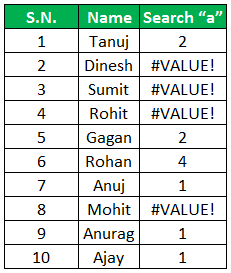
- It returns the #VALUE! Error if there is no matching string is found in the within_text.
Suppose in the below example. We are searching for a substring “a” within the “Name” column. If found, it will return the location of a within name else. In addition, it will give a #VALUE error, as shown below.
Recommended Articles
This article is a guide to the SEARCH Function in Excel. Here, we discuss the SEARCH formula and how to use the SEARCH function, along with Excel examples and downloadable Excel templates. You may also look at these useful functions in Excel: –