

What Are The Gridlines In Excel?
Gridlines in Excel are the partition lines that divide and differentiate cells from each other in a worksheet. The gridlines are a little lighter in visibility compared to the border lines.
The Excel Gridlines are available in the “Page Layout” and the “View” tab. We must check the checkbox to activate gridlines and uncheck it to deactivate them.
Download FREE Gridlines Excel Template and Follow Along!
Download Excel TemplateFor example, a worksheet with and without gridlines are shown in the images below.

Key Takeaways
- The Gridlines in Excel is a feature that helps us view the cells as rectangular boxes that make up the rows and columns in a worksheet, else it will look like a blank Word document.
- When we want to print the Excel workbook, ensure to use borders to print it clearly.
- We use the shortcut keys “ALT+W+VG” to show or hide the gridlines.
- We can also remove/hide the gridlines by applying a background color “No fill” to the cells/selected range in the worksheet.
Gridlines In Excel Explained
It helps us define the boundary on each cell, which helps separate the data accordingly. Gridline enables to categorize the data and organize it to split the data accordingly clearly.
- Gridlines are the light grey lines that separate the cells, lines, and columns on a spreadsheet, normally utilized in computational programming for tracking/keeping the records or information. For example, MS Excel and Google sheets widely use gridlines.
- MS Excel uses gridlines to separate the data in a cell because it contains data in rows and columns that help to organize and categorize them. By using gridlines, we can make the data table as required.
Let us now consider,
- How to Add Gridlines in Excel Worksheet?
- How to Remove Gridlines from Entire Worksheet?
- How to Hide Gridlines from the Specific or Particular Cell?
- How to Print Excel Sheet with Gridlines?
#1 How to Add Gridlines in Excel Worksheet?
The steps to addGridlines in Excelworksheet are as follows:
- We must go to the “View” tab in the Excel toolbar.

- Check the box “Gridlines” to show the gridlines in the Excel sheet.

- On checking the box, we can see the gridlines on the workbook, as shown below.

#2 – How to remove gridlines from an entire worksheet?
- Step 1: We must first select the required data or the whole workbook. Then, we can use the shortcut in excel, “Ctrl+A”, to select the entire worksheet. Then, we must go to the “View” tab in the Excel toolbar. And then, uncheck the box “Gridlines” to remove the grid lines from the sheet.
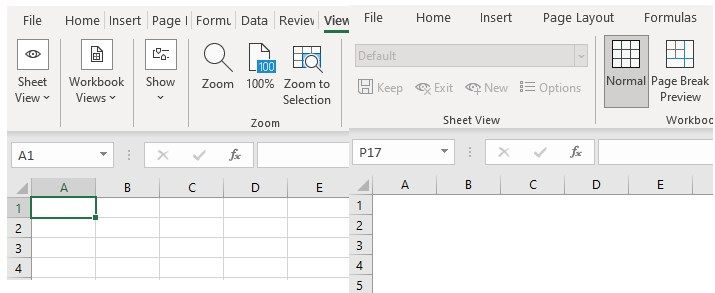
- Step 2: Once we uncheck the box, it will automatically hide all the gridlines from the spreadsheet.
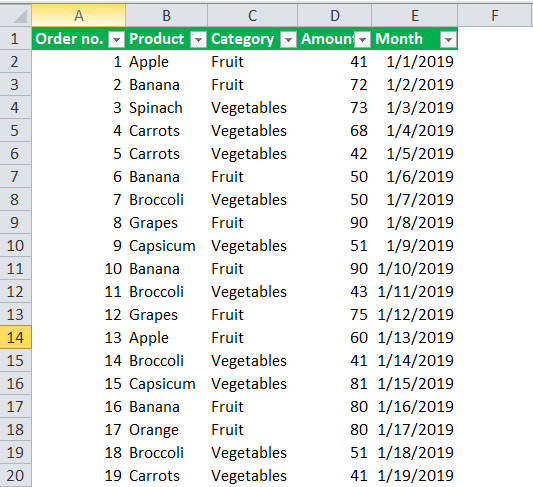
#3 – How to Hide Gridlines from the Specific or Particular Cell?
The steps to hide gridlines from the specific or particular cell are as follows:
- Step 1: We must first select the range of cells from which we want to remove the Excel gridlines.

- Step 2: Right-click and choose the “Format Cells” from the context menu, which shows in the dialog box.
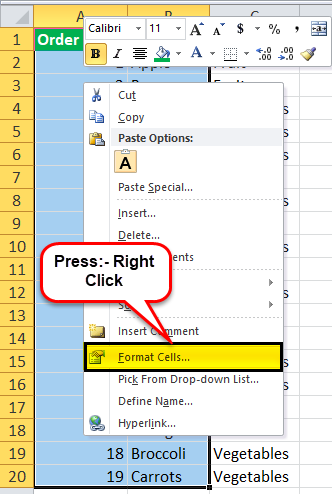
- Step 3: Go to the “Border” tab under the “Format Cells” tab.
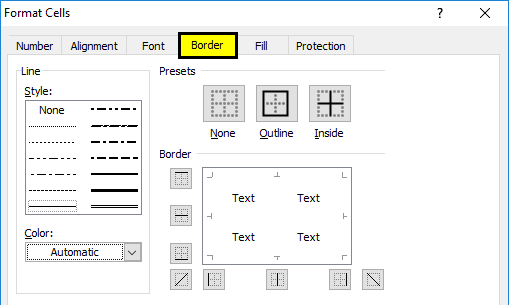
- Step 4: Select the White color, and press the “Outline” and “Inside” buttons under the “Presets” option shown under the “Border” tab. Press “OK.”
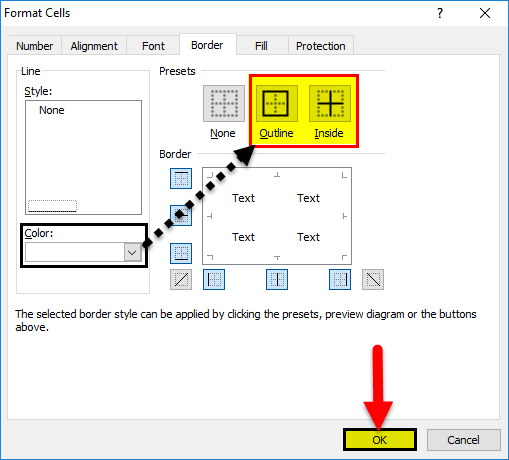
- Step 5: After clicking “OK,” it will hide the gridline from that particular range that we have selected, as shown below.

#4 – How to Print Excel Sheet with Gridlines?
The steps to print Excel sheets with gridlines are as follows:
- Step 1: First, go to the “Page Layout” tab in the Excel toolbar to see the “Gridlines” option.

- Step 2: : In the “Sheet Options” group on the right-hand side, within the “Gridlines” option, check the Print excel checkbox.
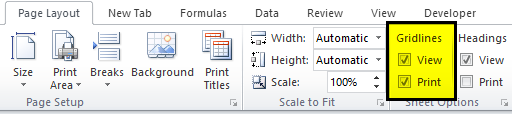
- Step 3: Once we enable this option while printing the worksheet, we can see the gridlines, as shown below. Therefore, take a look at the below-given screenshot.

Benefits Of Gridlines In Excel
- Gridlines help us differentiate between cells.
- We can hide or enable the option of a grid line in the toolbar.
- It is very convenient to show the gridlines because it helps us organize the data.
Drawbacks Of Gridlines In Excel
- While taking the printout of the Excel spreadsheet, we cannot print gridlines.
- The gridlines are too light in color, so people who are color blind will not be able to see the color and identify.
- The gridlines cannot be customized unless we add borders to them.
Important Things To Note
- To make Excel show/hide gridlines in two or more sheets, press and hold the “Ctrl” key and click on the “Sheet” tabs. Now, we can apply certain changes to all the selected worksheets.
- We must remove the gridlines once our work is over because we might sometimes get confused while hiding the gridlines.
- If we want to hide or show the gridlines from the entire spreadsheet, uncheck the “Gridlines” option for hiding the lines and check the box to show the lines.
Frequently Asked Questions (FAQs)
Why are the Gridlines in Excel not found?
The Gridlines in Excel may not be seen in an Excel workbook if the feature is not selected.
To select the option, first, keep the workbook open – select the “View” tab – go to the “Show” group – check/tick the “Gridlines” option checkbox, as shown below.
What are the methods to open “Format Cells” to apply borders on Gridlines in Excel?
There are various methods to open the Format Cells window, namely,
• Method 1 – Simply press the shortcut key “Ctrl+1”.
• Method 2 – Select the “Home” tab – go to the “Number” group – click the “Number Format” option drop-down – select the last option “More Number Formats…”, as shown below.

• Method 3 – Right-click on any cell, and select the “Format Cells…” option from the list, as shown below.

• Method 4 – Select the “Home” tab – go to the “Number” group – click the “Number Format” box, i.e., the small box at the bottom right of the “Number” group, as shown below.

Why don’t we have Gridlines in some worksheets?
The Gridlines in Excel may be seen in some worksheets and not found in some because we might have unchecked the “Gridlines” option in a few worksheets. In such scenarios, we must go to each of the worksheets that do not have Gridlines, and check/tick the “Gridlines” option, worksheet by worksheet.
Recommended Articles
This article is a guide to Gridlines in Excel. Here we add, remove, hide, print with gridlines, see benefits, drawbacks, examples & downloadable excel template. You may learn more about Excel from the following articles: –