

What Is Find Links In Excel?
Find links in Excel, as the name suggests, helps users find links in Excel. Some of the links that we can look for using find links in Excel are external links in formulas, objects, chart titles, chart data series, etc.,
In this article, let us learn how to use find links in Excel.
How To Find External Links In Excel?
We need to look at objects, defined names, formulas, objects, chart titles, and chart data series to find these external references.
- We need to inspect chart titles, objects, formulas, defined names, and chart data series to locate external references.
- When we break a link to the source worksheet of an external link, all the formulas that reference the source worksheet will display the last cached values of the data.
- We can select multiple links by holding down the ‘Ctrl’ key and clicking on each linked object. If we want to select all the links on a webpage at once, we can do so by pressing the ‘Ctrl+A’ keys on the keyboard.
#1 – Steps To Find External Links Used In Formulas
Let us start.
- We must first use the “Ctrl+F” keys to start the “Find and Replace” in the Excel dialog box.

- Click “Options.”

- Then, enter “.xl” in the “Find what” box. Next, click “Workbook” in the “Within” box and “Formulas” in the “Look in” box. After that, click “Find All.”

- In the list box displayed, we may see the “Formula” column for formulas that contain .xl. For this example, Excel has found multiple cases.

- Else, selecting the particular cell with an external reference in the list box, click on the cell address link for that row.

#2 – Steps To Find External Links Used In Defined Names
- Step 1 – We must first go to the “Formulas” tab. Then, click on Name manager in excel in the defined names group.

- Step 2 – Check for each entry in the list. For external references, look in the “Refers To” column. External references contain a reference to another workbook.

#3 – Step To Find External Links Used In Excel Objects
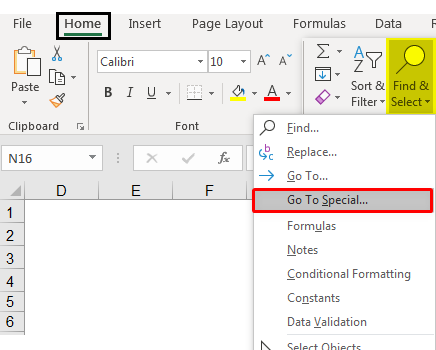
- Step 1 – In the “Home” tab of the Excel window. In the “Editing” group, click on the “Go To Special” option under the “Find & Select” option.
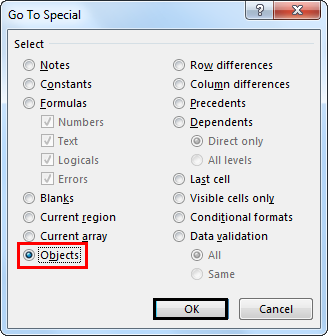
- Step 2 – Then, select objects and click “OK.” It will select all objects on the active worksheet. To move between each selected object, we must press the “Tab” key on the keyboard.
- Step 3 – For a reference to another workbook, look in the formula bar of an image, such as [Budget Excel Template.xlsx].

#4 – Steps To Find External Links Used In Chart Titles
- Step 1 – First, we must click on the “Chart Title” of the chart that we want to check for external links. Then, in the “Formula” bar, look for a reference to another workbook, such as “[Chart.xlsx].”

#5 – Steps To Find External Links Used In Excel Chart Data Series
- Step 1 – We must first select the chart that we want to check. In the “Current Selection” group, click the arrow next to the “Chart Elements” box in the “Format” tab, then click the data series that we want to check.
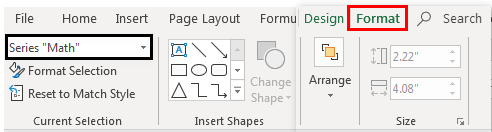
- Step 2 – Now, in the “Formula” bar, look for a reference to another workbook, such as [Types of Charts Excel Template.xlsx] in the SERIES function.

#6 – Steps to Find External Links Using Edit Links Option
We can use the following steps for finding external links using the “Edit Links” option:
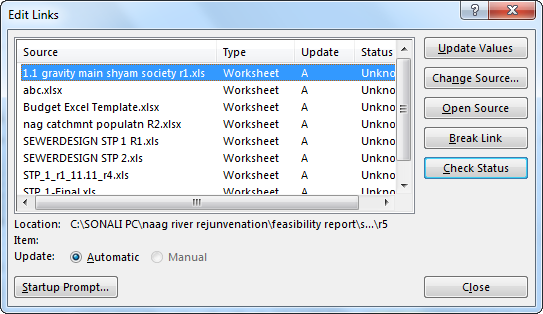
- Step 1 – We must go to the “Data” tab first. Then, in the “Connections” group, click on “Edit Links.”
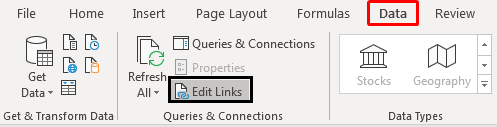
- Step 2 – It will open the “Edit Links” dialog box, which will have a list of all the worksheets that are being linked.
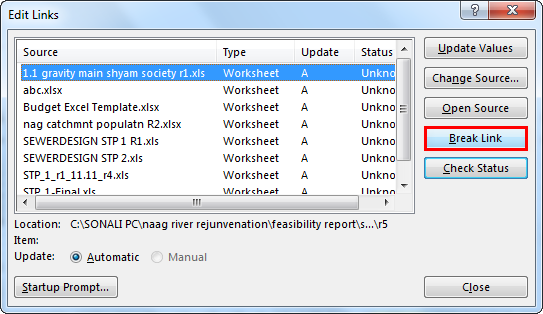
- Step 3 – Click on the Break Links excel option to convert all linked cells to values.
Important Things To Note
#1 – Things To Remember While Breaking Links In Excel
Once we break a link to the source worksheet of an external link, all the formulas using the values in the source worksheet are converted to their current values.

For example, the calculated value will replace the SUM formula once we break the link to the external reference =SUM([Budget.xls]Annual!C15: C30). The calculated value will replace the SUM formula. As we cannot undo this action, saving a version of the destination worksheet is better as a backup.
#2 – Things To Remember While Updating All The External Links
You can decide whether to update links automatically at startup or after startup.
- We must go to the “Data” tab. In the “Connections” group, click on “Edit Links.” Then, click on “Startup Prompt” and can choose the option we want.

#3 – Things To Remember About Controlling Links To Other Worksheets
The links are automatically updated when the source and destination worksheets are open on the same computer.
When we open a destination worksheet and the source worksheet is not open, a dialog box of a trust bar may pop up asking whether to update the links.
We can control the trust bar as to whether the “Trust Bar” alerts us or whether to update all links when the trust bar alert does not appear. We can also update only selected links if the worksheet contains more than one link.
For manually updating all links or none of the links in a worksheet, we must follow the below steps:
- Close all worksheets.
- For updating uniformly, all the source worksheets must be opened as updates will not be uniform if one source worksheet is open and others are closed.
- Open the worksheet that comprises all the links.
- For updating the links on “Trust Bar,” click “Options.”
- Then, click “Enable this Content.”
For manually updating only some of the links to other worksheets, we must follow the following steps:
- First, close all worksheets.
- Next, open the worksheet that comprises the links.
- Then, click on the “Data” tab. After that, in the “Connections” group, click “Edit Links.”
- Finally, in the “Source” list displayed, we must click on the linked object we want to update.

- We must hold the “Ctrl” key and click each linked object to select multiple links.
- For selecting all links, we must use the “Ctrl+A” key.
- Lastly, click “Update Values.”
Frequently Asked Questions
1. How do I find hidden links in Excel?
To detect hidden external links in Excel: Use Name Manager to find defined names linked to external sources. Check macros and VBA scripts for references to external data sources.
2. What is the shortcut to find external links in Excel?
To locate cells that have external links, you can use the “Find” feature (Ctrl+F) to search for the ‘[‘ character. Additionally, you can examine the formulas in cells to check for any references to external workbooks, which a file path or workbook name would indicate.
3. How do I find links between cells in Excel?
To see which cells are affected by the active cell, click on the “Trace Dependents” button. This will display a blue arrow that links the active cell to any other cells that are related to it. If you click the “Trace Dependents” button again, it will show you additional cells that are related to the active cell.
Recommended Articles
This article is a guide to Finding Links in Excel. This article teaches us to find external links in objects, defined names, formulas, chart titles, and chart data series with practical examples. You may learn more about Excel from the following articles: –