

How to Break External Links in Excel?
There are two different methods to break external links in the Excel worksheet. The first method is to copy and paste as a value method, which is very simple. The second method is a little different. First, we need to go to the “DATA” tab and click “Edit Links,” and find the option to break the link.
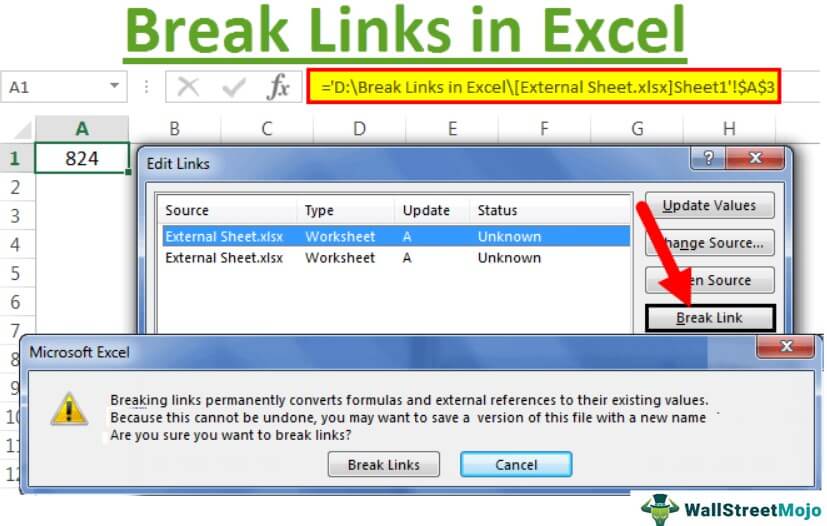
2 Different Methods to Break External Links in Excel
Method #1 – Copy and Paste as Values
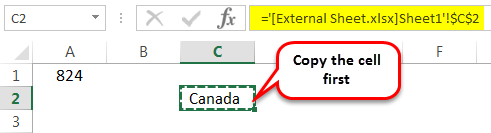
Now, we must paste them as values.
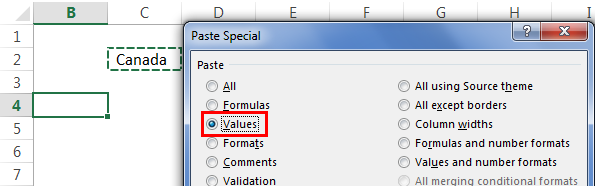
We can see here that this value does not contain any links. It shows only value.

Method #2 – Edit Options Tab
The second method is a little different. In this method, we must go to the “DATA” tab and click on “Edit Links.”

Now, we can see the below-shown dialogue box.

Here we can see all the available external links. We can update the values, open-source files, and many other things. Apart from all these, we can also break these links.
Now, we will click on the “Break Link.”
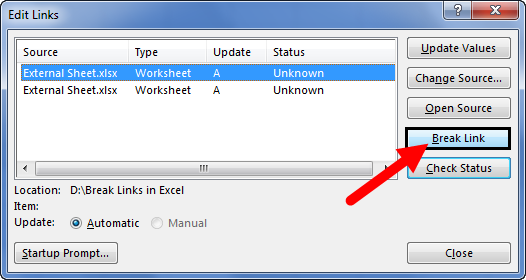
As soon as we click on “Break Link,” we may see the dialog box below.

Once we break the External link in Excel, we cannot recover the formulas. So, we cannot undo the action once we break the link. It is unlike our “Paste Special” method.
If we wish to break all the links at once, we need to select all the links and click on “Break Links.”
Things to Remember
- It is dangerous to have links to external sources in Excel.
- Once we break the link in Excel, we cannot undo the action.
- Using *.xl can cover all kinds of file extensions.
Recommended Articles
This article is a guide to Break Links in Excel. We discuss how to break external links in Excel using Copy and Paste as Value and Edit the Links Option tab, along with practical examples. You may learn more about Excel from the following articles: –