

What Is Export Excel Into PDF?
Export Excel into PDF is a method to convert data from Excel sheet into PDF. There are 2 methods to export data sheet from Excel into PDF.
Export Excel to PDF Template
Download Excel TemplateIn this article, let us learn how to export data from Excel into PDF with apt examples.
Key Takeaways
- Export Excel into PDF is used to save our excel data sheet into PDF.
- If the data is too large for a single page, PDF may move it to the next sheet.
- The code may save the entire worksheet content as a PDF file.
- Once we’ve copied the macro code, we must save the workbook as “Macro-Enabled Workbook.”
- To export Google Sheets documents, open the desired sheets, activate them by clicking on them, then select “Download” from the “File” menu and choose the desired file format like Microsoft Excel.
How To Change Or Export Excel Files Into PDF?
Much like converting from PDF to Excel, changing or exporting Excel files into PDF is indeed a simple task. Consider the below examples to learn the 2 methods to export Excel files into PDF.
Examples
Below are the examples of exporting Excel files into PDF.
Example #1
Save Spreadsheet as PDF File!
For example, look at the below data or chart, which shows the department hierarchy.
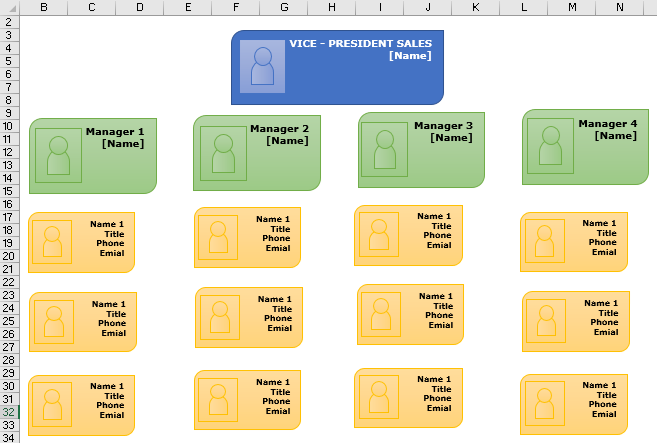
We can choose “Save As” from the “File” option and select the “Save as type” as “PDF.”

It may still be the file as a “PDF,” but look how it looks when we open it.
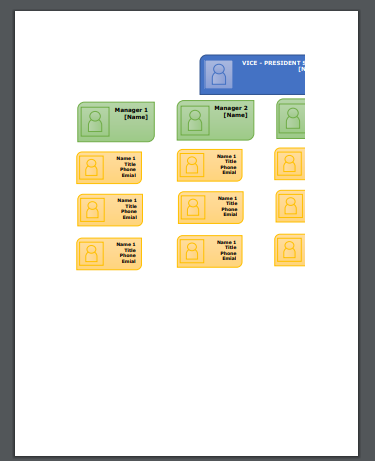
It came on two different sheets in PDF, which makes no sense whatsoever. If you click “Save As” and select “PDF” as the file type, this happens when the file or spreadsheet content exceeds the size of a single PDF sheet.
We need to select the content area when trying to save it as a “PDF” file. Then, press “Ctrl + P” to open below the print preview window.
Under “Settings,” choose “Fit Sheet on One Page.”
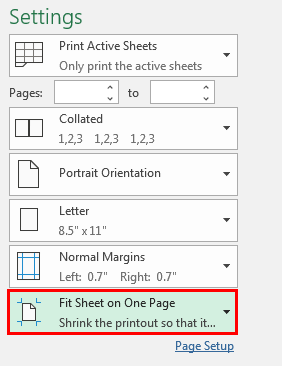
Now, click on “Save As” in the same window and choose “PDF” as the file type.
As a result, it will fit the whole data into a single PDF page.
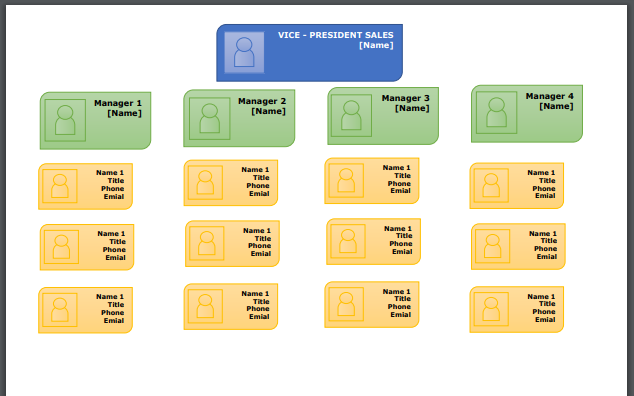
It is a common technique we all have used regularly.
However, what if a button can produce a PDF file of the Excel spreadsheet? We can do this by using VBA coding. Follow the below steps to create VBA code to convert the Excel sheet as PDF.
Example #2 – Using VBA Code
The following are the steps to convert an Excel sheet to PDF using VBA code.
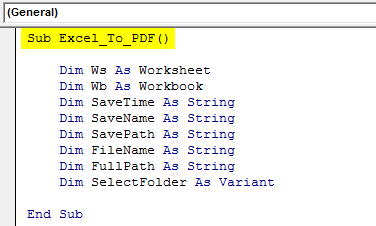
Step 1: We must first Declare variables in VBA, as shown below.
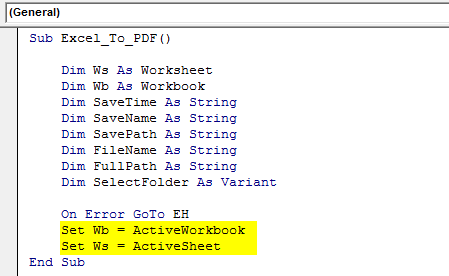
Step 2: Now, set “Workbook” and “Worksheet” reference to variables “Ws” and “Wb.”
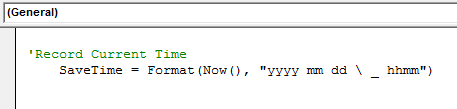
Step 3: To give the file a name, we need to record the current time, i.e., the time of running the code. Then, we must set the time to the variable “SaveTime.”
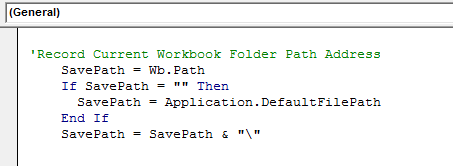
Step 4: Now, we need to save the PDF file to the exact location of the workbook that we are working on. Assign this value to the variable “Save Path.”
Step 5: To create a unique file name, we need to combine the file names and time.
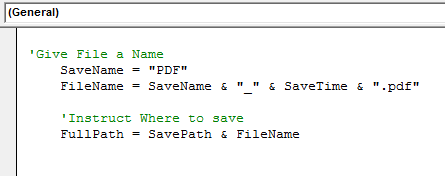
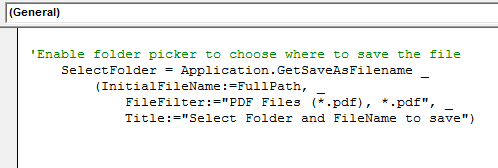
Step 6: After that, we need to give the option of choosing the destination path to save the file.
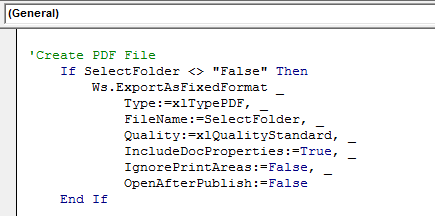
Step 7: Now, we need to create a PDF file.
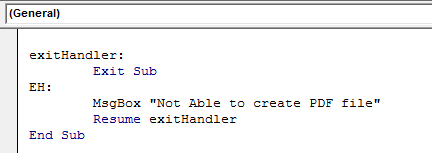
In case any error occurs, we need to handle this as well. So, the below code will do the same.
Below is the full code for your reference.
Code:
Sub Excel_To_PDF() ‘Declare Variables Dim Ws As Worksheet Dim Wb As Workbook Dim SaveTime As String Dim SaveName As String Dim SavePath As String Dim FileName As String Dim FullPath As String Dim SelectFolder As Variant ‘Set Variables On Error GoTo EH Set Wb = ActiveWorkbook Set Ws = ActiveSheet ‘Record Current Time SaveTime = Format(Now(), “yyyy mm dd _ hhmm”) ‘Record Current Workbook Folder Path Address SavePath = Wb.Path If SavePath = “” Then SavePath = Application.DefaultFilePath End If SavePath = SavePath & “” ‘Give File a Name SaveName = “PDF” FileName = SaveName & “_” & SaveTime & “.pdf” ‘Instruct Where to save FullPath = SavePath & FileName ‘Enable folder picker to choose where to save the file SelectFolder = Application.GetSaveAsFilename _ (InitialFileName:=FullPath, _ FileFilter:=”PDF Files (*.pdf), *.pdf”, _ Title:=”Select Folder and FileName to save”) ‘Create PDF File If SelectFolder <> “False” Then Ws.ExportAsFixedFormat _ Type:=xlTypePDF, _ FileName:=SelectFolder, _ Quality:=xlQualityStandard, _ IncludeDocProperties:=True, _ IgnorePrintAreas:=False, _ OpenAfterPublish:=False End If exitHandler: Exit Sub EH: MsgBox “Not Able to create PDF file” Resume exitHandler End Sub
We must copy this code and paste it into the module of the Visual Basic Editor. To open the Visual Basic Editor, we must press “Alt + F11.” We get the following option when we run this code by pressing the “F5” key.
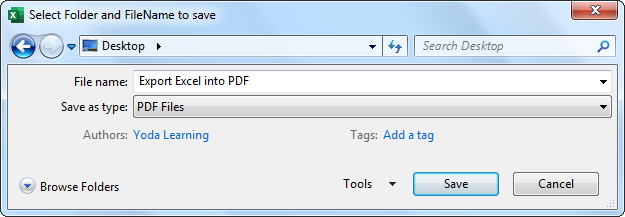
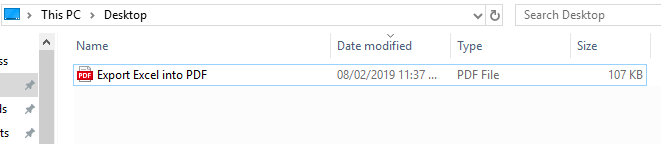
We can see that the Excel file is now converted into PDF.
Important Things To Note
- PDF may push the extra content to the next sheet if the data does not fit on a single page.
- The code may create the entire worksheet content as a PDF file.
- Once we copy the macro code, we need to save the workbook as “Macro-Enabled Workbook.”
Frequently Asked Questions (FAQs)
How do I convert Excel to PDF in one sheet?
To adjust the size of a spreadsheet, go to Page Layout – Size and select A3. All columns will fit on one page. Convert the file into a PDF by going to File – Export – Create PDF – Publish.
How to export PDF to Excel and keep formatting?
The process involves:
- Copying a PDF table.
- Converting it into a Word document.
- Converting it into a table.
- Copying the table to Excel, and formatting and editing the Excel table.
How to export a PDF table into Excel?
To export a PDF table into Excel, one must follow these steps:
- Open a PDF file in Acrobat.
- Select the “Export PDF” tool.
- Choose “spreadsheet” as export format.
- Select “Microsoft Excel Workbook” as export format.
- Click “Export.”
Recommended Articles
This article is a guide to the Export Excel into PDF. Here, we discuss how to change/convert an Excel file into PDF using simple Excel and VBA examples and a downloadable Excel sheet. You can learn more about Excel from the following articles: –