

What Is A Formula In Excel?
Excel is full of formulas. Those who master those formulas are pros of Excel. However, at the start of learning Excel, everyone is curious to know how to apply or create formulas in Excel. If you are one of them who is willing to learn how to create formulas in Excel, then this article is best suited for you. This article will have a complete guide from zero to intermediate level formula application in Excel.
Let us create a simple calculator-type formula for adding up numbers to start with Excel formulas.
Look at the below data of numbers.

In cell A1, we have 25. The A2 cell has 40, the number.
In cell A3, we need the summation of these two numbers.
In Excel, to start the formula, always put the equal sign first.
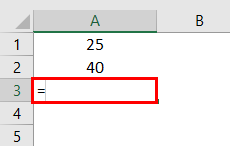
Now, insert 25 + 40 as the equation.

It is very similar to what we do in the calculator.
Press the “Enter” key to get the total of these numbers.

So, 25 + 40 is 65, the same we got in cell A3.
Key Takeaways
- Mastering Excel formulas is crucial to being proficient in Excel. At the beginning of learning Excel, it’s essential to learn how to apply and create formulas.
- To ensure accurate calculations and efficient data management in Excel, it is best practice always to commence a formula with an equal sign (=).
- To open the SUM function in Excel, select the SUM formula and press the “Tab” key. This will make your work more efficient and help you perform calculations quickly and accurately.
How To Create A Formula In Excel?
Let us learn how to create formulas in Excel with the following below examples.
#1 – Create Formula Flexible With Cell References
Let us start.
- From the above example, we will change the number from 25 to 30 and 40 to 50.
Even though we have changed numbers in cells A1 and A2, our formula only shows the old result of 65. It is a problem with direct numbers passing to the formula. It does not make the formula flexible enough to update the new result.

- We can give cell reference as the formula reference to overcoming this issue. For example, open the equal sign in cell A3.

- Then, select cell A1.

- Insert plus (+) sign and select cell A2.

- Press the “Enter” key to get the result.
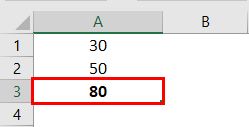
As we can see in the formula bar, it is not showing the result. Rather, it shows the formula itself, and cell A3 shows the result of the formula.
Now, we can change the numbers in A1 and A2 cells to see the immediate impact of the formula.
#2 – Use SUM Function To Add Up Numbers
To get used to the formulas in Excel, let us start with the simple SUM function. All the formulas should begin with “+” or “=.” So, open the equal sign in cell A3.

Start typing the SUM to see the intellisense list of Excel functions.

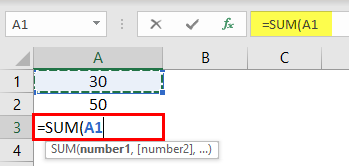
Press the “Tab” key once the SUM formula is selected to open the SUM function in excel.

The first argument of the SUM function is Number 1, which is the first number we need to add. In this example, cell A1. So, we must select cell A1.
The next argument is Number 2, the second number or item we need to add, A2 cell.
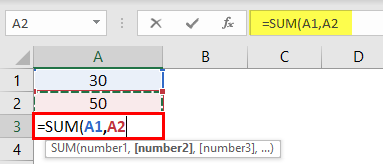
Now, we must close the bracket and press the “Enter” key to see the result of the SUM function.
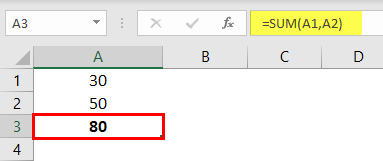
Like this, we can create simple formulas in Excel to do the calculations.
#3 – Create Formula References To Other Cells Excel
We have seen the basics of creating a formula in Excel. Similarly, we can apply one formula to other related cells as well. For example, look at the below data.
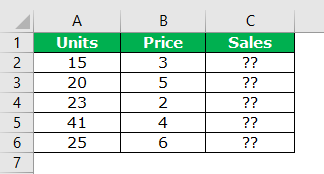
In column A we have “Units.” In column B, we have the “Price Per Unit.”
In the column, C needs to arrive at “Sales Amount.” For arriving at the sales amount, the formula is Units * Price.
- So, we must open an equal sign in cell C2.

- Select the cell A2 (units).

- Enter multiple sign (*) and select the B2 cell (price).

- Press the “Enter” key to get the sales amount.

Now, we have applied the formula in cell C2. How about the remaining cells?
Can you enter the same formula for the remaining cells individually?
If you think that way, you will be delighted to hear that the “formula is to be applied to a single cell, then we can copy-paste to other cells.”
Now first, look at the formula we have applied.

The formula says A2 * B2.
So, when we copy and paste the formula below, cell A2 becomes A3, and B2 becomes B3.

Similarly, row numbers keep changing as we move down, and column letters will also change if we move either left or right.
- Copy and paste the formula to other cells to result in all the cells.
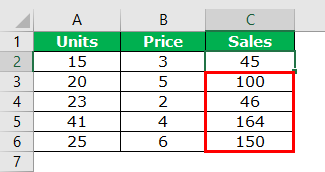
Like this, we can create a simple formula in Excel to start your learning.
Important Things To Note
- We can create formulas in Excel using
- Creating formula flexible with cell references
- Using SUM function to add up numbers
- Creating formula references to other cells Excel
Frequently Asked Questions (FAQs)
How to create a formula in Excel to calculate days?
To calculate the number of days between two dates in Excel, you can enter the dates into a cell in the format of “MM/DD/YYYY” without the quotes. After hitting enter, Excel will automatically calculate the number of days between the two dates, including leap years.
How to create a formula in Excel to divide?
In order to perform a division operation in Excel, use the forward slash (/) arithmetic operator. It is important to remember to include an equal sign (=) before typing in the numbers and the / operator; otherwise, Excel will interpret what you type as a date.
For example, consider the below image.
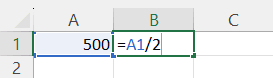
Press Enter Key.
We can see the result as shown in the below image.

How to create a formula in Excel using different sheets?
To reference multiple worksheets in Excel:
- Click the first worksheet tab.
- Hold down ‘Shift’ and click the last worksheet tab.
- Select the cell or range of cells you want to reference.
- Complete the formula and press ‘Enter.’
Recommended Articles
This article has been a guide to creating a formula in Excel. Here, we learn to create a simple Excel formula and practical examples, and a downloadable template. You may learn more about Excel from the following articles: –