

Excel Quotient Function
In Excel, we have a built-in function that gives the quotient for the division without the remainder. For example, the QUOTIENT function is used as follows: =Quotient( Value 1 /Value 2), so if we use =Quotient (12/5), we get 2.
How to Calculate Quotient in MS Excel? (with Examples)
As mentioned above, the quotient is a number obtained by dividing the dividend by the divisor, a simple division of numerator and denominator.

A dividend is a numerator, and a divisor is a denominator.
Let us see some simple examples to calculate quotients.
Example #1 – Using Cell Reference
Let us start.
- Below given is the example of calculating QUOTIENT using cell reference:
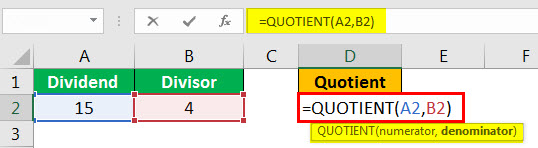
- Type “=QUOTIENT” in cell D2 and select A2 cell as a dividend (numerator), type comma (,), and choose B2 for divisor (denominator).
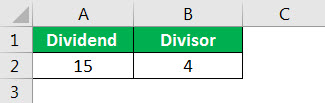
- Here, 15 is the numerator, and 4 is the denominator, i.e., dividend and divisor, respectively. So, cell A2 is the dividend, and cell B2 is the divisor. Therefore, the quotient will be:
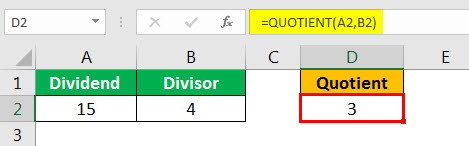
Example #2 – Using Function Arguments
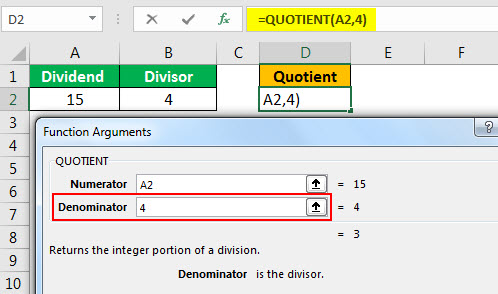
Many people find it easier to type directly in MS Excel. However, we can also use the function argument feature in Excel, which helps us understand the QUOTIENT syntax.
The above image specifically shows what each element signifies and how it is eventually used in the QUOTIENT function to calculate the value. Below are the steps for inserting values.
- We have the following values as dividend and divisor.
- Select cell D2(active cell), where we need the quotient value.

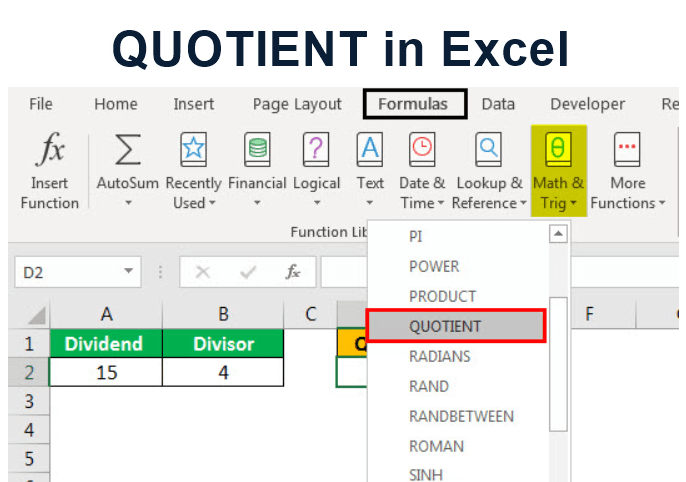
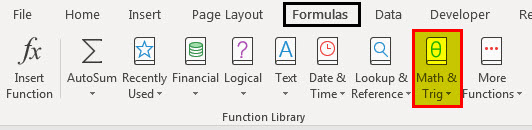
- Click on the “Formulas” tab and select the “Math & Trig” option from the “Function Library”(highlighted in the red box).
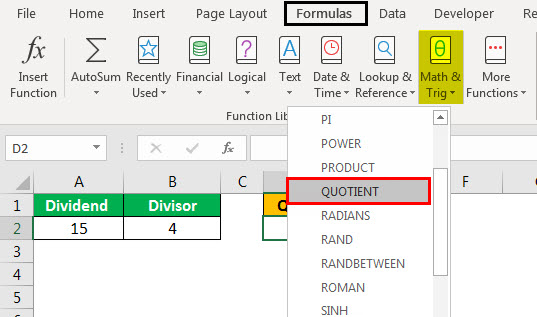
- A drop-down appears with various mathematical excel functions. Scroll down and select “QUOTIENT” by clicking on it (highlighted in red).
- A dialog box appears in the image below– function arguments. The next step would be to select cell reference or input numeric values as required.

- Go to the “Numerator” line, click on blank space, and then click on the cell containing the dividend. Here, it is A1. The same process is for the denominator to select the divisor in B1.

- We can also type numeric values (e.g., 4) in the denominator if we have a fixed divisor.
- Then, click “OK,” and the quotient answer appears in the selected cell, D2.
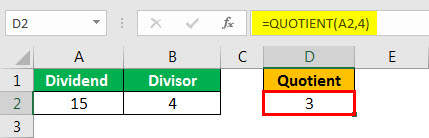
We can use this cell reference method to calculate the quotient for multiple values by dragging or copying a subsequent set of numbers.
Example #3 – Using Direct Numeric Values
Another way of calculating a quotient is by using a direct numeric value. When we know what a numeric value is. The example is given below:

Here, we divided the dividend using a divisor without any cell reference. 15 is the numerator, and 3 is the denominator, giving the value as 5.
Example #4 – Fix Denominator or Divisor
Sometimes while calculating quotients, we have different dividend values but a fixed divisor. However, we can still calculate the quotient using the example below:
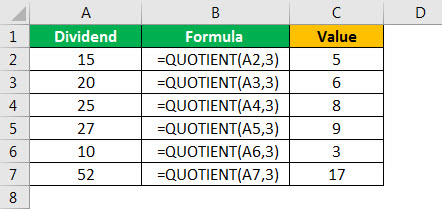
Here, we see that our dividend (numerator) is changing, and we have a fixed divisor (denominator), 3.
Things to Remember
- The final answer is zero if the numerator is less than the denominator. However, we must use the “/” division operator if we want a decimal value. E.g.: “(Numerator)/(Denominator)”
- We must use the MOD function to get the remainder using the same dividend and divisor.
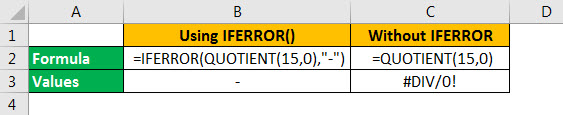
- Error Values: The QUOTIENT function returns an error if the dividend is divided by 0 (zero). If the data has few cell values as zero and we want it to stay zero or no value in a final answer, then we must use the IFERROR in Excel. Refer below:
Recommended Articles
This article is a guide to Quotient in Excel. Here, we learn how to calculate quotients in Excel using cell reference, function arguments, direct numeric values, and fix denominators or divisors with examples. You can learn more about Excel functions from the following articles: –