

What are External Links in Excel?
External links are also known as the external references in Excel. When we use any formula in Excel and refer to any other workbook apart from the workbook with the formula, the new workbook is the external link to the formula. When we give a link or apply a formula from another workbook, it is called an external link.
If our formula reads like the below, it is an external link.
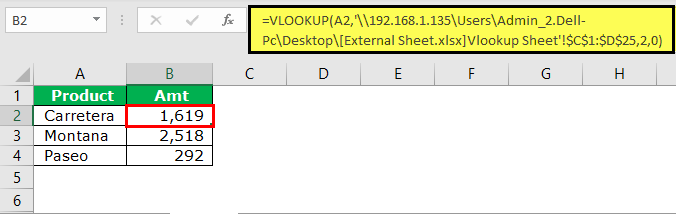
‘C:UsersAdmin_2.Dell-PCDesktop: This is the path to that sheet on the computer.
[External Sheet.xlsx]: This is the “Workbook” name in that path.
Vlookup Sheet: This is the “Worksheet” name in that workbook.
$C$1:$D$25: This is the range in that sheet.
Types of External Links in Excel
- Links within the same worksheet
- Links from different worksheets but the same workbook
- Links from a different workbook
#1- Links within the Same Worksheet
These types of links are within the same worksheet. In a workbook, there are many sheets. This type of link specifies only the cell name.
For example, if we are in cell B2 and the formula bar reads A1, whatever happens in the A1 cell will reflect in cell B2.
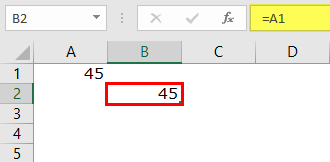
It is just a simple link within the same sheet.
#2 – Links from different worksheets but within the same workbook
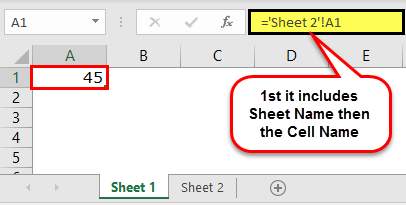
These types of links are within the same workbook but from different sheets.
For example, suppose there are two sheets in a workbook, and right now, we are in Sheet1 and giving a link from Sheet2.
#3 – Links from a different workbook
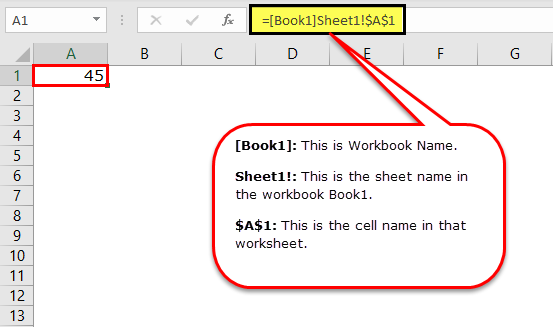
This type of link is called an external link. It means this is altogether from a different workbook itself.
For example, if we give a link from another workbook called “Book1”, it will first show the workbook name, sheet name, and cell name.
How to Find, Edit, and Remove External Links in Excel?
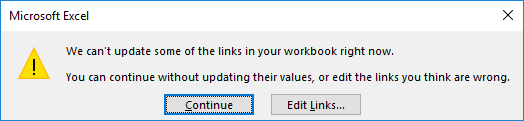
There are multiple ways we can find external links in the Excel workbook. As soon as we open a worksheet, we will get the below dialog box before we get inside the workbook, indicating that this workbook has external links.
Let us explain the methods to find external links in Excel.
Method #1: Using the Find & Replace Method with Operator Symbol
The link must have included its path or URL to the referring workbook if external links exist. The common in all the links is the operator symbol “[. “
Below are the steps to find external links using the “Find & Replace” method.
- First, we must select the sheet and press the “Ctrl + F” keys (shortcut to find external links).
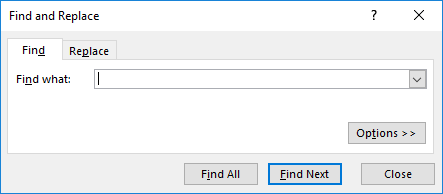
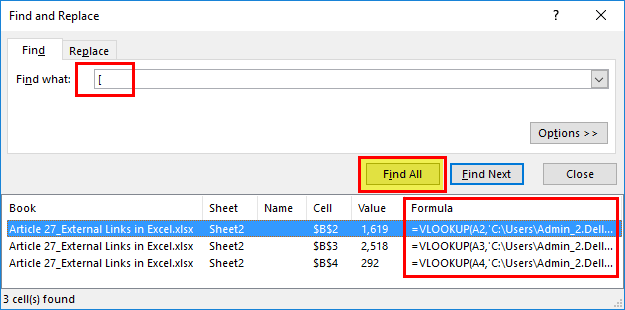
- Then, we must insert the symbol “[” and click on “Find All.”
It will show the results of all the external links in the same dialog box. Now, we can select all of those by holding the “Shift” key and converting those formulas to valuesusing the paste specialoption.Note:If the data includes the symbol[,it will also convert to values.
Method #2: Using the Find & Replace Method with File Extension
A cell with external references includes a workbook name and the workbook type.
The common file extensions are .xlsx , .xls , .xlsm , .xlb.
Step 1: First, we must select the sheet and press the “Ctrl + F” (shortcut to find external links).
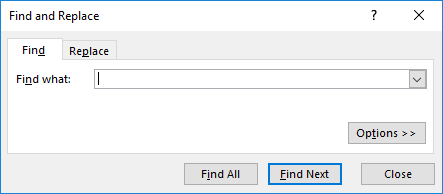
Step 2: Now, we must insert “.xlsx” and click on “Find All.”
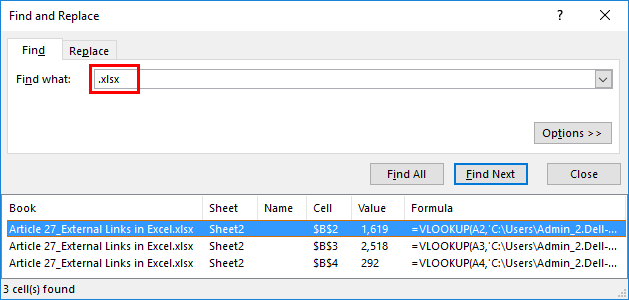
It will show all the external link cells.
Method #3: Using the Edit Link Option in Excel
It is the most direct option we have in Excel. It will highlight only the external link, unlike methods 1 and 2. We can edit the link in Excel, break, or delete and remove external links in this method.
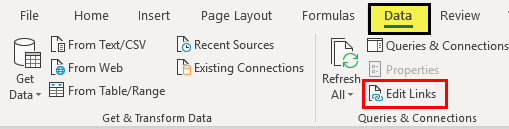
The “Edit Links” option in Excel is available under the “Data” tab.
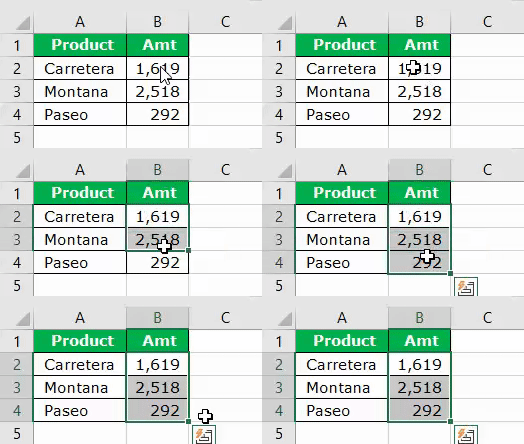
Step 1: We must first select the cells we want to edit, break, or delete the link cells.
Step 2: Now, click on “Edit Links” in Excel. There are several options available here.
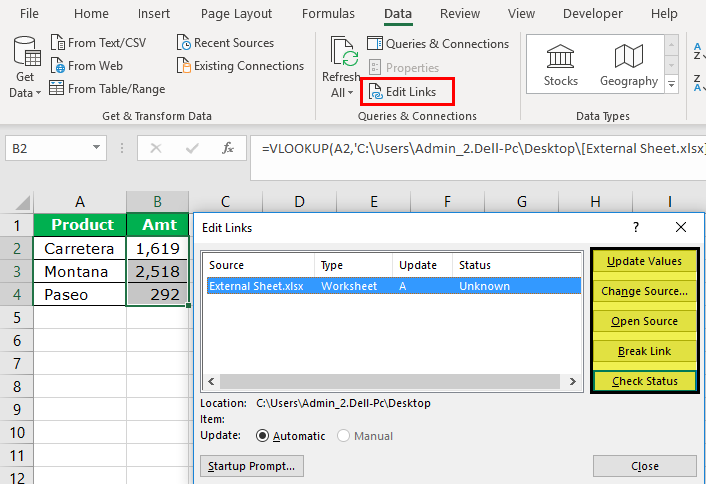
- Update Values: This will update any changed values from the linked sheet.
- Change Source: This will change the source file.
- Open Source: This will open the source file instantly.
- Break Link: This will permanently delete the formula, remove the external link, and retain only the values. Once this is done, we cannot undo it.
- Check Status: This will check the status of the link.
Note: Sometimes, even if there is an external source, these methods would not show anything, but we must manually check graphs, charts, name ranges, data validation, condition formatting, chart title, shapes, or objects.
Things to Remember
- We can find external links by using the VBA code. We must search on the internet to explore this.
- If the external link is given to shapes, we must look for it manually.
- The external formula links will not show the results in the case of SUMIF Formulas in Excel, SUMIFS & COUNTIF formulas. It will show the values only if the sourced file is opened.
- If Excel still shows an external link promptly, we must manually check all the formatting, charts, validation, etc.
- Keeping external links can be helpful in case of auto-updating from the other sheet.
Recommended Articles
This article is a guide to External Links in Excel. Here, we discussed types of links, dealing with external links, finding, editing, and removing external links in Excel, and Excel examples and downloadable Excel templates. You may also look at these useful functions in Excel: –