

Excel VBA Switch Case
Switch Case or Select Case is a statement available in VBA to conduct logical tests where it works as an alternative to the IF-THEN statement in VBA. Using a Switch Case, we can conduct multiple logical tests and arrive at results based on multiple results.
Below is the syntax of the Switch Case/Select Case statement.
Code:
Select Case < Logical Test > Case 1 < Logical Test > Value if Case 1 Test is TRUE Case 2 < Logical Test > Value if Case 2 Test is TRUE Case 3 < Logical Test > Value if Case 3 Test is TRUE Case Else Value if none of the above cases are TRUE End Select
< Logical Test >: What is the logical test? We need to enter the test here.
Case 1, Case 2: We need to test multiple logical tests in excel in each case.
How to Use VBA Switch Case Statement?
Example #1
In cell A1 we have entered the value as 550.
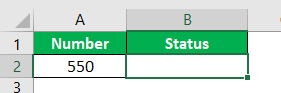
We will test this number using switch case statements and arrive at a “More than 500” status if the value exceeds 500. Else, we will arrive at the status of “Less than 500.”
Open the VBA Sub procedure first.
Code:
Sub Switch_Case()

End Sub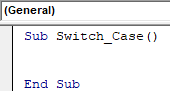
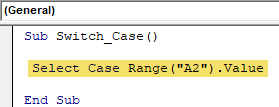
Open Select Case Statement in VBA and supply the logical test Range(“A2”).Value
Code:
Sub Switch_Case()
Range(“A2”).Value
End Sub
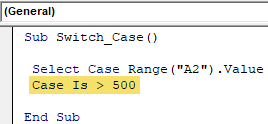
Now, enter the first case as the Case is >500.
Code:
Sub Switch_Case()
Range(“A2”).Value
Case Is > 500
End Sub
If this case is TRUE, what is the result we need in cell B2? i.e., “More Than 500.”
Code:
Sub Switch_Case()

 Select Case Range("A2").Value
  Case Is > 500
   Range("B2").Value = "More than 500"

End Sub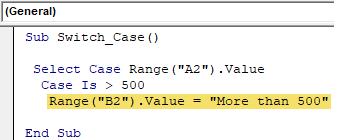
We left with only one result, i.e., Case Else statement. Therefore, if the first Case is FALSE, we need the result as “Less than 500.”
Code:
Sub Switch_Case()

 Select Case Range("A2").Value
  Case Is > 500
    Range("B2").Value = "More than 500"
  Case Else
    Range("B2").Value = "Less than 500"

End Sub
Now, close the statement by using the “End Select” statement.
Code:
Sub Switch_Case()

 Select Case Range("A2").Value
  Case Is > 500
   Range("B2").Value = "More than 500"
  Case Else
   Range("B2").Value = "Less than 500"
 End Select

End Sub
Run the code. We will get the value in cell B2.
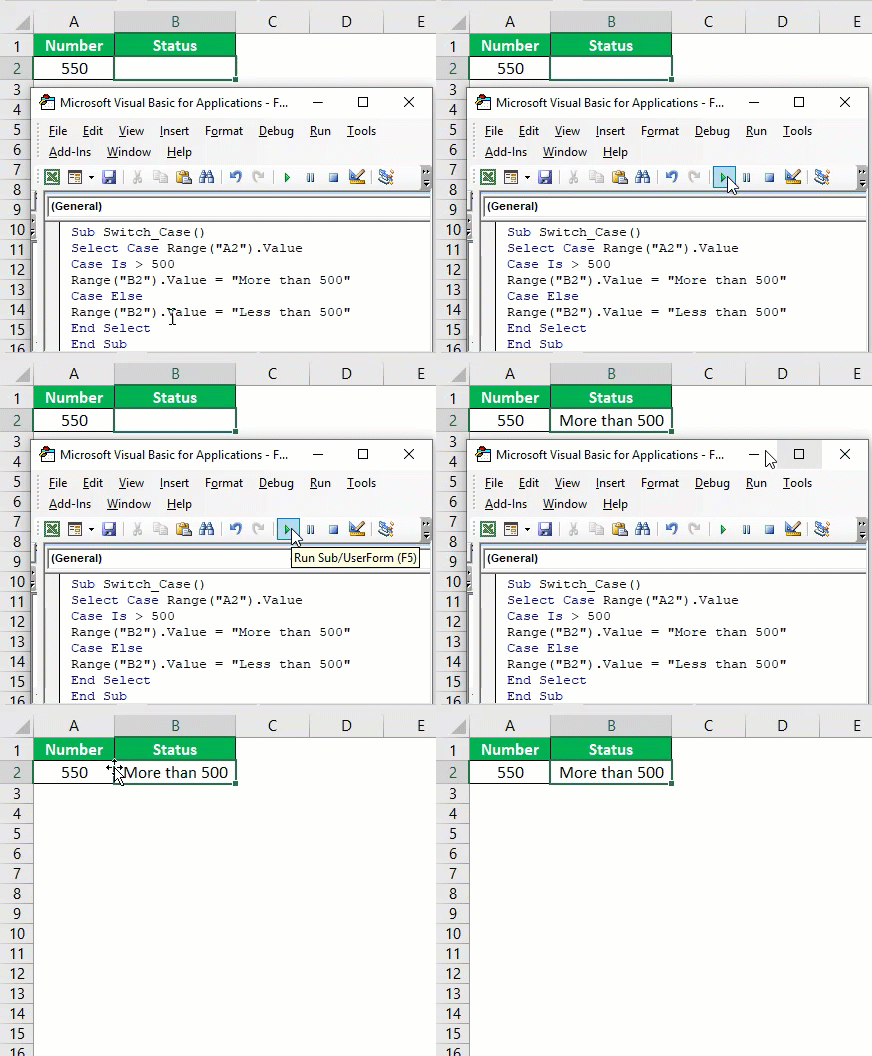
Since the value in cell A2 is greater than 500, we got the result of “More than 500.”
Example #2
Now, we will see using more case examples. Below is the score of the student in the examination.

With this score, we need to arrive at a grade. For that, below is the criteria.
- Score >=85, Grade = “Dist”
- Score >=60, Grade = “First”
- Score >=50, Grade = “Second”
- Score >=35, Grade = “Pass”
- If anything else Grade = “Fail.”
Code:
Sub Switch_Case1()
 Dim Score As Integer

 Score = 65

 Select Case Score
  Case Is >= 85
   MsgBox "Dist"
  Case Is >= 60
   MsgBox "First"
  Case Is >= 50
   MsgBox "Second"
  Case Is >= 35
   MsgBox "Pass"
  Case Else
   MsgBox "Fail"
End Select

End Sub
Run this code. We will get the grade in the message box.

Since the score is more than 60 but less than 85 grade is “First.”
Example #3
We have seen how to find a grade for one student. What about finding a grade for more than one student? Below are the scores of the students.
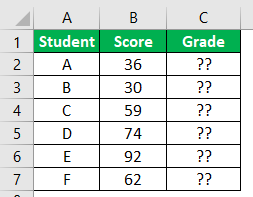
Since more than one student is involved, we need to enclose FOR NEXT loop in VBA. Below is the VBA code.
Code:
Sub Switch_Case2()

 Dim k As Integer

 For k = 2 To 7
  Select Case Cells(k, 2).Value
   Case Is >= 85
    Cells(k, 3).Value = "Dist"
   Case Is >= 60
    Cells(k, 3).Value = "First"
   Case Is >= 50
    Cells(k, 3).Value = "Second"
   Case Is >= 35
    Cells(k, 3).Value = "Pass"
   Case Else
    Cells(k, 3).Value = "Fail"
 End Select
 Next k

End Sub
Run this code. We will get grades.
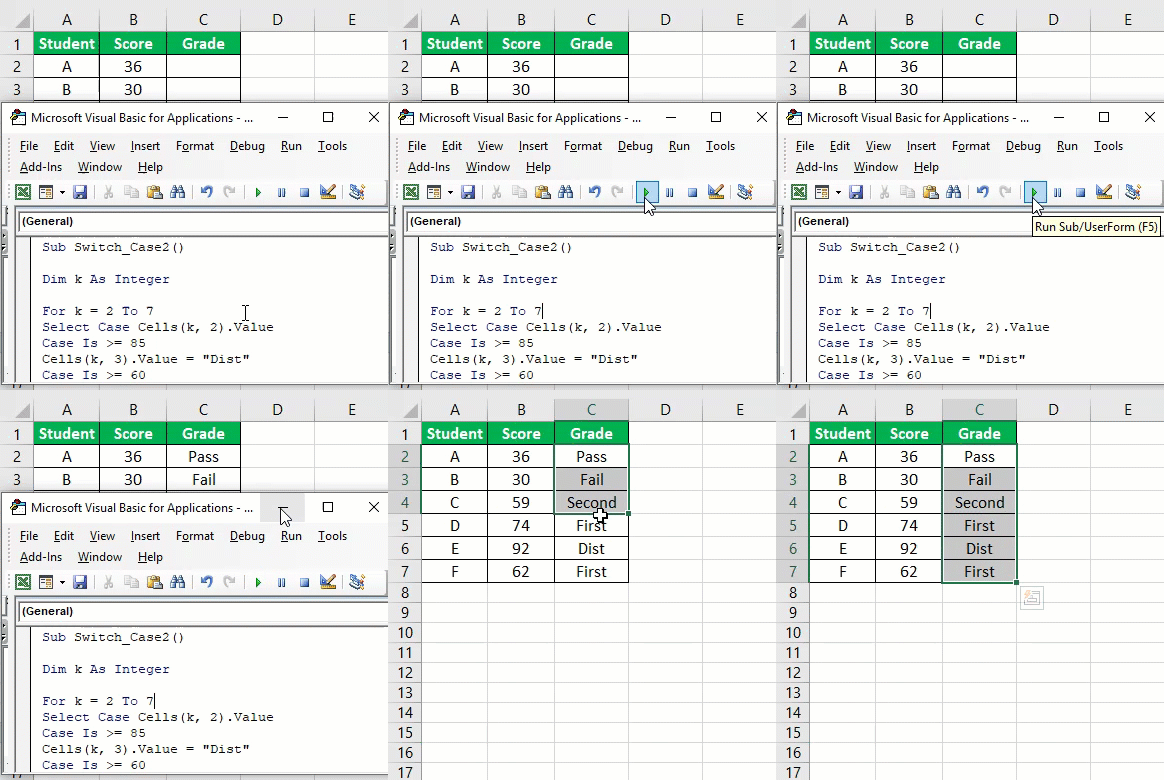
Things to Remember
- Often, Switch Case refers to as “Select Case.”
- The switch is a function, not a statement.
- If no logical tests are TRUE, you can pass the alternative result in the CASE ELSE statement and always close the statement with the “END SELECT” word.
Recommended Articles
This article is a guide to VBA Switch Case. Here, we discuss switching-case statements in Excel VBA, examples, and downloadable Excel templates. Below are some useful articles related to VBA: –