

Excel VBA Project Password
If a developer wants to hide the project’s code from the other users, VBA has provided us with a tool. Using this tool, we can password protect single or multiple projects. When we right-click on a “Project,” we get an option for “VBAProject Properties.” So, for example, we can password protect the project in the protection segment.
When exposing the high-level code to the user or reader, all they have to do is to copy the code and start using it. So, it is better to protect your code with a password.

How to Password Protect the VBA Project?
Like how we password protect a worksheet and workbook similarly, we can password protect the VBA codes we have written.
Follow the below steps to password protect your project.
Step 1: Create a simple Macro that needs to be protected.
Code:
Sub VBA_Project_Password()

Range("A1").Value = "This is a VBA Projet Password Enabler"

End Sub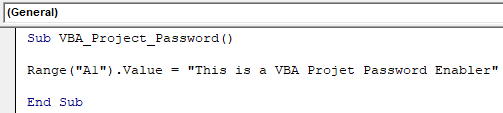
This code will insert the “This is a VBA Project Password Enabler” to cell A1. For example, assume we need to password protect this code.
Step 2: In the “Visual Basic Editor” window, click on the “Tools” tab and choose “VBAProject Properties.”

Step 3: This will open up the “VBAProject – Project Properties” window, which looks like the below one.
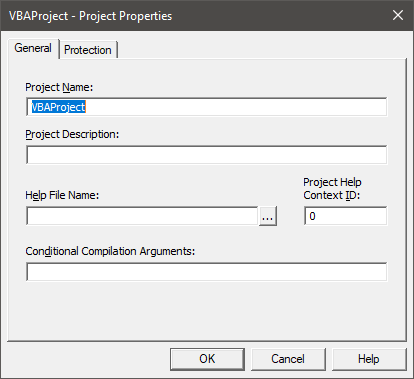
Step 4: In this window, we can give a name to the project.
- We can write a description of the project.
- We can put any other arguments as well.
At the top of this window, we can see two tabs named “General” & “Protection.” Choose “Protection.”

Step 5: In this “Protection,” we need to enter the password we will use to protect the project. But, first, check the box “Lock project for viewing.”

Step 6: Under the “Password to view project properties” section, enter the password and confirm the password once again, then click on “OK” to close the above window.
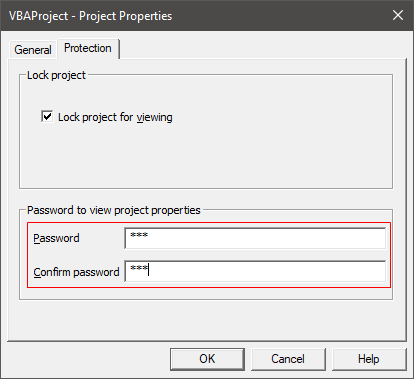
Now, our project is password-protected. So, we need to use the password and see to view the project’s properties like a module, UserForms, and codes written inside the project.
Save the workbook, close it, and reopen it.
Go to Visual Basic Editor, and we can see the below window.
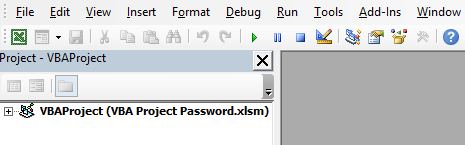
Since this project is locked, we could see nothing. Click on the PLUS icon on the left-hand side.
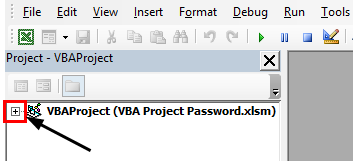
It will ask you to enter the password to see the project’s properties.

We need to enter the password we used while protecting the project.
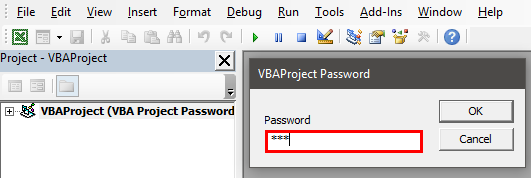
Once entering the password, click on “OK.” Now, we can see the properties like worksheet names, modules, and codes.
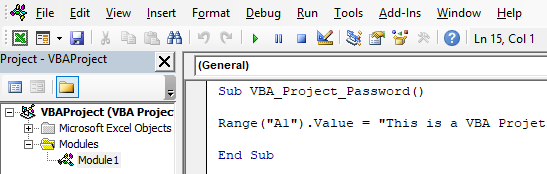
If we enter the wrong password, we will get the “Invalid password” message.

Give Password Input Box to Run the Code
If protecting the VBA project is one thing, then asking the user to enter the password to run the password is a different thing.
The below code will ask the user to enter the password to execute the code.
Code:
Sub VBA_Project_Password()

Dim MyPassword As Variant
Dim Password As String
Password = 123

MyPassword = Application.InputBox("Enter Your Password", "Password Required to Run the Macro")

If MyPassword = Password Then
Range("A1").Value = "This is a VBA Project Password Enabler"
Else
MsgBox "Incorrect Password"
End If

End Sub
It will ask the user to enter the password when executed.

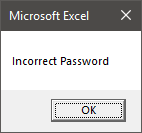
If the password matches, it will execute the task. Else, we will get the message below and exit the Macro.
Things to Remember
- It is hard to recover the document in excel without a project password, so you must be sure of your password.
- We can use third-party add-ins to break the password.
Recommended Articles
This article is a guide to Excel VBA Project Password. Here, we discuss how to protect our VBA code from others with a password, practical examples, and a downloadable Excel template. Below you can find some useful Excel VBA articles: –