

Excel VBA Font Color
VBA Font Color property one may use to change the font color of Excel cells using VBA code. Using the color index and color property with the RGB function, we can change the font color in multiple ways.
When we prepare a dashboard in excel, we usually spend considerable time formatting cells, fonts, etc. Often, we feel like an Excel beautician by looking at the various colors of the Excel formatting. For example, changing the font color in an Excel worksheet is an easy job, but when it comes to Excel, you should know how to writing VBA code to change the font color.
To change the font color, first, we need to identify what cells we are going to change.
Range (“A1:A10”)
Then we need to select the FONT property.
Range (“A1:A10”).Font
Then what do we want to do with this font? So, select color.
Range (“A1:A10”).Font.Color
Like this, we need to construct the code to change the font color. It does not look easy.
But remember, everything seems tough at the beginning. Later you will get the hang of it.
How to Change Font Color using VBA?
Example #1 – Using Color Index
The Color Index property is different from the Color property in VBA. Using numerical values, we can change the color of cells and fonts.
Numbers range from 1 to 56, and each number represents different colors. Below is the list of numbers and their colors.

Let us test this out.
We have a value in cell A1.

We want to change the color of the cell A1 font to green. Below is the code.
Code:
Sub FontColor_Example1() Range(“A1”).Font.ColorIndex = 10 End Sub
It will change the color of the cell A1 font to green.

We can also use the CELLS property to change the color of the font.
Code:
Sub FontColor_Example1() Cells(1, 1).Font.ColorIndex = 10 End Sub
Like this, we can use numbers 1 to 56 to apply the desired color to the font.
Example #2 – Using Color Property
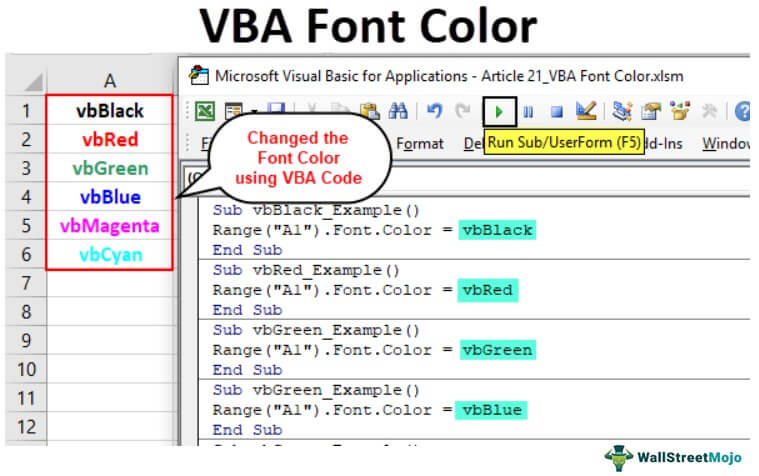
Color Index has very limited colors from 1 to 56, but using the COLOR property, we can use 8 built-in colors: vbBlack, vbRed, vbGreen, vbBlue, vbYellow, vbMagenta, vbCyan, vbWhite.
For these colors, we do not need to supply any numbers. Rather, we can access them using their name, as shown above. Below is the example code for all 8 colors.
Code:
Sub vbBlack_Example() Range(“A1”).Font.Color = vbBlack End Sub
Code:
Sub vbRed_Example() Range(“A1”).Font.Color = vbRed End Sub
Code:
Sub vbGreen_Example() Range(“A1”).Font.Color = vbGreen End Sub
Code:
Sub vbBlue_Example() Range(“A1”).Font.Color = vbBlue End Sub
Code:
Sub vbYellow_Example() Range(“A1”).Font.Color = vbYellow End Sub
Code:
Sub vbMagenta_Example() Range(“A1”).Font.Color = vbMagenta End Sub
Code:
Sub vbCyan_Example() Range(“A1”).Font.Color = vbCyan End Sub
Code:
Sub vbWhite_Example() Range(“A1”).Font.Color = vbWhite End Sub
Example #3 – Using Color Property with RGB Function
We have seen that we have only 8 built-in colors to work with. But we need to use the RGB function to have various colors. Besides built-in colors, we can create our colors by using the VBA RGB function.
Look at the syntax of the RGB function.
RGB (Red, Green, Blue)
RGB stands for “Red, Green, and Blue.” Therefore, we need to supply numbers from 0 to 255 for each color to construct colors.
Below are a few examples for you.
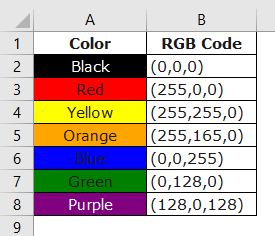
Below are some of the macro code examples
Code:
Sub RGB_Example() Range(“A1”).Font.Color = RGB(0, 0, 0) ‘Change the font colour to black End Sub
Code:
Sub RGB_Example() Range(“A1”).Font.Color = RGB(16, 185, 199) ‘Font color will be this End Sub
Code:
Sub RGB_Example() Range(“A1”).Font.Color = RGB(106, 15, 19) ‘Font color will be this End Sub
Code:
Sub RGB_Example() Range(“A1”).Font.Color = RGB(216, 55, 19) ‘Font color will be this End Sub
Recommended Articles
This article has been a guide to VBA Font Color. Here, we learn how to change the font color by using the VBA color index, color property with RGB function along with examples, and download an Excel template. Below are some useful Excel articles related to VBA: –