

How to Print Comments in Excel?
To print comments in Excel, we need to go to the “Print” section from the “Files” tab and “Page Setup” tab, where we may find any options to print comments and where we want to display them, whether on the end of the sheet or as they are present in the sheet.
Methods to Print Comments
There are two ways to print our handy comments in Excel and the report.
- Using an Excel “Page Layout” option.
- Using print preview method in Excel.
Again, there are a couple of options to print the comments. We can print the comment at the end of the page or as displayed on the worksheet.
#1 Print Comments using Excel Page Layout Option
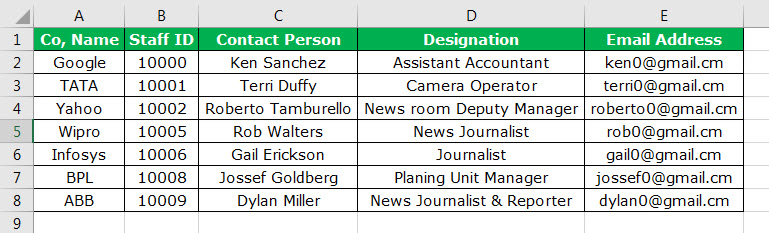
Assume you have the report below in your Excel sheet and want to print the comments using the page layout option.
If there are a lot of comments, it is better to print all the comments at the end of the sheet. Printing all the comments in Excel after the rest of the data will eliminate overlapping of the crucial cell comments when the details are displayed.
We need to do some settings tuning to get this done.
Print the comments at the end of the Excel sheet
Below are the steps for printing comments at the end of the Excel sheet:
- Your data should be like this.
If you look at the cells from E2 to E8, it contains some comments in it. A little red mark indicates that the cells have comments in them.For printing the comments at the end of the excel sheet, comments should appear by default. Otherwise, it will print the comments as shown in the sheet.
- Now, go to “Page Layout,” then “Page Setup,” and click on the little arrow mark.
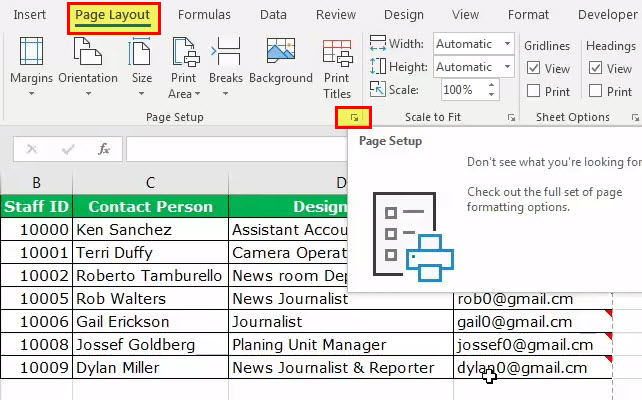
- Click on the bottom right expand arrow to open the dialog box below.
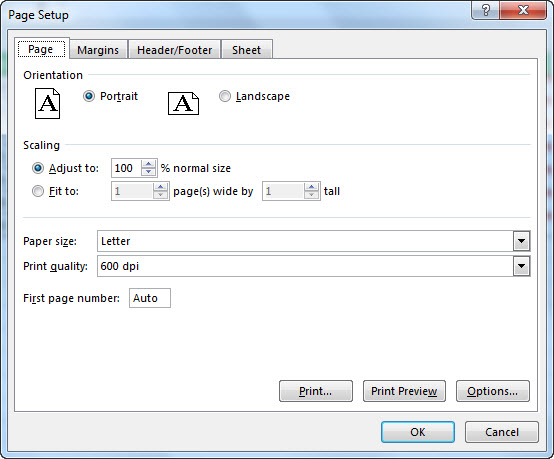
- Now, go to the “Sheet” tab and click on it.

- After clicking on the “Sheet” tab, select the “At the end of the sheet” option under the “Comments” section.
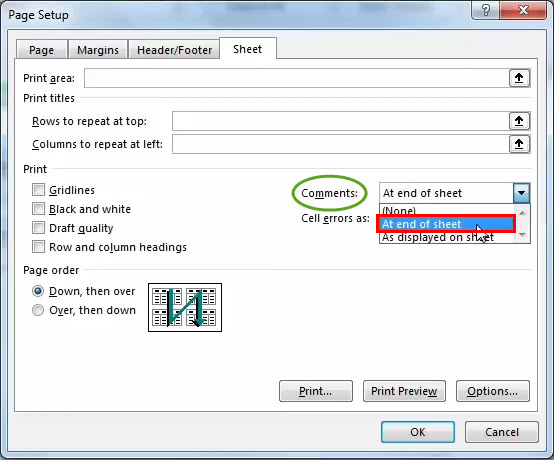
- Once the “At the end of sheet” option is selected, click on the “Print” option.

- Once the “Print” option is selected, it will take you to the “Print Preview” section.
It will print the report on the first page. Then, on the second page, it will print all the comments. And the final output will be as per the below image.
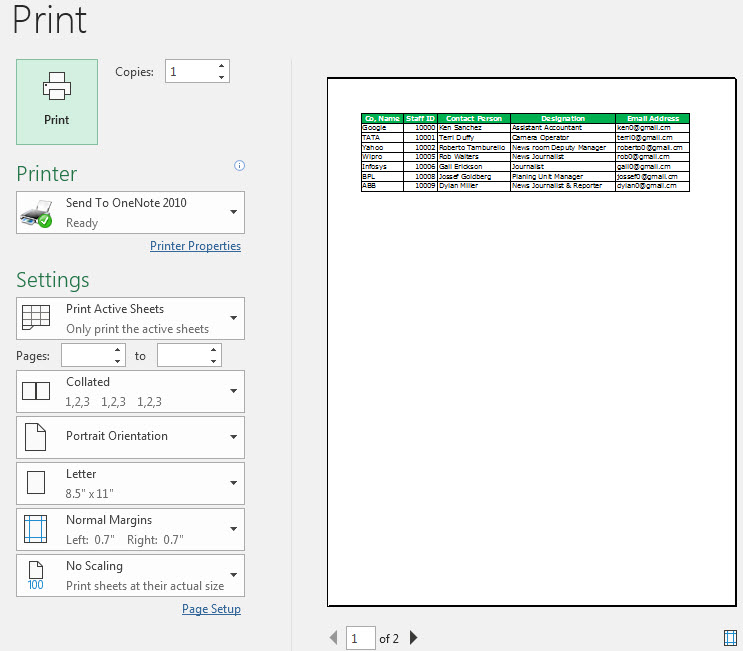
Print the Comments as Shown in the Active Window
In the last example, we have seen printing all the cell comments at the end of the sheet. Instead, we can print the comments referring or pointing to the cell itself. For this, we need to select the other option in step 5.
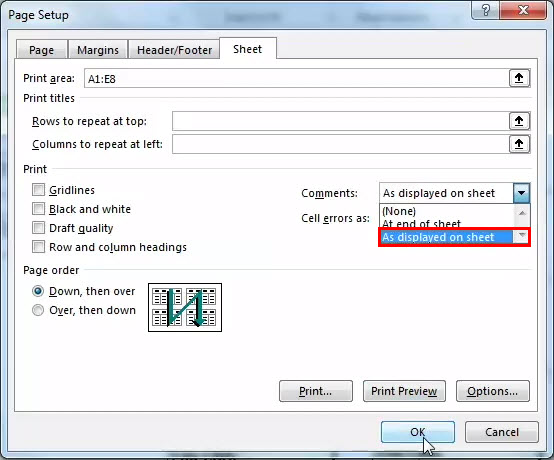
After this, click on the “Print” option to open the “Print Preview” dialog box. Next, click on the “Print” option to get the print, and the print will be as shown in the below image.
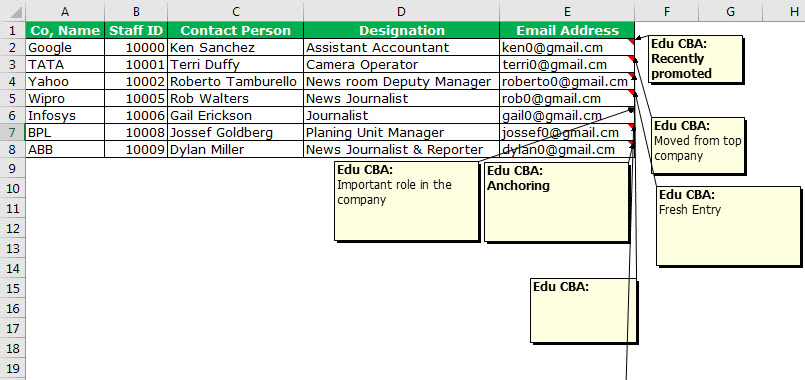
#2 Using Print Preview Method
In the last example, we have printed the comments using a “Page Layout” option. We can also print the comments using the “Print” option. It is very similar to the last method but instead of going for “Page Layout,” select the “Print option” (Ctrl + P).
- Step 1: Go to “File” and select the “Print” option.

- Step 2: Once you click on the “Print” option, it will open the below window and click on Page Setup.
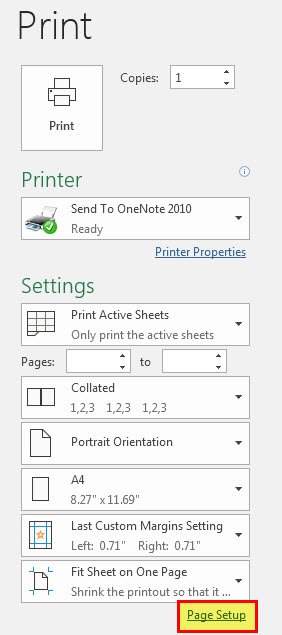
- Step 3: This will open the page, set up a dialog box, and select the “Sheet” tab.

- Step 4: After clicking on the “Sheet” tab, choose the “At the end of sheet” option under the “Comments” section.
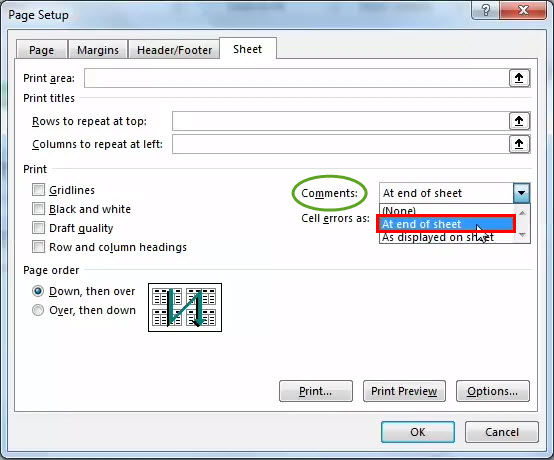
- The “At the end of sheet” option will print the comments at the end of the sheet.
- The “As displayed on sheet” option can print as shown in the Excel sheet.
- The option “None” will print anything.
Recommended Articles
This article is a guide to Print Comments in Excel. Here, we discuss two ways: 1) Using the “Page Layout” option. 2. Use the print preview method, examples, and downloadable Excel template. You may also look at these useful functions in Excel: –