

What Is Percentage Difference In Excel?
The Percentage Difference in Excel calculates the difference between two values, such as the existing value and the new value, and compares to see if there is an increase or decrease in the percentage value. Since Excel doesn’t provide an inbuilt formula to find the Excel Percentage Difference, we can construct or build formulas as required that helps users calculate the change among the various percentage in excel.
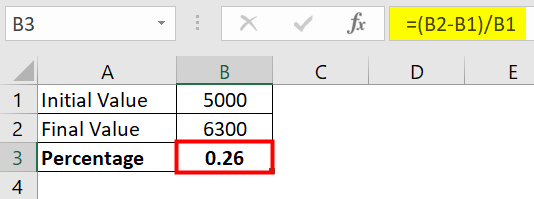
For example, when we have the initial and the final values in the dataset, we can calculate the percentage change in cell B3 using the formula =(B2-B1)/B1, to get the following output.
Key Takeaways
- The Percentage Difference in Excel compares two values to find the difference between them, i.e., if the change value is a positive number, then there is indicates an increase, and if it is a negative value, then it indicates a decrease
- We do not have an inbuilt function, so we can build formulas to find the difference between the percentages, such as,
How To Calculate Percentage Difference In Excel?
Excel doesn’t provide a built-in formula to calculate the Percentage Difference in Excel.
However, we can create formulas to find the percentage change with some scenarios, such as,
- Percentage Increase/Decrease in Excel among the Columns.
- Percentage Change among the Rows.
- Output is reduced by a certain Percentage.
- Percentage Increase/Decrease Between Two Numbers.
Examples
We will consider some examples to calculate the Percentage Difference in Excel.
Example #1 – Percentage Increase/Decrease in Excel among the Columns
Below is the data to find the increase/decrease of percentage among the columns.

The steps to find percentage increase/decrease in Excel are,
- We can easily calculate the change in the percentage of column 1 in Excel by using the difference function.
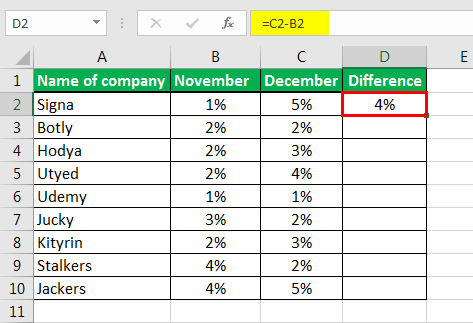
- Now, drag the plus sign to change the percentage of all columns in Excel.

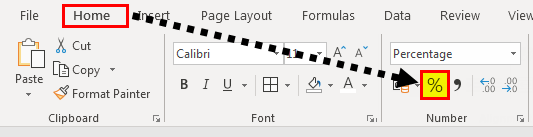
- If the resulting value is not formatted as a percentage, then we can format that cell and get the value in percentage. For formatting, go to the “Home” tab “Number” percentage.
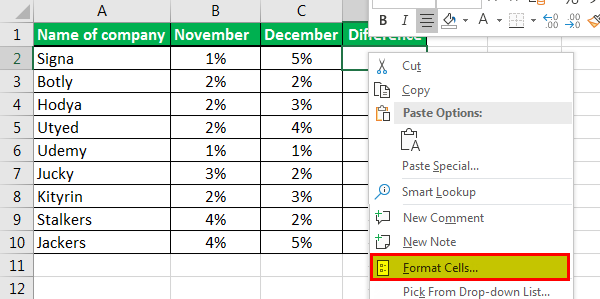
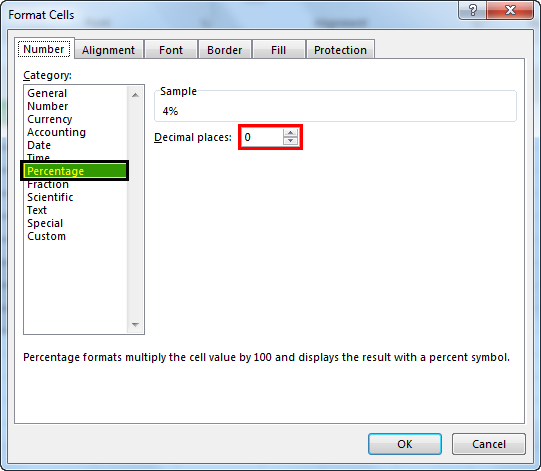
- If we do not need the decimal in percentage, then we can also choose to hide them. Use the “Format Cells” option.
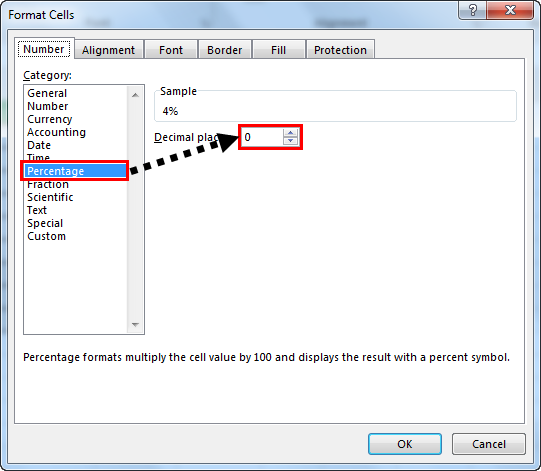
- In the “Format Cells” window, turn the decimal count to zero instead of 2. It will turn the decimal points off for the percentages.
Example #2 – Percentage Change among the Rows
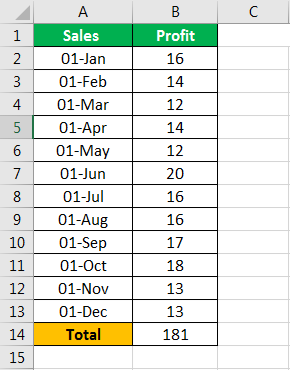
In this case, we will calculate the change in data if the data is presented vertically.
- Insert the function given below data that will calculate the percentage for the last row value and then subtract the resultant value from the percentage of the next value.
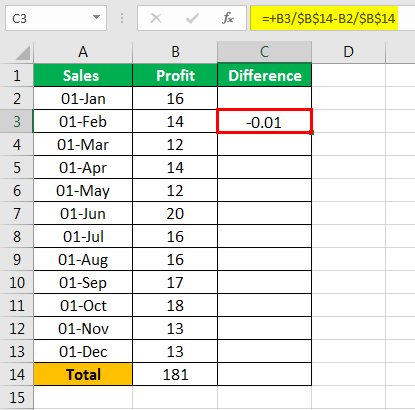
- Use the following formula to calculate the difference –
“Value of prior row/Total value – value of next row/total value”
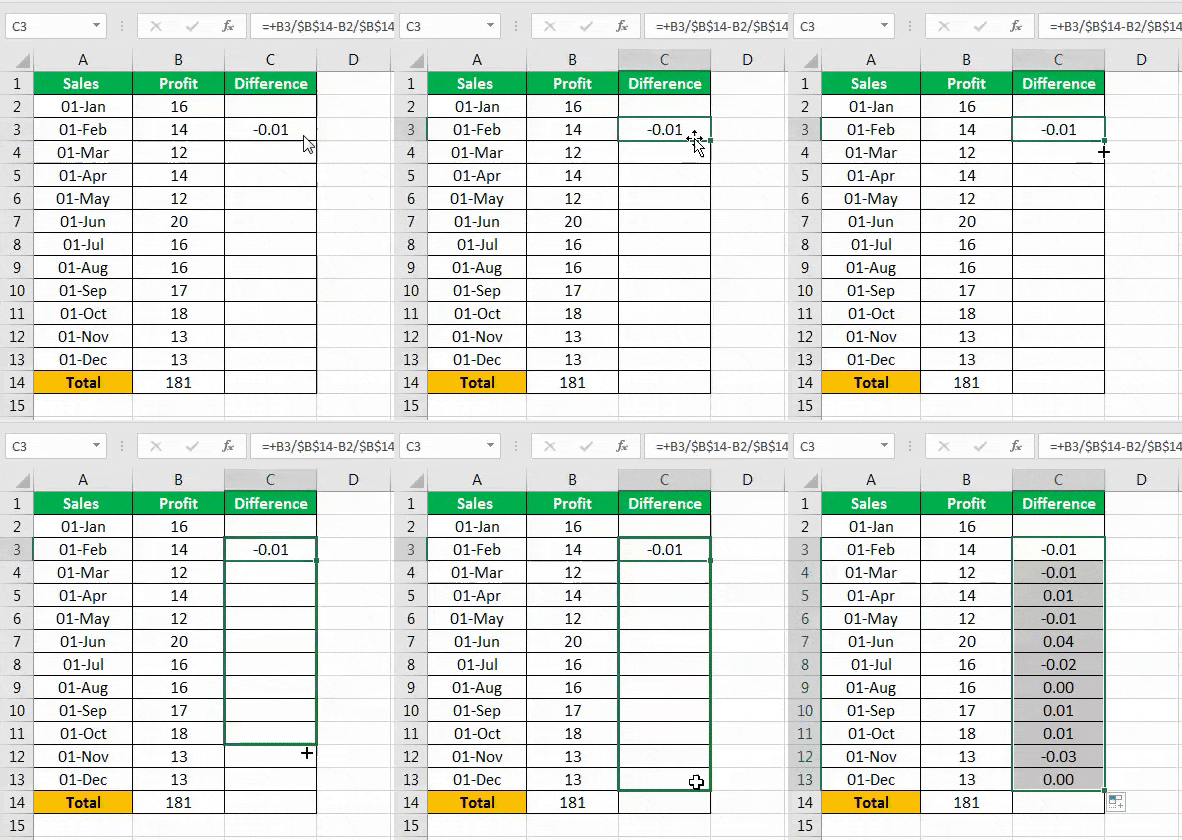
- Now, drag the plus sign to get the rows’ difference.
- The next step is to format the result as a percentage from the format cell option. First, select cells from the difference column, right-click them, and select the “Format Cells” option.

- In the “Format Cells” window, select “Percentage” and change “Decimal place” to 0.
- Then, the result will look like the following.

Example #3 – Output is reduced by a certain Percentage
Not only can we calculate the change between the two percentages, but we can also calculate the amount that will result if there is a certain percentage decrease.
- Use the following data to see the reduction in output by a certain percentage.

- Develop a formula that will reduce the amount by said percentage. The formula will be Amount*(1-reduction required)

- Reduction in the output by a certain percentage for all values will be as follows:

Example #4 – Percentage Increase / Decrease Between Two Numbers
We can also show the change between two amounts as a percentage in Excel.
It means that we can choose to show how much of the amount has been reduced.
- Use the following data to find a percentage difference between the two numbers.
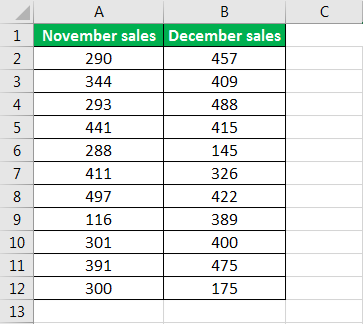
- Develop a function that will calculate the change and then calculate the percentage. The formula is (New Amount-Old Amount)/Old Amount.

- The percentage difference between the two numbers will be:

Important Things To Note
- If we subtract two percentages, then the result will be a percentage.
- If we are formatting a cell as a percentage, then the value of the cell first needs to be divided by 100
- Typing .20 or 20 in a cell formatted as a percentage will give the same result as 20%.
- If we insert a value that is less than 1 in a cell that is to be formatted as a percentage, then Excel will automatically multiply it by 100.
Frequently Asked Questions (FAQs)
How to open the “Format Cells” window to custom the Percentage format?
There are various methods to open the Format Cells window, namely,
• Method 1 → Simply press the shortcut key “Ctrl+1”.
• Method 2 → Select the “Home” tab → go to the “Number” group → click the “Number Format” option drop-down → select the last option “More Number Formats…”, as shown below.

• Method 3 → Right-click on any cell, and select the “Format Cells…” option from the list, as shown below.

• Method 4 → Select the “Home” tab → go to the “Number” group → click the “Number Format” box, i.e., the small box at the bottom right of the “Number” group, as shown below.

Give any other alternate formulas to calculate the Percentage Difference in Excel.
A few other alternate formulas to calculate the Percentage Difference in Excel are,
• =(New Value – Old Value) / Old Value
• =(New Value / Old Value) – 1
Why is the Percentage Difference in Excel not working?
A few reasons the Excel Percentage Difference may not work are,
• We have entered the formula incorrectly, or the brackets are not in the proper place.
• There are non-numeric values, blank and empty cells for the cell reference in the formula.
• The data is modified, or deleted after the calculation is done.
Do we have a Percentage Formula to calculate the Percentage Difference?
Excel doesn’t provide an inbuilt formula, as the Percentage is not a function or a mathematical expression, instead, it is a format. However, we can use the following ways to change the numeric cell value or the result of a formula to the Percentage format, namely:
• Home tab and the keyboard shortcut Alt + H, N, and P.
• Home tab – Percent Style icon or its keyboard shortcut Alt + H and P or Ctrl + Shift + %.
• Format Cells window.
#Home tab or the keyboard shortcut Alt + H, N, and P →
The Percentage in Excel is available in the “Home” tab → “Number” group → “Number Format” option drop-down → “Percentage” option, as shown below.

We can also apply the keyboard shortcut Alt + H, N, and P to use the above option and find a Percentage in Excel.


#Home tab – Percent Style icon or its keyboard shortcut Alt + H and P or Ctrl + Shift + % →
We can use the Percent Style icon in the “Home” tab → “Number” group → “Percent Style” option, as shown below.

And the keyboard shortcuts to access this option are Alt + H and P or Ctrl + Shift + %.
#Format Cells – It is discussed in FAQ 1.
Recommended Articles
This article is a guide to Percentage Difference in Excel. Here we find Percentage change, increase or decrease, format, examples, downloadable excel template. You can also go through our other suggested articles: –