

What Are The Header And Footer In Excel?
The header and footer are the document’s top and bottom portions, respectively. Similarly, Excel also has options for headers and footers. They are available in the “Insert” tab under the “Text” section. Using these features can provide us with two different spaces in the worksheet, one on the top and one on the bottom.

As we can see in the screenshot above, there are four sections under header and footer tools: “Header & Footer,” “Header & Footer Elements,” “Navigation,” and “Options.” This toolbox appears after clicking “Insert”→ “Header & Footer.”
- The headers and footers in Excel help meet the standard representation format of the documents or worksheets.
- It is available in Insert tab under Text function in Excel.
- We can also use the shortcut keys, Alt +V+H to create header and footer.
- Headers and footers in Excel add a sense of organization to the soft documents.
- In Excel, we can add various options to be put up as header/footer text, such as “Date,” “Time,” “Sheet Name,” “File Name,” “Page Number,” “Custom Text,” etc.
How To Add A Header And Footer In Excel?
Following are the steps for creating a header in Excel:
- First, click the worksheet where we want to add or change the header. Then, go to the “Insert tab” -“Text” group – “Header & Footer.”

- Clicking on it would open a new window, as shown below.

- As shown in the screenshot below, “Header & Footer Tools” has a “Design” tab containing various text options to put as the header. The default is an empty text box wherein we can enter a free text, e.g., “This is the header text.” The other options are “Page Number,” “Number of Pages,” “Current Date,” “Current Time,” “File Path,” “File Name,” “Sheet Name,” “Picture,” etc.

Adding A Footer In Excel
- We must first click the worksheet where we want to add or change the header. Then, go to the “Insert” tab → “Text” group → “Header & Footer.”
- Clicking on it would open a new window, as shown. As shown in the screenshot below, “Header & Footer Tools” has a “Design” tab containing various text options to put as the header. The default is an empty text box wherein you can enter a free text, e.g., “This is the Footer text.” The other options are “Page Number,” “Number of Pages,” “Current Date,” “Current Time,” “File Path,” “File Name,” “Sheet Name,” “Picture,” etc.

How To Remove Header And Footer In Excel?
- We must first launch the “Page Setup” dialog box from the “Page Setup” box under the “Page Layout” menu.

- Then, go to the “Header/Footer” section.
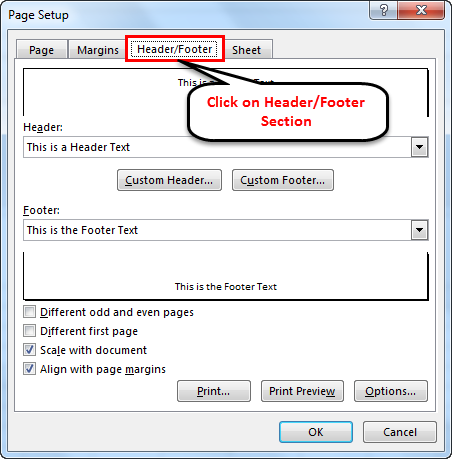
- Select ‘none’ for “Header” and/or “Footer” to remove the respective feature.

How To Put Custom Text In Excel Header?
In the following example, “This is the Header Text” is the custom text entered in the “Header” box. The same will reflect on all the pages in the worksheet.
The “Header Text Editor” can be closed by pressing the “Escape” key on the keyboard.

How To Assign Page Number In Excel Footer Text?
The figure shows that a page number can be entered as the footer text. Refer to the screenshot below to understand the same.
In the following example, “Page [&page] Of [&page]” is the text entered in the “Footer” box. Here, the “&[Page]Of” is a dynamic parameter that evaluates the page number. The first parameter is the current page number, and the second is the total number of pages. The same will reflect on all the pages in the worksheet.
To give page numbers to a sheet, we must click on a sheet, go to “Footer,” click on the “Design” tab under “Header & Footer Tools,” and select “Page Number.”

After “Selecting Page Numbers,” it will display as “&[Page]Of,” as shown in the below screenshot.

To show page numbers with total numbers of pages, we must click on the number of pages under the “Design” tab in the “Header & Footer” tool.
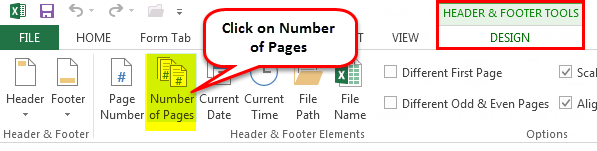
After selecting the number of pages, it will add “&[Page] Of &[Pages].
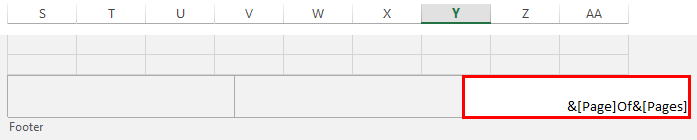
Then it shows the page number with the number of pages.

The “Footer Text Editor” can be closed by pressing the “Escape” key on the keyboard.
Note: In addition to the above-explained examples, the other options for header/footer text made available by MS Excel are “Date,” “Time,” “File Name,” “Sheet Name,” etc.
Important Things To Note
- Header and Footer in Excel is a worksheet section appearing at the top and bottom of each Excel sheet or document page.
- We can add page no., date, title, chapter name, etc. in header and footer.
- The headers and footers in Excel help us stay organized.
Frequently Asked Questions (FAQs)
1. What is header and footer in Excel?
• A header in excel: A worksheet section appears at the top of each Excel sheet or document page. It remains constant across all the pages. For example, it can contain page no., date, title, chapter name, etc.
• Footer in Excel: A worksheet section appears at the bottom of each page in the Excel sheet or document. It remains constant across all the pages. It can contain page no., date, title, chapter name, etc.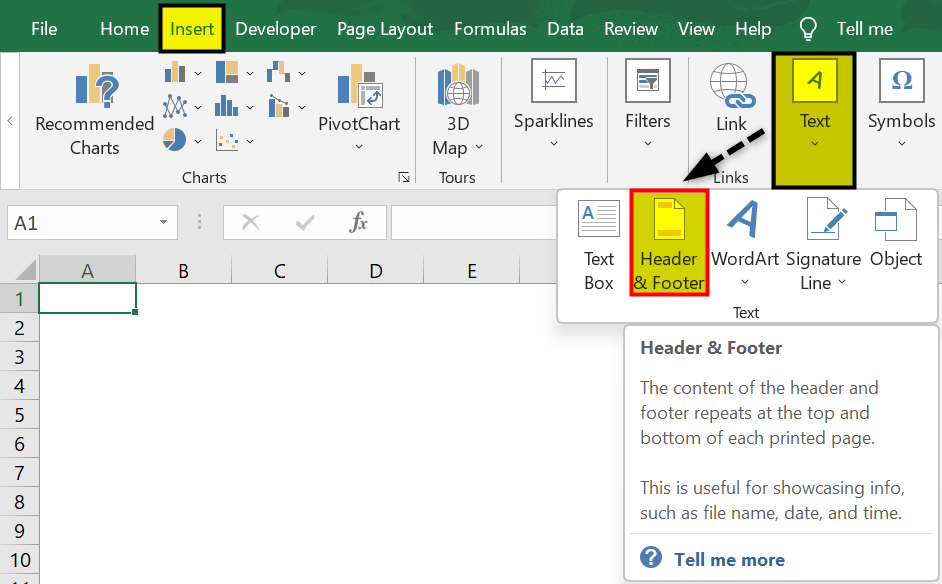
2. What is the purpose of Header and Footer in Excel?
The purpose is similar to that of hard copy documents or books. The headers and footers in Excel help meet the standard representation format of the documents and/or worksheets. In addition, they add a sense of organization to the soft documents and/or worksheets.
For example, we can create header and footer by clicking on Insert → Text → Header & Footer options. As soon as we select Header & Footer option, we can find header and footer in Excel as shown below.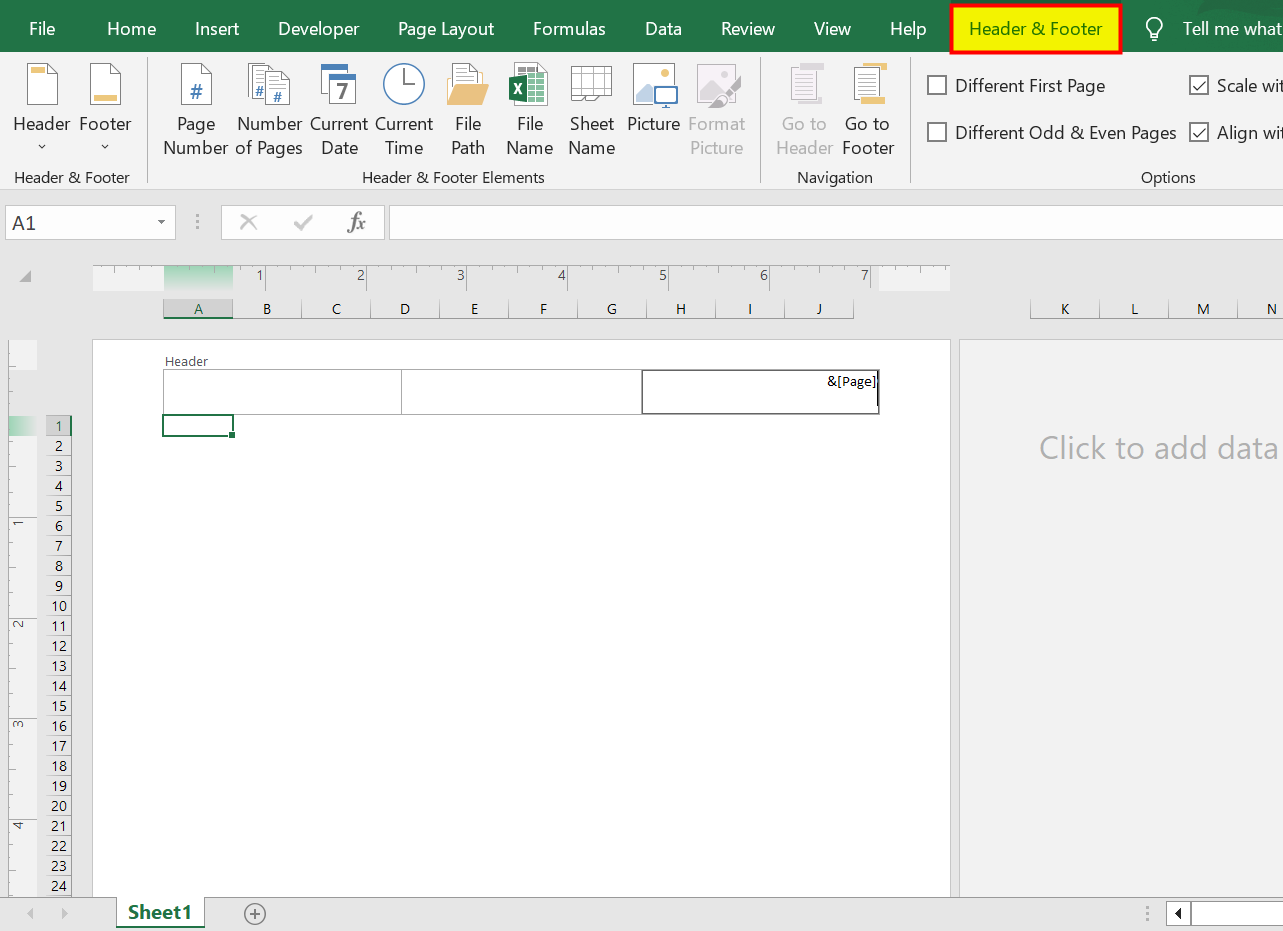
3. What are the options in header and footer section?
1) Header & Footer – This shows a list of the quick options as a header or footer.
2) Header & Footer Elements – This has options for the text to be used as a header or footer, such as “Page Number,” “File Name,” “Number of Pages,” etc.
3) Navigation – It has two options: “Go to Header” and “Go to Footer,” which navigates the cursor to the respective area.
4) Options – It has two options related to putting up the header and footer conditionally: Different on the first page and Different on Odd & Even page. The other two options are regarding the formatting of the excel page. One is to scale the header/footer with the document. The other is to align the header/footer with page margins.
Recommended Articles
This article is a guide to Header and Footer in Excel. Here, we discuss creating and removing the header and footer in Excel, practical examples, and a downloadable Excel template. You may learn more about Excel from the following articles: –