

What Is F-Test In Excel?
F-test in Excel is a statistical tool that helps us decide whether the variances of two populations having normal distribution are equal or not. F-test is an essential part of the Analysis of Variance (ANOVA) model.
F-test is performed to test a null hypothesis and gives an independent variable as the result. The sample data used in F-test is not dependent. F-tests can evaluate multiple models simultaneously in a large variety of settings.
Key Takeaways
- The F-Test is used to compare the variances of two data sets and see if they are significantly different.
- You can perform the F-Test using the F-test option through the Data Analysis Toolpak.
- A low F-Test result (closer to 0) suggests that the variances are likely different, while a result closer to 1 suggests they are similar.
- The F-Test is commonly used in hypothesis testing to test assumptions about variability.
How To Enable F-Test In Excel?
The steps to enable F-test in Excel are listed as follows:
Enable the “Analysis ToolPak Add-In” in your worksheet to use the F-test. In Excel, click on “File” at the extreme left and go to “Options” given at the end.
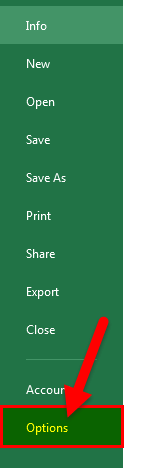
After clicking on “Options,” select “Add-Ins” on the left side. Select “Excel Add-ins” in the Manage box and click “Go.”

In the “Add-Ins” dialog box, click “Analysis Toolpak” and click “Ok.”

Now, the “Data Analysis” tool will be added to the right side of the Data tab on the Excel ribbon.

How To Do F-Test In Excel?
The steps to perform F-test in Excel are listed as follows:
- Step 1: The data used in the F-test analysis is shown in the following image.

In the Analysis Toolpak workbook, you can practice the analysis of the F-test.
- Step 2: In the Data tab on the Excel ribbon, click on “Data Analysis.”

- Step 3: After clicking on “Data Analysis,” a dialog box opens. Click on F-test and click “Ok” to enable the function.

- Step 4: Enter the range of variable 1 and variable 2. To do this, select the range of cells B3:B14 for variable 1 and C3:C14 for variable 2.
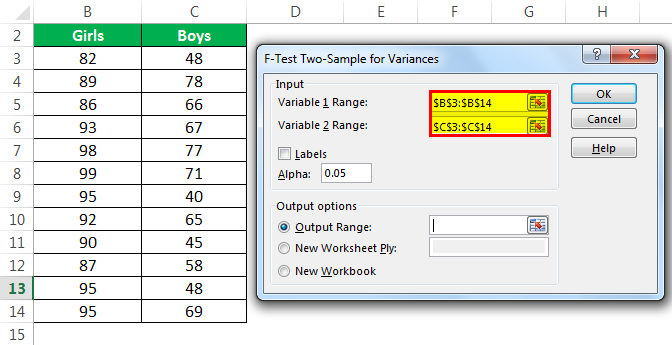
- Step 5: Select the “Output Range.”
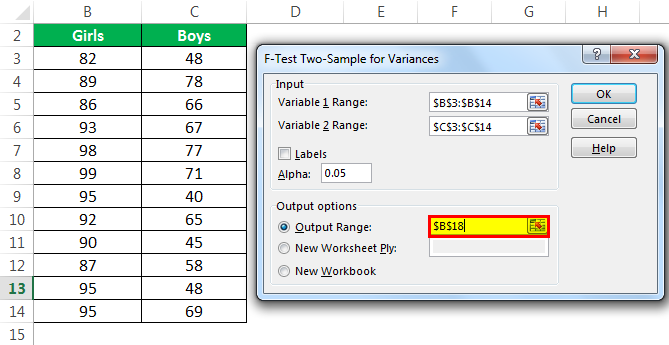
- Step 6: Click “Ok” and the analysis of data appears in the selected cell.

The Working Of F-Test
The following points will help learn more about the F-test function:
- The F-test is used where we need to figure out whether a critical distinction between the variances of two datasets exists or not.
- The null hypothesis is rejected if the variances of the two datasets are unequal and accepted if the variances are equal.
- The F-test calculates the probability or the likelihood of variation.
- The F-test shows an error if:
- The number of values of array 1 or array 2 is less than two.
- The variance of either of the two arrays is equal to zero.
- The F-test cannot be processed on a single sample meaning that two datasets are required.
- The F-test function ignores the text of sample data and gives numbers as the outcome.
The Examples Of F-Test
Some instances where the F-test can be used are listed as follows:
- To analyze the quality of lecture of two professors teaching the same subject.
- To test two samples of bottle gourd in two different experimental conditions.
- To analyze the scores of two groups in the same field.
If you need more detailed information on the F-test, you can check out our F-test article here.
Frequently Asked Questions (FAQs)
What is the difference between T-Test and F-Test?
The differences between the two tests are listed as follows:
- A T-test is used to determine whether a significant difference between the means of two datasets exists or not. In contrast, the F-test is used to determine whether the variances of two datasets are equal or not.
- A T-test suggests if a single variable is statistically significant, while F-test suggests if a group of variables are jointly significant.
- The null hypothesis used in a T-test is that the means of two populations are equal. In contrast, the null hypothesis used in F-test is that the variances of two populations are the same.
- The degree of freedom (df) in the T-test is “n-1,” where “n” is the number of sample values. On the other hand, the degree of freedom in the F-test is “n1-1, n2-1,” where “n1” and “n2” are the number of observations in sample 1 and sample 2.
What is F Statistic in F-Test?
The F statistic or F value is calculated from the data while performing F-test. The F statistic is a ratio of the variances of the two samples. The F statistic is compared with the F critical value to determine whether the null hypothesis may be supported or rejected.
If the F value is greater than the F critical value, the null hypothesis is rejected. F-tests and F statistics are used to test regressions terms, regression models, equality of means, and so on.
What is the P-value in F-Test?
The P-value is the probability estimate used in combination with the F statistic to analyze the overall results of the F-test. To accept or reject the null hypothesis, the P-value is compared with the significance level (denoted by alpha).
The P-value is the probability that the results could have happened by chance. For instance, a P-value of 0.01 implies that there is a 1% probability that the results occurred by chance. The individual P values are studied to observe which individual variable is statistically significant.
If the P-value is greater than the significance level, the null hypothesis is accepted. If the P-value is less than the significance level, the null hypothesis is rejected.
Recommended Articles
This has been a step-by-step guide to F-test in Excel. Here we discuss how to perform F-test along with practical examples and a downloadable Excel template. You may learn more about Excel from the following articles –