

What Is Convert Text To Numbers In Excel?
Convert Text to Numbers in Excel is a feature where we convert a cell with text, or strings, to the pre-set Excel numeric values to perform arithmetic calculations.
Excel Text To Numbers Conversion is important because some calculations may not execute or return errors, since they may be a numerical string, i.e., numeric values formatted as text.
Key Takeaways
- The Convert Text to Numbers in Excel helps users totransform an existing numeric string to a proper numeric value because we cannot use a numeric string that looks like a number but is formatted as text to perform mathematical calculations.
- We can perform the conversions using the error handle box that appears on the incorrect output cell, and selecting the “Convert to Number” option.
- Other ways to Convert Text to Numbers are using the Paste Special and Text to Column methods, and by using the VALUE function.
How To Convert Text To Numbers In Excel?
We can Convert Text to Numbers in Excel using the following ways, namely:
- Using quick convert text to numbers Excel option.
- Using Paste special cell formatting method.
- Using the Text to Column Method.
- Using the VALUE function.
Examples
We will consider some examples for Convert Text To Numbers In Excel using the above-mentioned methods.
Example #1 – Using Quick Convert Text to Numbers Excel Option
It is probably the simplest of ways in Excel. Many people use the apostrophe ( ‘ ) before entering the numbers in Excel.
The steps toConvert Text to Numbersare,
- We must first select the data.
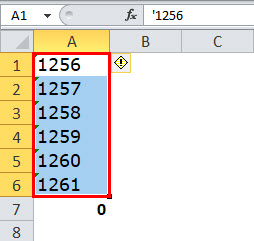
- Then, click the error handle box, and select the “Convert to Number” option.

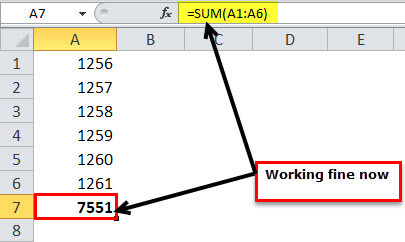
- That would instantly convert the text-formatted numbers to number format, and now the SUM function works well and shows the accurate result, as shown below.

Example #2 – Using Paste Special Cell Formatting Method
Another way to change the text to numbers is using the Paste Special method. Again, consider the same data we used in the previous example. The steps are,
- Step 1: : First, we must type either 0 or 1 in any cell.

- Step 2: Now, copy that number. (We have entered the number 1 in cell C2).

- Step 3: Now, we must select the numbers list.

- Step 4: Now, we must press ALT + E + S (Excel shortcut key for the Paste Special method). That will open up the below dialog box. Select the multiply option. (We can try to divide also).
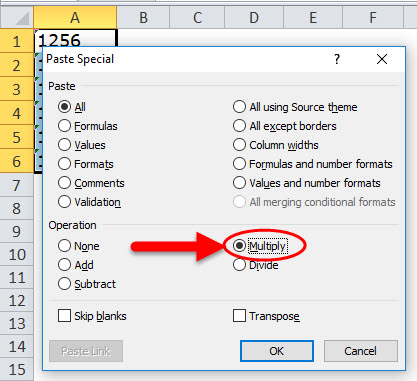
- Step 5: As a result, it would instantly convert the text to numbers, and the SUM formula is working well now, as shown below.

Example #3 – Using the Text to Column Method
It is the third method of converting text to numbers. It is a bit lengthier process than the earlier two, but having as many alternatives as possible is always good. The steps are,
- Step 1: We must first select the data.

- Step 2: Then, click the “Data” tab and the “Text to Columns” option.
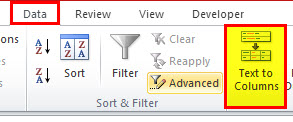
- Step 3: As a result, it will open up the below dialog box and ensure “Delimited” is selected. Click on the “Next button.”
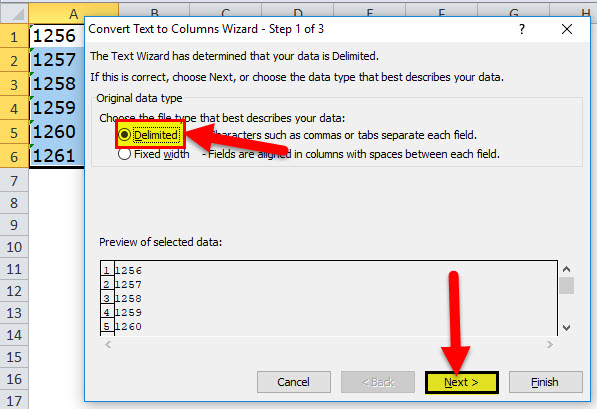
- Step 4: We must ensure the “Tab” box is checked and click on the “Next” button.

- Step 5: In the next window, we must select the “General” option, select the destination cell, and click the “Finish” button.

- Step 6: Consequently, this would convert text to numbers, and SUM will work, as shown below.
Example #4 – Using the VALUE Function
In addition, a formula can Convert Text to Numbers in Excel. The VALUE function can perform the job for us. We must follow the below steps to learn how to do it.
- Step 1: First, we must apply the VALUE formula in cell B1.

- Step 2: We must drag and drop the formula into the remaining cells.

- Step 3: Then, apply the SUM formula in cell B6 to check whether it has converted or not.

The output is shown above.
Important Things To Note
- If we find the green triangle button in the cell, there must be something wrong with the data.
- The “Text to Column” can also correct dates, numbers, and time formats.
Frequently Asked Questions (FAQs)
Where is the VALUE function in Excel found?
To insert the VALUE function, use the following path.
First, choose an empty cell → select the “Formulas” tab → go to the “Function Library” group → click the “Text” option drop-down → select the “Value” function, as shown below.

Why does Convert Text to Numbers in Excel not working?
The Convert Text to Numbers in Excel may not work for the following reasons,
• The cell value is a numeric value formatted as text, or the output cell is not in the number format.
• In the VALUE function, we have given a cell range instead of the cell value or one single cell reference, because the function accepts only one argument at a time. Once we get the right output, we can then drag the formula for the rest of the cells to fix the errors.
What is the use of the VALUE function in Excel Text to Numbers Conversion?
• The VALUE function is used to convert the text string that represents a number to a number.
• If spacing problems exist, we nest the VALUE function with the TRIM function.
For example, =Trim(Value(A1))
Recommended Articles
This article is a guide to Convert Text to Numbers in Excel. Here we use Error handler, text to column, PASTE special, VALUE, examples & downloadable template. You may also look at these useful functions in Excel: –