

Comma Style Formatting in Excel
The comma style is a formatting style used in visualizing numbers with commas when the values are over 1,000. Such as, if we use this style on data with a value of 100,000, then the result displayed will be as (100,000). This formatting style can be accessed from the “Home” tab in the number section and click on the 1,000 (,) separator, known as the comma style in Excel.
For example, we have a company’s monthly sales and production dataset without a number format. In such cases, if we need to apply the comma style number format for the positive values, comma style formatting in Excel separates the thousands with a comma. It adds two decimal places at the end and a dash symbol at the zero values. It can also help create the custom number format of our choice. Moreover, it also makes it easier to access and increases readability by setting up data at an industry standard.
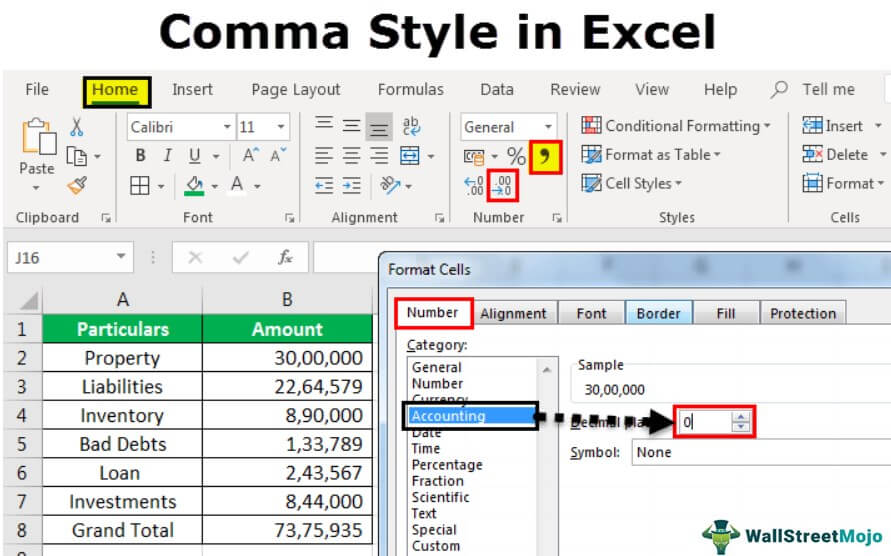
The comma style format (also known as the thousands separator) regularly goes with the “Accounting” format. Like the “Accounting” position, the comma arrangement embeds commas in bigger numbers to isolate thousands, hundred thousand, millions, and all values considered.
The standard comma style format contains up to two decimal points and a thousand separators and locks the dollar sign to the extreme left half of the cell. Negative numbers are shown in enclosures. To apply this format in a spreadsheet, we must feature every cell and click “Comma Style Format” under formatting choices in Excel.
How to Apply Comma Style in Excel (accounting format)?
Lets us start the below steps.
- We must first enter the values in Excel to use the comma number format in Excel.

- We can use accounting Excel format in the Number format ribbon, select the amount cell, click on ribbon home, and select the Comma Style from the Number format column.
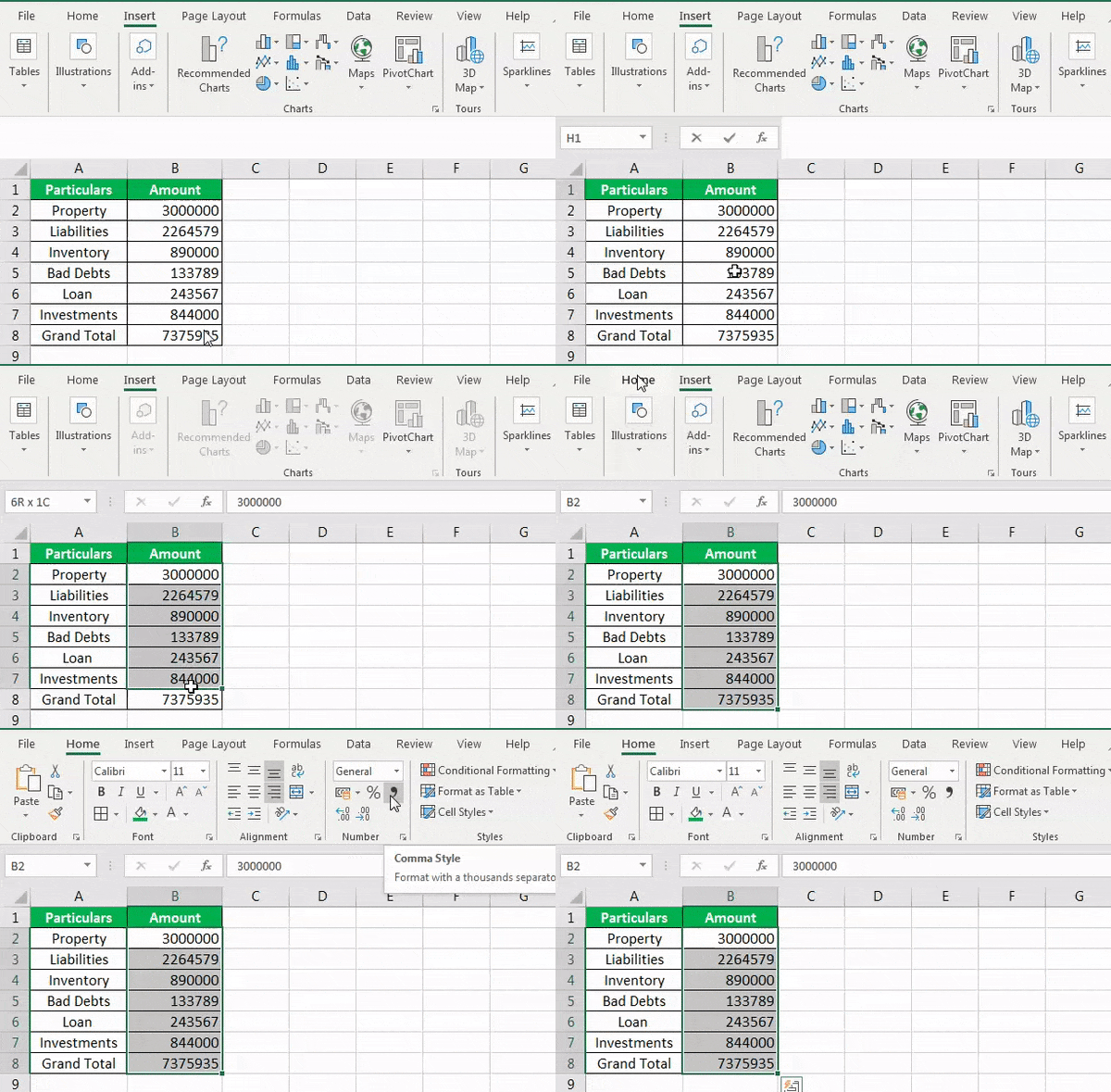
- Once we click on the Comma Style, it will provide the comma-separated format value.

- If we want to remove the decimal, we must click on the icon under Number on Decrease Decimal.
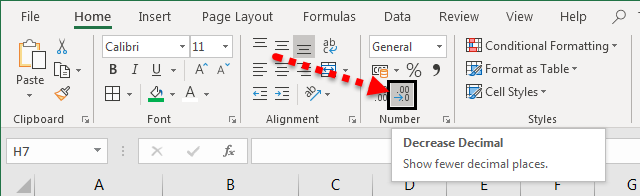
- Once we remove the decimal, we can see below the value without decimals.

- Then, we must select cells under the Amount column. Then, right-click on it, and choose Format Cells. After that, select the Accounting option under the Format Cells. If we do not want the decimal places, we can insert 0 under decimal places. And click on OK.

- Below is the formatted data after removing decimal points.
Excel Shortcuts to Use Comma Style Format
- We must select the cells which need to format.

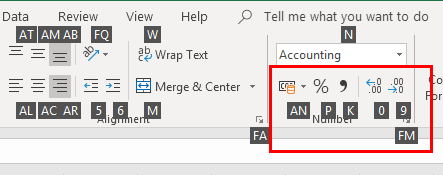
- Press the Alt key that enables the commands on the Excel ribbon.

- Press H to select the Home tab in the Excel ribbon, it enables the Home tab of Excel.
- Press 9 to decrease the decimal, and press 0 to increase the decimal point from values.
- If you want to open the format cells dialogue, press Ctrl+1.
- If you want to show a monetary value without a currency symbol, you can click None under option format cells.
- Like the “Currency” format, the “Accounting” group is utilized for financial qualities. In any case, this arrangement adjusts the decimal purposes of numbers in a section. Likewise, the “Accounting” design shows zeros as dashes and negative numbers in brackets. Like the “Currency” format organizes, we can determine what number of decimal spots we need and whether to utilize a thousand separators. We cannot change the default show of negative numbers except if we make a custom number organization.
Advantages
- It helps to format the number when we are dealing with currency.
- It provides help in showing the correct value with commas.
- It is just a one step process.
- It is very easy and convenient to use.
Disadvantages
- It always enables the number format with a thousand separators.
- It provides the decimal points of two places while using this function.
Things to Remember
- Rather than choosing a range of cells, we can likewise tap on the letter over a column to select the whole column or the number next to a column to select an entire row. We can likewise tap the little box to one side of “A” or above “1” to choose the whole spreadsheet at once.
- We must always check and remove it if we do not need a comma.
- Decimal is also the user’s choice if they want to put a decimal in values or not.
- A custom Excel number format changes just the visual representation. For example, how value is shown in a cell. The basic value put away in a cell is not changed.
- The comma Excel format is a default option to show numbers with a comma in the thousands place and includes two decimal places (Eg: “13000” becomes “13,000.00). It may also enable us to change the visible cell styles in an area of the ribbon to easily select different options for comma and display format as required in our sheet.
Recommended Articles
This article is a guide to Comma Style in Excel. We discuss Comma Style in Excel format with shortcut keys, Excel examples, and a downloadable Excel template. You may learn more about Excel from the following articles: –