

What Is Cheat Sheet Of Excel Formulas?
Cheat Sheet of Excel Formulas is a one-point destination customized sheet, so to speak, for Excels most important or frequently used formulas. It contains a list of Excel’s inbuilt formulas, shortcuts, and instructions to combine two or more functions, for easy access and use.
Different Excel formulas with respective examples are explained in the article below, and it focuses on TEXT, STATISTICAL, DATE & TIME, MATHEMATICAL functions, and many more.
Key Takeaways
- The Cheat Sheet of Excel Formulas acts like an index or dictionary that helps us use the frequently or commonly used formulas, functions, and keyboard shortcuts, to use easily.
- The Cheat Sheet also contains the Keyboard Shortcuts that come in handy
- when it’s hard to remember the path that leads to perform those specific functions on the Excel ribbon. It also helps to save time and increase productivity.
- As per our requirement, we can introduce or add as many formulas or functions, such as Text, Statistical Functions, Date & Time,Mathematical Functions, and shortcuts.
Excel Formulas For Cheat Sheet
The Excel Formulas for Cheat Sheet available are as follows:
- Text Functions in Excel
- Statistical Functions in Excel
- Date and Time Functions in Excel
- Mathematical Functions in Excel
Different Excel Formulas with respective examples are explained below.
#1 – Text Functions in Excel
MS Excel offers a variety of string functions. Some Excel formulas cheat sheet is given below. The table contains the function’s name, meaning, syntax, example, and explanation.
| Sr. No | Function | Meaning | Syntax | Example | Explanation |
|---|---|---|---|---|---|
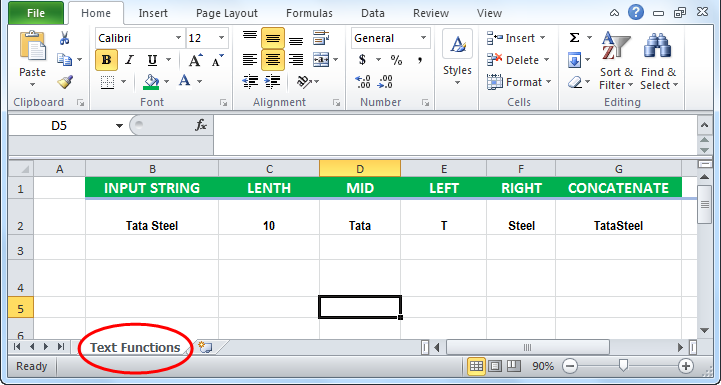
| 1 | LEFT function in Excel | Returns the specified number of characters from the left of the string | LEFT (string, no_of_characters) | =LEFT(B2,1) | Where B2 is the cell containing the text. |
| 2 | RIGHT function in Excel | Returns the specified number of characters from the right of the string | RIGHT (string, no_of_characters) | = RIGHT (B2,5) | Where B2 is the cell containing text. |
| 3 | MID function in Excel | Returns the specified number of characters from the string starting from the given position | MID (string, starting_position, no_of_characters) | =MID (B2, 1,4) | Where B2 is the cell containing text, 1 is the starting position, and 4 is the number of chars to be retrieved. |
| 4 | LEN | Returns the number of characters in the given string | LEN (String_to_be_measured) | =LEN(B2) | Where B2 is the cell containing text. |
| 5 | CONCATENATE function in Excel | Merges two given strings to form one | CONCATENATE (String1, String2…, StringN) | =CONCATENATE (D2, F2) | Where D2 and F2 are the cells to be concatenated. |
The above-explained Cheat Sheet of Excel Formulas examples is implemented in the Excel worksheet shown in the following screenshot.
#2 – Statistical Functions in Excel
MS Excel offers a variety of statistical functions. Some Excel formulas cheat sheet is given below. The table contains the function’s name, meaning, syntax, example, and explanation.
| Sr. No | Function | Meaning | Syntax | Example | Explanation |
|---|---|---|---|---|---|
| 1 | AVERAGE | Returns the average of the series of values given | =AVERAGE (Value1, Value 2…, ValueN) | =AVERAGE (B2:B5) | Value1,.., value is the range of values |
| 2 | MIN | Returns the minimum value from the given range of cells. | =MIN (Value1, Value 2…, ValueN) | =MIN (B2:B5) | Value1…, valueN is the range of values |
| 3 | COUNT | Returns the number of cells fitting the given criteria of a range of worksheet cells. | =COUNT (Value1, Value 2…, ValueN) | =COUNT (B2:B5) | Value1…, valueN is the range of values |
| 4 | COUNTA | Returns the number of non-empty cells fitting the given criteria of a range of worksheet cells. | =COUNTA (Value1, Value 2…, ValueN) | =COUNTA (B2:B6) | Value1…, valueN is the range of values |
| 5 | MAX | Merges two given strings to form one | =MAX (Value1, Value 2…, ValueN) | =MAX (B2:B5) | Value1…, valueN is the range of values. |
The above-explained Cheat Sheet of Excel Formulas examples is implemented in the Excel worksheet shown in the following screenshot.
Excel Best Practices For Using Cheat Sheets Of Excel Formulas
| Follow this Best Practice | By doing the following: |
|---|---|
| Easily change the type of reference | To switch between relative, absolute, and mixed references: 1. Select the cell that contains the formula. 2. Select the reference you want to change in the formula bar. 3. Press F4 to switch between the reference types.. |
| Quickly copy formulas | To enter the same formula into a range of cells, select the range you want to calculate, type the formula, and press Ctrl + Enter. For example, if you type =SUM (A1:B1) in range C1:C5 and then press Ctrl+ Enter, Excel enters the formula in each range, using A1 as a relative reference. |
| Use Formula Autocomplete | For easily creating the formulas, and to reduce typo or syntax errors, we must use Formula Autocomplete. For example, when we type = (equal sign) and the first letter of the functions name, Excel displays a list of inbuilt functions that start with that alphabet. |
| Use Function ScreenTips | When we get confused with the function or the formulas arguments, we can use the function ScreenTip or the argument prompts, that pops up when we type the function name and open brackets. Then, click the function name to view the Help topic on the function, or click an argument name to select the corresponding argument in your formula. |
Important Things To Note
- The formulas entered in the Cheat Sheet must be with the correct syntax. Else, we may get an error when using it for calculations.
- When we use the shortcuts or formulas from the sheet, we must remember the sheet is for our reference. Therefore, look up the required details and use them, but never copy-paste.
Frequently Asked Questions (FAQs)
Name some common Basic Excel formulas included in Cheat Sheet of Excel Formulas.
Some of the Basic formulas one may use commonly in Excel are:
• SUM – Finds the total of the selected numeric cell values.
• AVERAGE – Finds the total of the selected numeric cell values.
• MAX – In a selected numeric cell range, it finds the Maximum cell value.
• MIN – In a selected numeric cell range, it finds the Minimum cell value.
• COUNT – In a selected numeric cell range, it counts only the cells with numeric values.
What are the steps to merge cells in Excel?
Please note to merge cells,
• The cells should be blank or empty, else we may lose data.
• The cells should be adjacent, either to the right, left, top, or bottom.
Next, follow the path given below to merge cells in Excel:
First, choose the cells we want to merge – select the “Home” tab – go to the “Alignment” group – click the “Merge & Center” option, as shown below.

If we want the merged alignment elsewhere to keep the text aligned to the left or right, we have a few other options when we click the “Merge & Center” option drop-down, such as “Merge Across” or “Merge Cells”, and choose as desired, as shown below.

Finally, the selected cells will merge into one cell. If there were any text in the original cells, it would appear centered in the new merged cell.
Name some Ctrl shortcuts found in the Cheat Sheet of Excel Formulas.
Some Ctrl shortcuts that may be found in the Cheat Sheet are:
• Ctrl+S – It helps us save the changes while working on Excel.
• Ctrl+X – It helps us cut data either to remove/delete, or to paste it elsewhere.
• Ctrl+C – It helps us copy the data either to move, or to paste it elsewhere.
• Ctrl+V – It helps us paste the data that was just cut or copied.
• Ctrl+Z – It helps us undo the data just added.
• Ctrl+Y – It helps us redo the data that was just undone.
• Ctrl+S – It helps us save the changes while working on Excel.
• Ctrl+Shift+=: It helps us to insert a new column/row into the worksheet.
Recommended Articles
This article is a guide to Cheat Sheet of Excel Formulas. We discuss commonly used formulas, shortcuts, saved in cheat sheet, examples & downloadable template. You can learn more about Excel from the following articles: –