

NOT Function in Excel
The NOT Excel function is a logical function in Excel called the negation function. It negates the value returned through a function or a value from another logical function. This built-in function in Excel takes a single argument: the logic, which can be a formula or a logical value.
For example, suppose we inserted the Excel NOT function in the dataset and conducted the logical test. As a result, it may return the opposite of a given logical or Boolean value. Suppose one value is TRUE, NOT function returns as FALSE. And when the given value is FALSE, NOT function may return TRUE. The NOT function can reverse a logical value.
Syntax
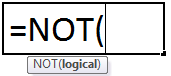
Compulsory Parameter:
- Logical: The numeric value 0 is considered “False,” and the rest of the values are considered “True.” Logical is an expression that either calculates the TRUE or FALSE if it returns TRUE if the expression is FALSE and returns FALSE if the expression is TRUE.
Examples
Example #1
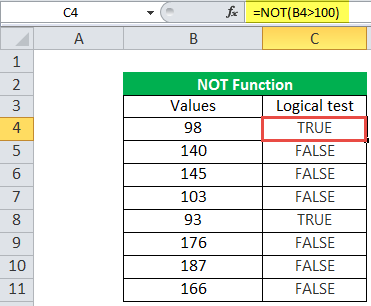
We must check which value is greater than 100; then, we can use the NOT function in the Logical test column. It will return the reverse return if the value is greater than 100, then it will return FALSE, and if the value is less than or equal to 100, it will return the TRUE as output.
Example #2
Let us consider another example wherein we must exclude the color combination red and blue from the toy data set. Then, we can use the NOT function to filter out this combination. But, again, the output will be TRUE because the color is red here.
Example #3
Let us take the employee data wherein we must find the bonus amount for employees who did the extra task and no bonus for those who did not perform the additional task, and employees get ₹100 for each extra task.
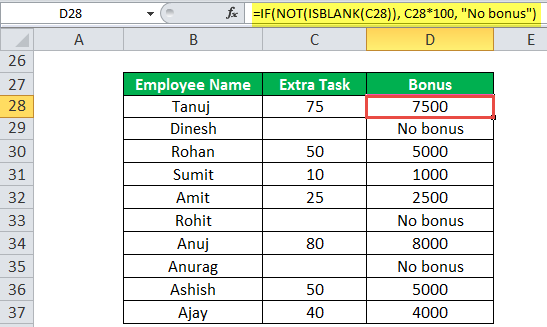
The output will be = ₹7500 as it will first check for a blank entry in a cell. If not empty, it will multiply the extra task and 100 to calculate the bonus unlocked by the employee.
Example #4
Suppose we have to check colors, such as for the example below, we have to filter out the toy name with the color blue or red from the given data set.
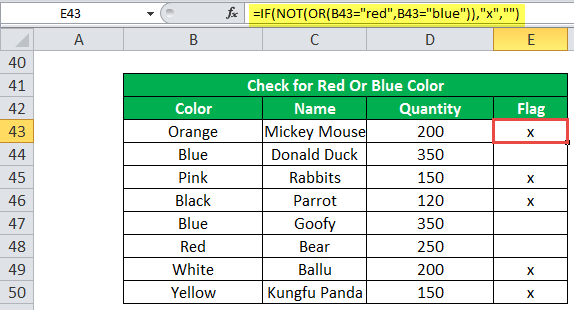
First, this will check the condition if the color column contains any toy with blue or red if the condition is TRUE, then it will return blank as output; if not TRUE, it will return x as output.
Recommended Articles
This article is a guide to NOT Function in Excel. We discuss using the NOT Excel function, examples, and downloadable Excel templates. You may also look at these useful functions in Excel: –